59
Contents
Preparation/
Setup
Print Using a
Computer
Appendix
IndexPrint/SaveInput/Edit
Names of
Components
Maintenance/
Printer Settings
Trouble-
shooting
Setting the Cut Length Settings for All Pages.
You can set the Cut Length settings (Cut Length and Alignment) for all pages at once.
1
Press the [Length/Margin] key.
2
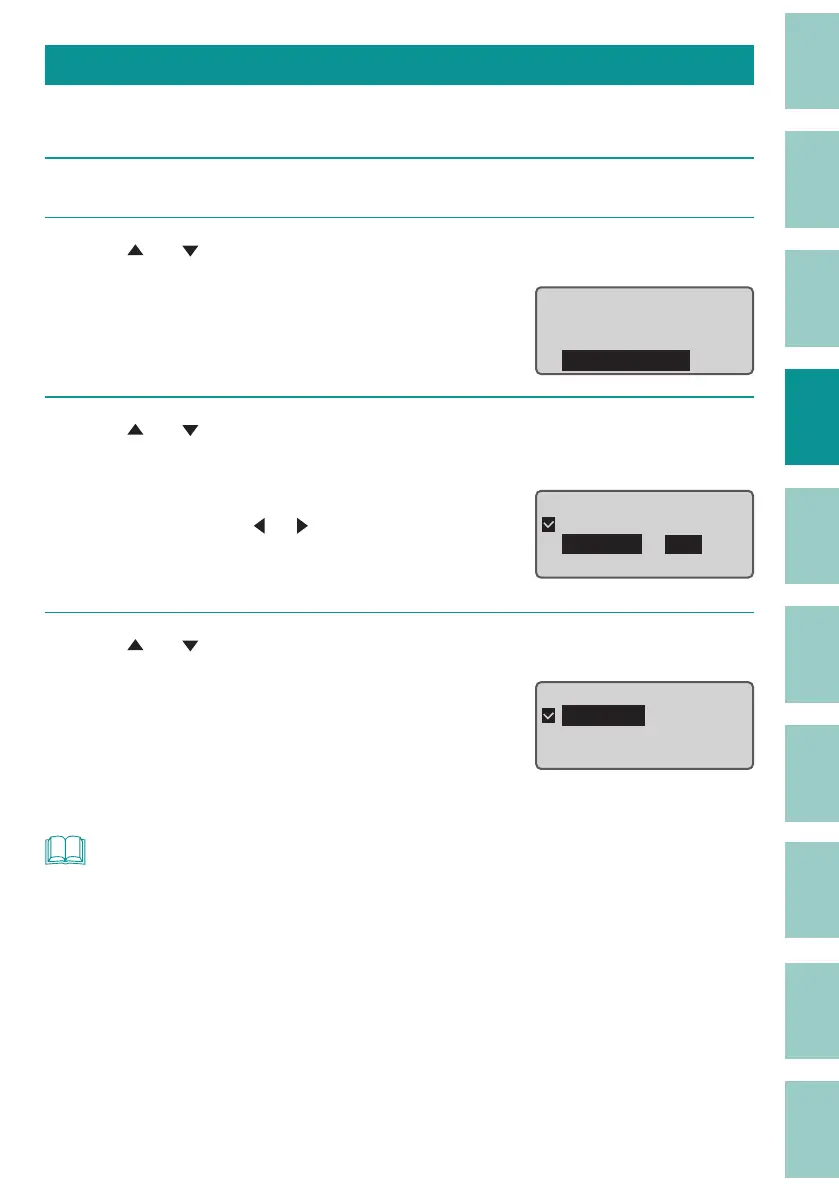
Use [ ] or [ ] to select " Batch Setting," and press the [Enter] key.
The cut length setting screen will appear.
Cut Length
Cut Length
Alignment
Batch Setting
3
Use [ ] or [ ] to select "Specify," enter the cut length, and then press the
[Enter] key.
The value can be set by entering numbers or
using arrow keys ([
]/[ ]).
Press the [Enter] key, and the alignment setting
scr
een will appear.
Cut Lengthɻ
ɻɻ
ɻAutomatic
ɻSpecify ʁ 10.0㎜
[ 4.0 to 150.0㎜ ]
4
Use [ ] or [ ] to select the desired setting, and then press the [Enter] key.
When you select "Left" or "Right," set the margins.
(P.58)
Press the [Enter] key to return to the character
input display after the data has been checked
and changed.
Alignment
ɻɻ
Centered
Left : 2㎜[2 to 5]
Right : 2㎜[2 to 5]
NOT
• If there is data that exceeds the cut length due to changes in the batch settings, a con rmation
message will appear to delete the data that exceeds the cut length. To cancel the operation, select
"No."
• If you are unable to input text due to batch setting, set the cut length of the page to "Automatic" or
change the character size.



 To Next Page