51
Contents
Preparation/
Setup
Print Using a
Computer
Appendix
IndexPrint/SaveInput/Edit
Names of
Components
Maintenance/
Printer Settings
Trouble-
shooting
Numbering
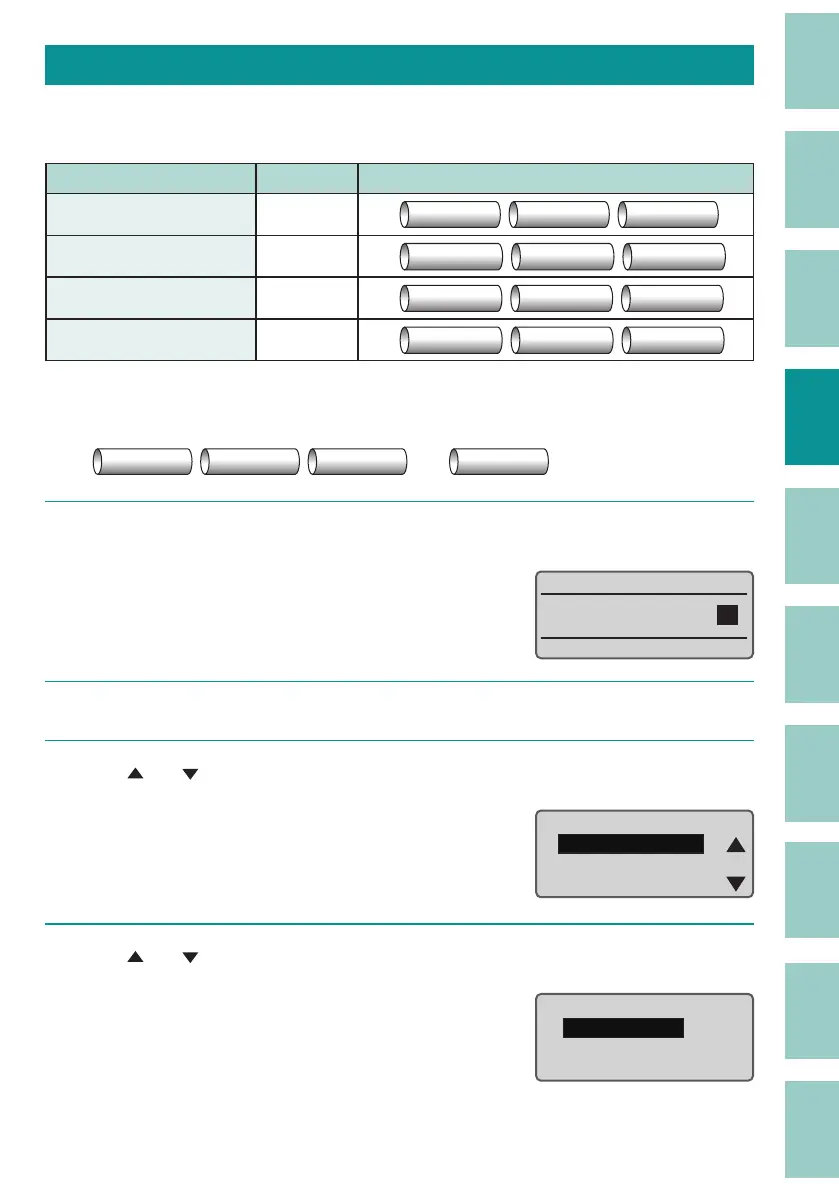
You can print a xed string of characters with a sequential number or letter of the alphabet. The
possible numbering settings are as follows.
Setting Set range Print Image
Decimal 0 to 999
Pump Room 1 Pump Room 2 Pump Room 3
Hexadecimal 0 to FFF
Pump Room 09 Pump Room 0A Pump Room 0B
Upper case letter A to Z
Pump Room A Pump Room B Pump Room C
Lower case letter a to z
Pump Room a Pump Room b Pump Room c
Example: Set the numbering from 1 to 10 after "Pump Room."
……
Pump Room 1 Pump Room 2 Pump Room 3
Pump Room 10
1
Enter "Pump Room."
Move the cursor to the position where you
want to enter the number.
Pump Room
2
Press the [Number.] key.
3
Use [ ] or [ ] to select "Decimal Settings," and press the [Enter] key.
Number Settings
Decimal Settings
Hexa Settings
A to Z Settingsɻ
4
Use [ ] or [ ] to select "Start value," and then enter "1."
Decimal Settings
Start value:1
End value : 0
[ 0 to 999 ]



 To Next Page