48
Contents
Preparation/
Setup
Print Using a
Computer
Appendix
IndexPrint/SaveInput/Edit
Names of
Components
Maintenance/
Printer Settings
Trouble-
shooting
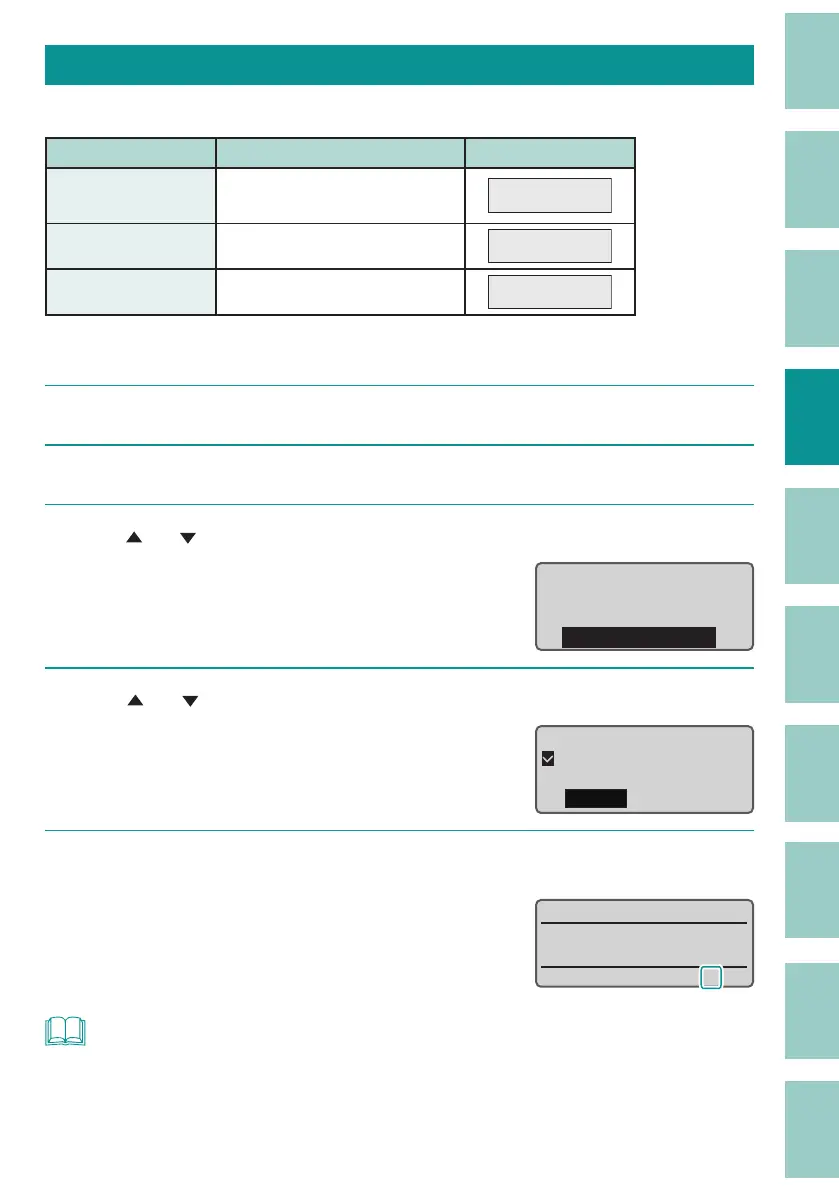
Specify the Character Spacing
Sets the space between characters. The default setting is set to "Narrow."
Setting Details Print Image
Narrow
(Default Setting)
No character spacing
Pump Room
Medium Character spacing 0.5 mm
Pump Room
Wide Character spacing 1.0 mm
Pump Room
[Example] Setting the character spacing to "Wide."
1
Display the page where you want to change the character spacing.
2
Press the [Style] key.
3
Use [ ] or [ ] to select "Character space" and press the [Enter] key.
Style
ɻɻ
Character Size
Lines
Character Space
4
Use [ ] or [ ] to select "Wide."
"×" will appear next to character space that
cannot be selected.
Character Space
Narrow
Medium
Wide
5
Press the [Enter] key.
The display returns to the character input
display.
The character space settings can be checked on
the displa
y.
˛
:
NOT
• The character space can be set for each page.
• When the cut length is speci ed, the character space may not be changed.



 To Next Page