60
Contents
Preparation/
Setup
Print Using a
Computer
Appendix
IndexPrint/SaveInput/Edit
Names of
Components
Maintenance/
Printer Settings
Trouble-
shooting
Creating and Editing Pages
Creating a New Page
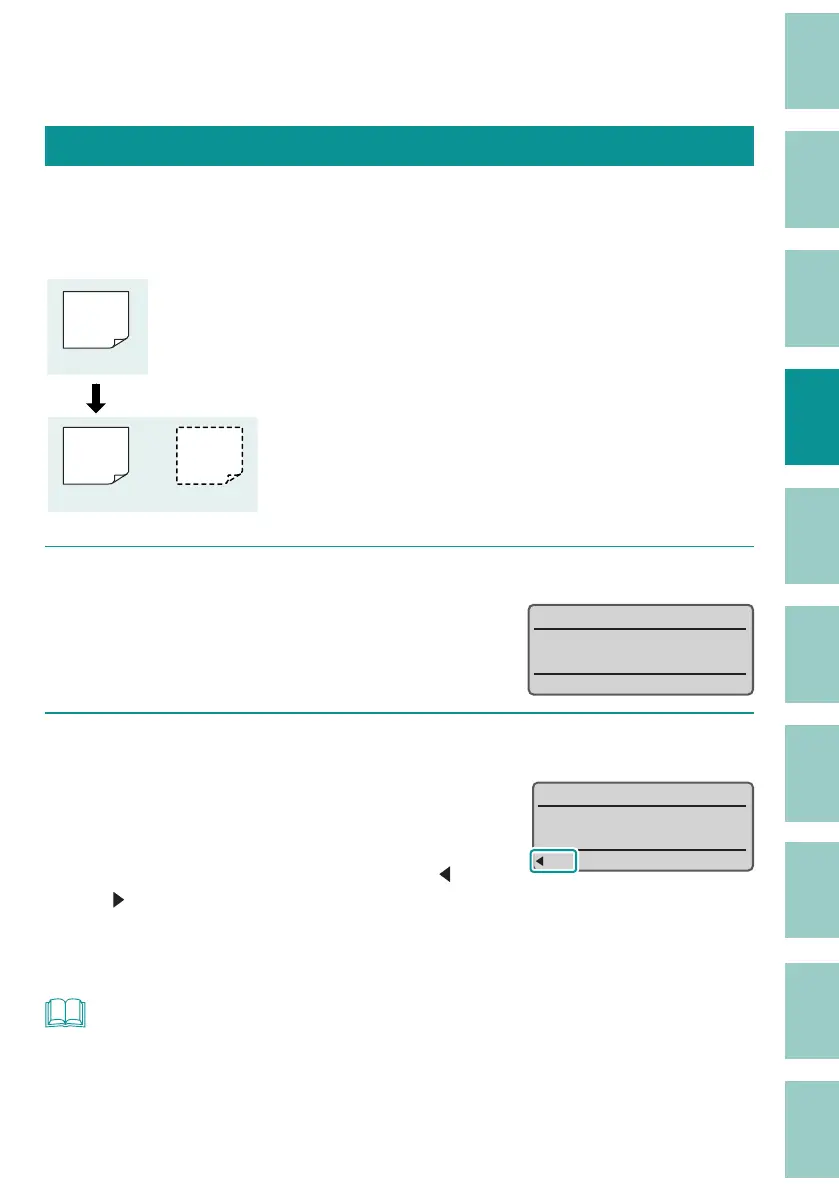
To create a new page, press the [Enter] key. (Page Break)
[Example] Create a new page after the currently displayed page.
200V
200V
(Page 1)
(Page 1) (Page 2)
1
Move the cursor to the end of the line.
9˛
2
Press the [Enter] key.
A page break will be performed and a new page
will be cr
eated.
You can check the page number of the currently
displa
yed page on the display. Also, arrows (
/
) before and after the page number indicate
that there is a page before or after the currently
displayed page.
˛
NOT
• The format setting of the new page will be the same as the previous page. For more information
about format setting, refer to
"About Format Settings (P.42)"
.



 To Next Page