49
Contents
Preparation/
Setup
Print Using a
Computer
Appendix
IndexPrint/SaveInput/Edit
Names of
Components
Maintenance/
Printer Settings
Trouble-
shooting
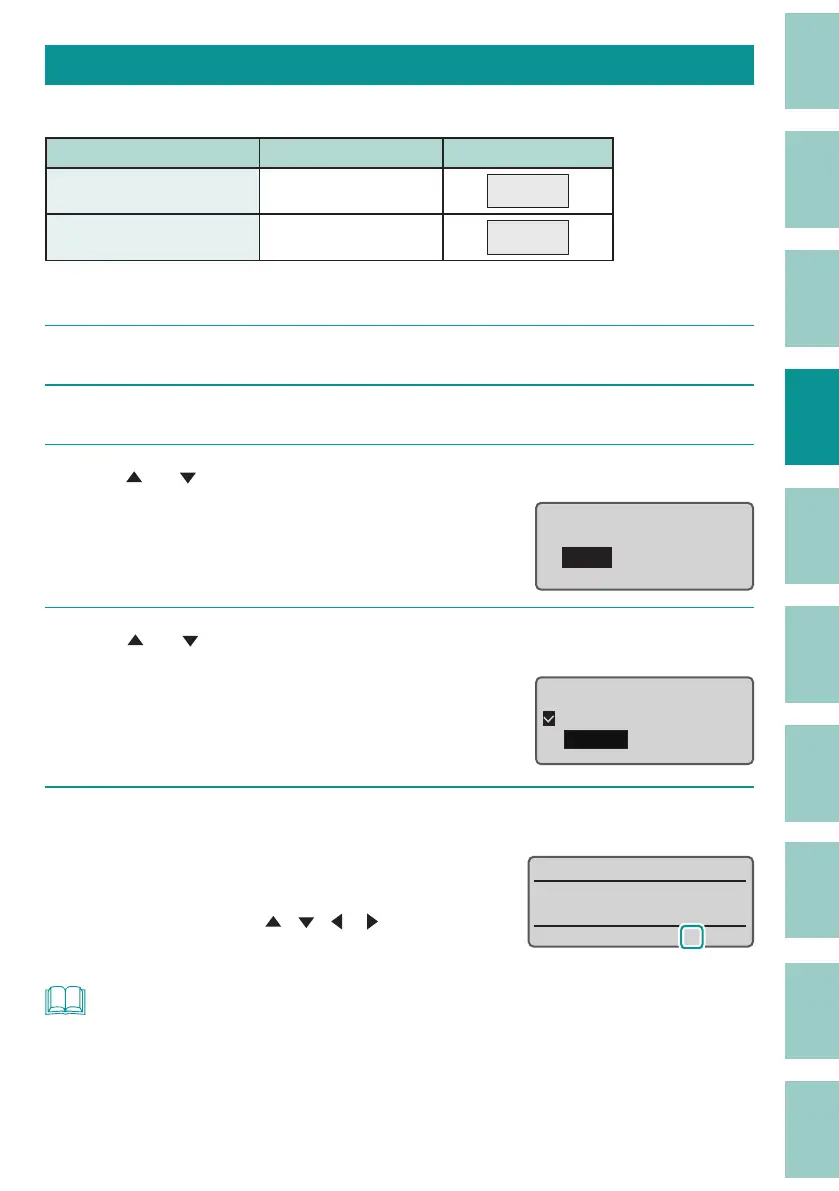
Specifying the Number of Lines
Sets the number of lines. The default setting is "1 Line."
Setting Details Print Image
1 Line (Default Setting) Input in one line
12V
2 Lines Input in two lines
12V
24V
[Example] 2 line input.
1
Display the page where you want to change the number of lines.
2
Press the [Style] key.
3
Use [ ] or [ ] to select "Lines" and press the [Enter] key.
Style
ɻɻ
Character Size
Lines
Character Space
4
Use [ ] or [ ] to select "2 Lines."
"×" will appear next to the number of lines
that cannot be selected.
Lines
1 Line
2 Lines
5
Press the [Enter] key.
The number of lines setting can be checked
on the display.
Use the arrow keys ([
], [ ], [ ], [ ]) to
move between the lines.
˛
NOT
• The number of lines can be set for each page.
• If after entering text, you would like to reduce the number of lines, delete the second line of text and
then change the line number setting.



 To Next Page