42
Contents
Preparation/
Setup
Print Using a
Computer
Appendix
IndexPrint/SaveInput/Edit
Names of
Components
Maintenance/
Printer Settings
Trouble-
shooting
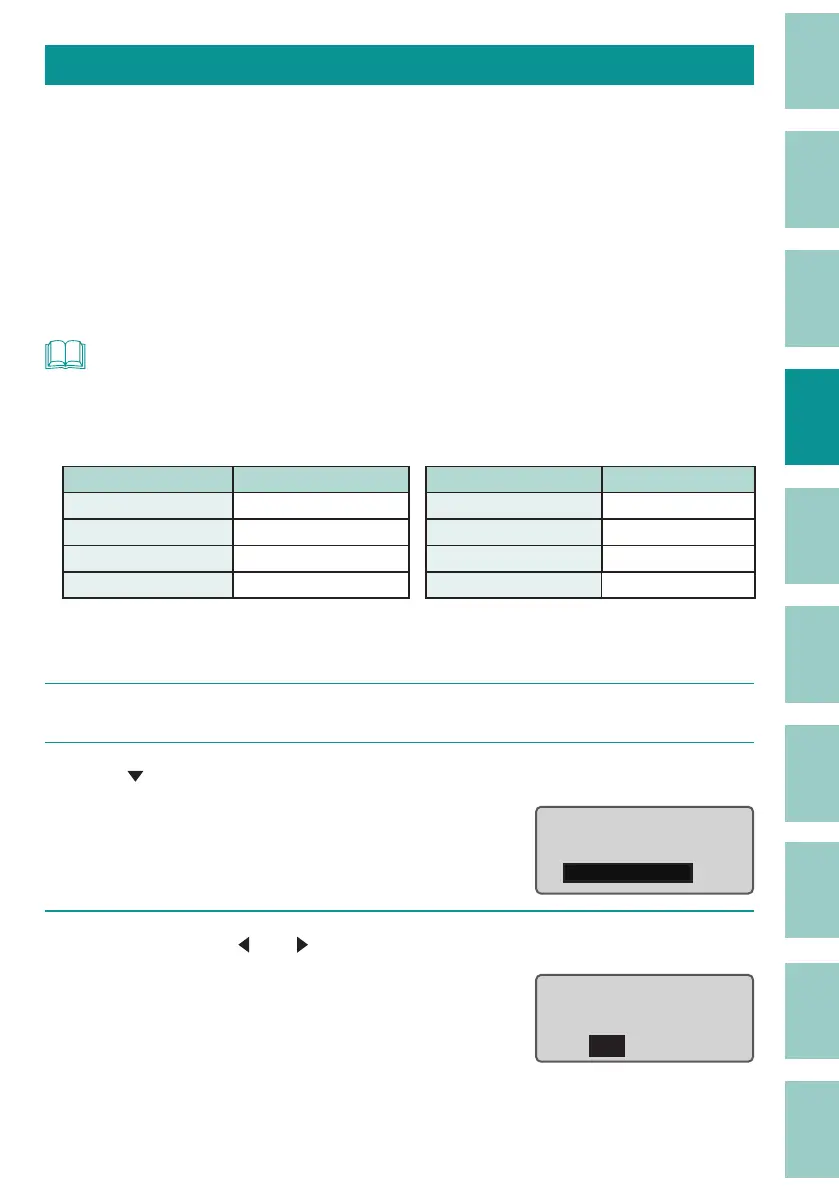
Deleting All Characters That Have Been Entered
This deletes all the characters entered in the page. ( Delete All)
For Delete All, select one of the following.
Text only:
Delete all pages of text, leaving the format setting of the last page.
Text+settings:
Reset the character size and other format settings to their default values, and delete text from all
pages.
NOT
• About Format Settings
"Text+settings" returns the format settings to their default values. Format Settings in this product
refers to the following function settings.
Function name Default setting Function name Default setting
Character Size 3 mm full-width Orientation Hor/Hor char
Frame None Continuous Print O (one time)
Cut Length Automatic Character Space Narrow
Alignment Centered Lines 1 line
[Example] Delete all pages of input text and restore the character size and other format
setting to their default values.
1
Press the [Delete] key.
2
Use [ ] to select "Text+settings," and press the [Enter] key.
A con rmation screen will appear.
Delete All
Text only
Text+settings
3
Select "Yes" with [ ] or [ ] and press the [Enter] key.
The display returns to the character input
display.
Delete text and
reset settings?
Yes No



 To Next Page