72
Contents
Preparation/
Setup
Print Using a
Computer
Appendix
IndexPrint/SaveInput/Edit
Names of
Components
Maintenance/
Printer Settings
Trouble-
shooting
Basic Printing Operations
Printing
After you have nished entering and editing text, you can print.
[Example] Print two tubes as shown below (using ø4.0 mm tubes).
A1 Pump Room
1
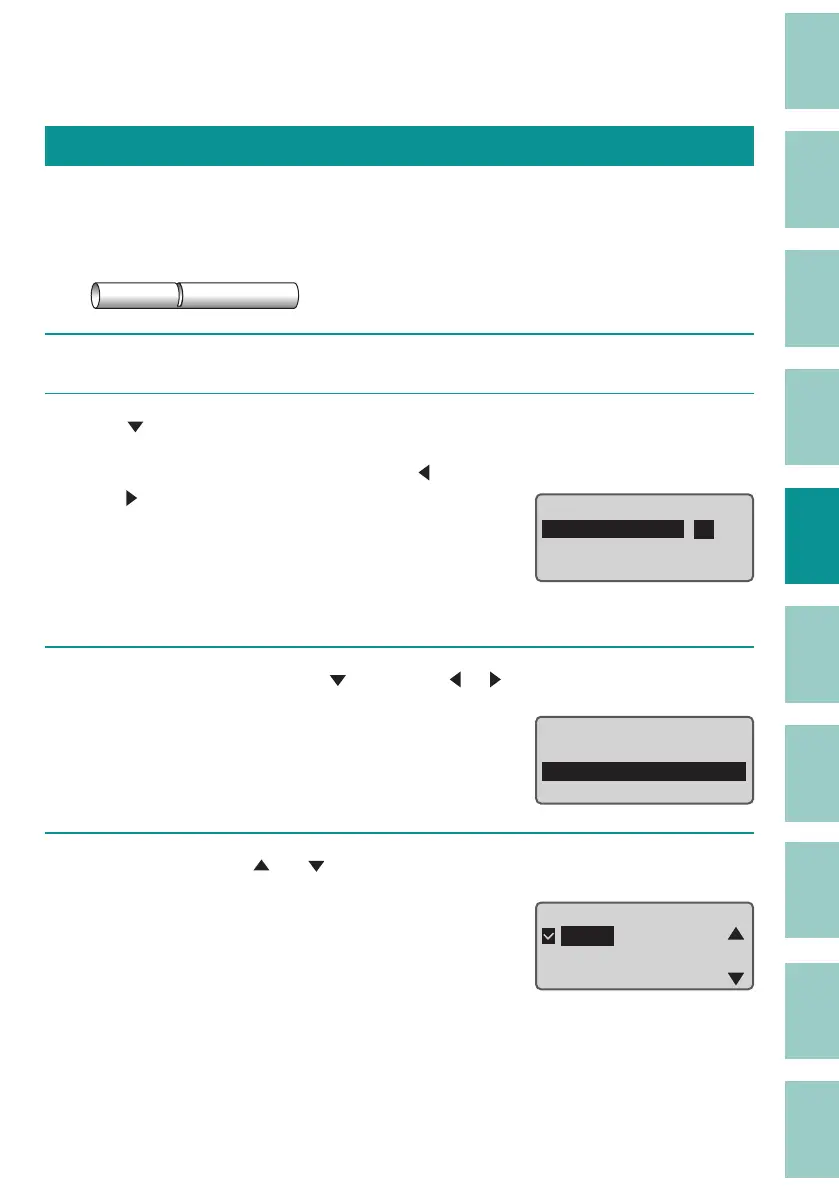
Display the data to be printed, and press the [Print] key.
2
Use [ ] to select "Set to print" and enter [2].
Use the numeric keys or the arrow keys ([ ]/
[
]) to enter the data. If you make a mistake,
press the [Back Space] key to delete the entry.
You can specify the number of prints from 1 to
10.
This operation will print 2 pages of data twice.
"
Printing preference display”
Print Preview
ɻɻ
Sets to print: 2
Tube
Range:
All
Љ3. 0ᶳ
3
Select "Tube ø3.0mm" with [ ] and press [ ], [ ] or the [Enter] key.
Print Preview
ɻɻ
Sets to print: 2
Tube
Range:
All
Љ3. 0ᶳ
4
Select "Tube" with [ ] or [ ] and press the [Enter] key.
The following print media can be selected with
this product.
Tube / Shrink tube / Label / Clear tube / Wrap
Around / Flat tube
Select Media Type
ɻɻ
ɻTube
ɻShrink tube
ɻLabel



 To Next Page