67
Contents
Preparation/
Setup
Print Using a
Computer
Appendix
IndexPrint/SaveInput/Edit
Names of
Components
Maintenance/
Printer Settings
Trouble-
shooting
Page Division
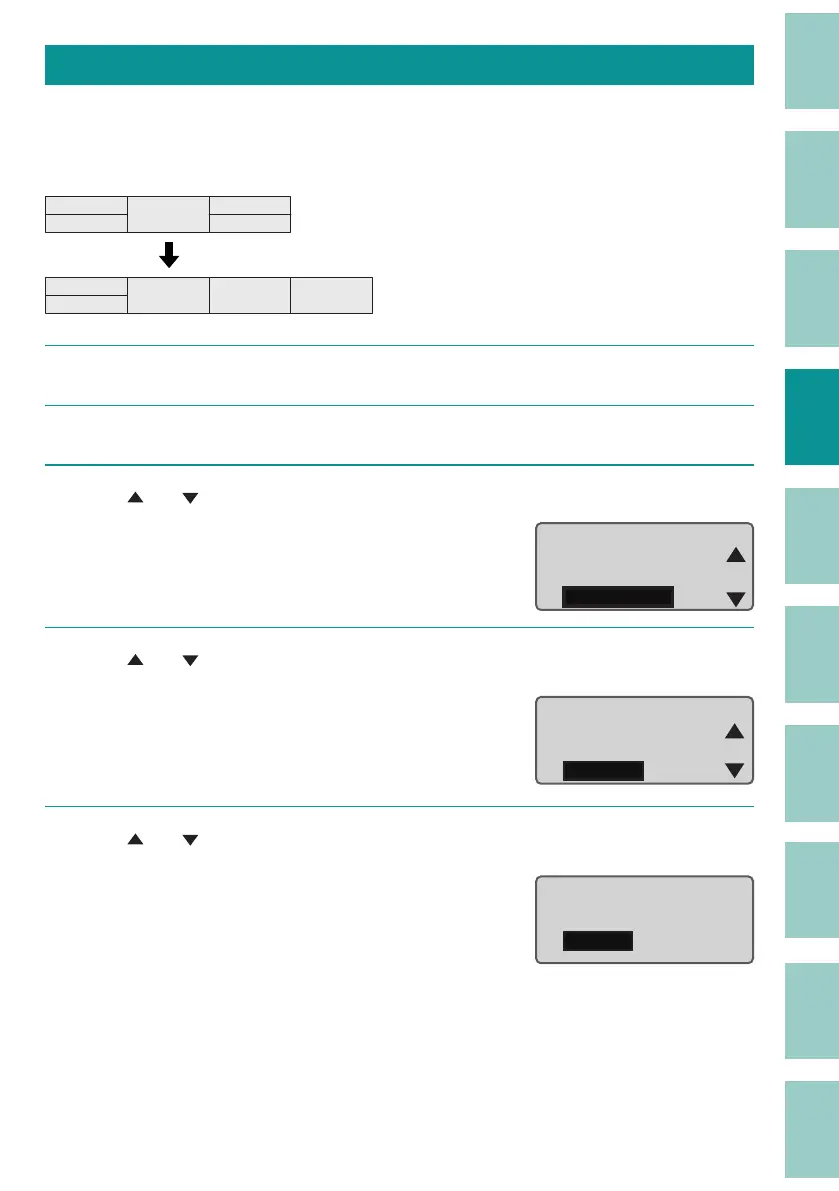
You can divide the data which is entered two lines in one page into two pages.
[Example] Page division of page 3.
$í
$í
$í
$í
%í
&í
&í
%í &í &í
1
Display the page to be divided (page 3).
2
Press the [Option] key.
3
Use [ ] or [ ] to select "Page Edit" and press the [Enter] key.
Warmer
Character Edit
Page Edit
Option
4
Use [ ] or [ ] to select " Division," and press the [Enter] key.
Page Edit
Cut
Paste
Division
5
Use [ ] or [ ] to select "Specify," and press the [Enter] key.
If you select "All," all pages will be divided.
Page division
All
Specify



 To Next Page