186
Contents
Preparation/
Setup
Print Using a
Computer
Appendix
IndexPrint/SaveInput/Edit
Names of
Components
Maintenance/
Printer Settings
Trouble-
shooting
Running the Firmware Update
IMPORTANT
Download the latest rmware from the Canon website;
- Users in the U.S.A
https://www.usa.canon.com/internet/portal/us/home/support/
- Users in the South & Southeast Asia
https://asia.canon/en/support/download
• Use the AC adapter when updating the rmware.
• Multiple printers cannot be updated at the same time. Only one printer should be connected at a
time, be it an MK5000 or MK3000 model.
• You must be logged in to the computer as a user with administrator privileges.
• Exit all other running applications.
1
Connect the AC adapter to the printer.
(P.12)
2
Connect the printer to the computer with the USB cable.
3
Turn on the printer.
(P.15)
4
Press the [Option] key.
5
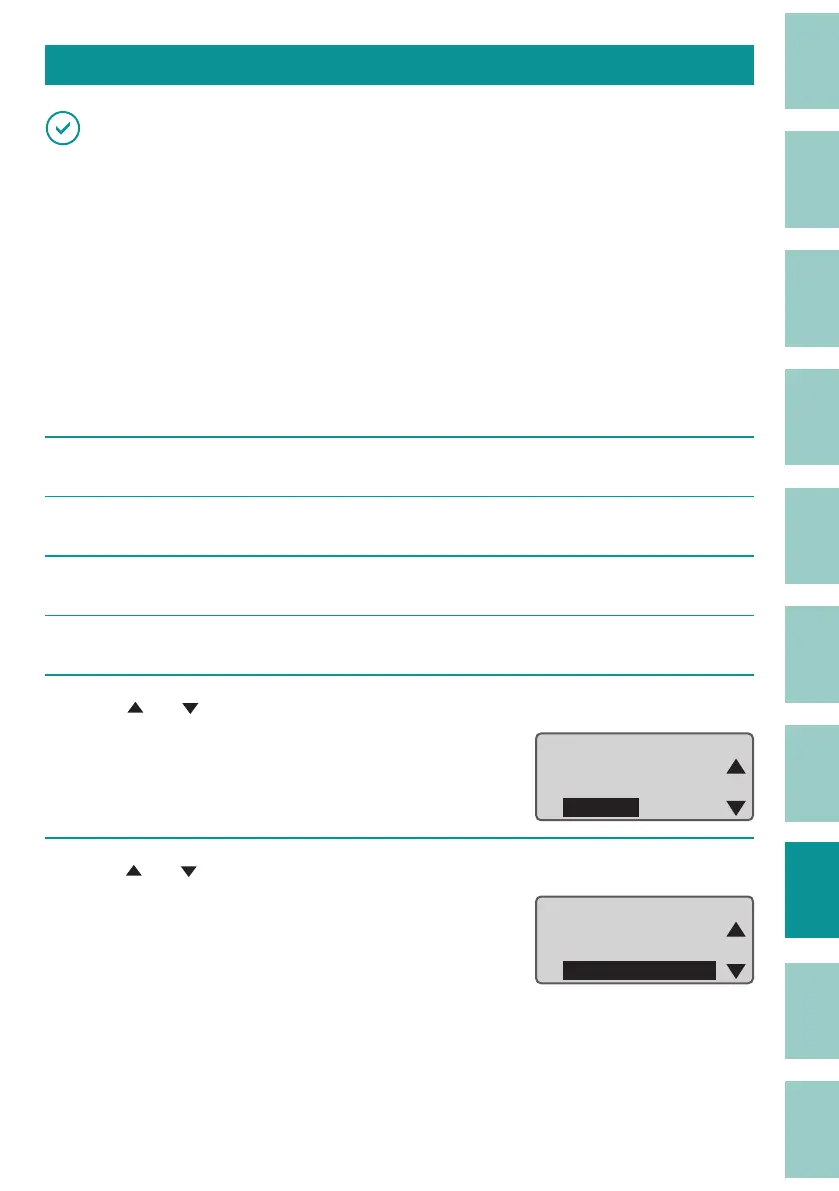
Use [ ] or [ ] to select "Others" and press the [Enter] key.
ɻɻ
Option
Others
Print adjust
Setting
6
Use
[ ] or [ ]
to select "Firmware update" and press the [Enter] key.
Firmware update
Others
Counter
Device Info



 To Next Page