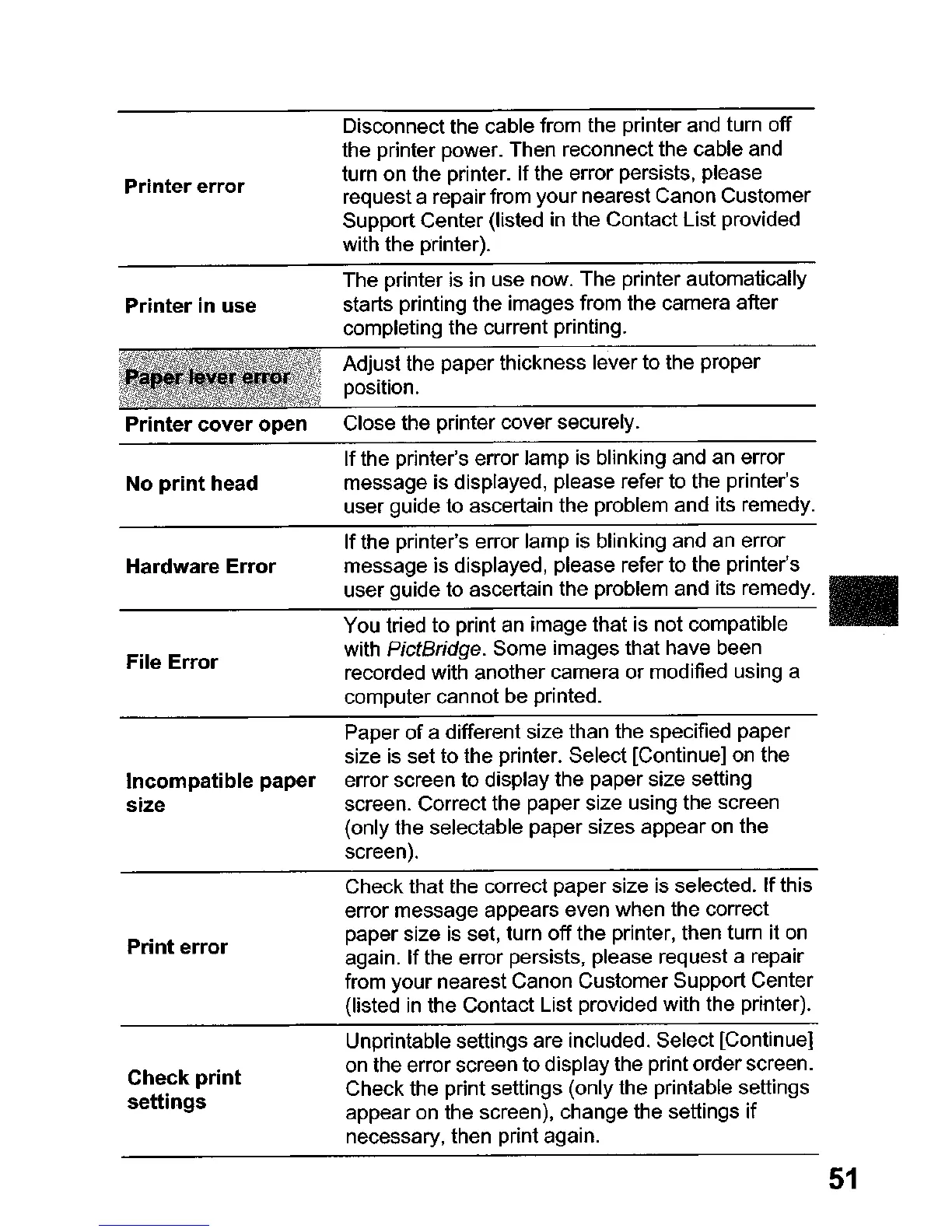
Printer
error
Printer
in use
Printer
cover
open
No
print
head
Disconnect the cable from the printer and turn
off
the printer power. Then reconnect the cable and
turn on the printer. Ifthe error persists, please
request a repair from your nearest Canon Customer
Support Center (listed in the Contact List provided
with the printer).
The printer is in use now. The printer automatically
starts printing the images from the camera after
completing the current printing.
Adjust the paper thickness lever to the proper
position.
Close the printer cover securely.
Ifthe printer's error lamp is blinking and an error
message is displayed, please refer to the printer's
user guide to ascertain the problem and its remedy.
File
Error
Hardware
Error
Ifthe printer's error lamp is blinking and an error
message is displayed, please refer to the printer's
user guide to ascertain the problem and its remedy. •
-------
You tried to print an image that is not compatible
with
PictBridge. Some images that have been
recorded with another camera or modified using a
computer cannot be printed.
Incompatible paper
size
Print
error
Check
print
settings
Paper of a different size than the specified paper
size
is
set to the printer. Select [Continue] on the
error screen to display the paper size setting
screen. Correct the paper size using the screen
(only the selectable paper sizes appear
on
the
screen).
Check that the correct paper size is selected. If this
error message appears even when the correct
paper size
is
set, turn off the printer, then tum it on
again. Ifthe error persists, please request a repair
from your nearest Canon Customer Support Center
(listed
in
the Contact List provided with the printer).
Unprintable settings are included. Select [Continue]
on the error screen to display the print order screen.
Check the print settings (only the printable settings
appear on the screen), change the settings if
necessary, then print again.
51




 To Next Page