Customer Support 1-877-557-2227
Page 49
Phonebook
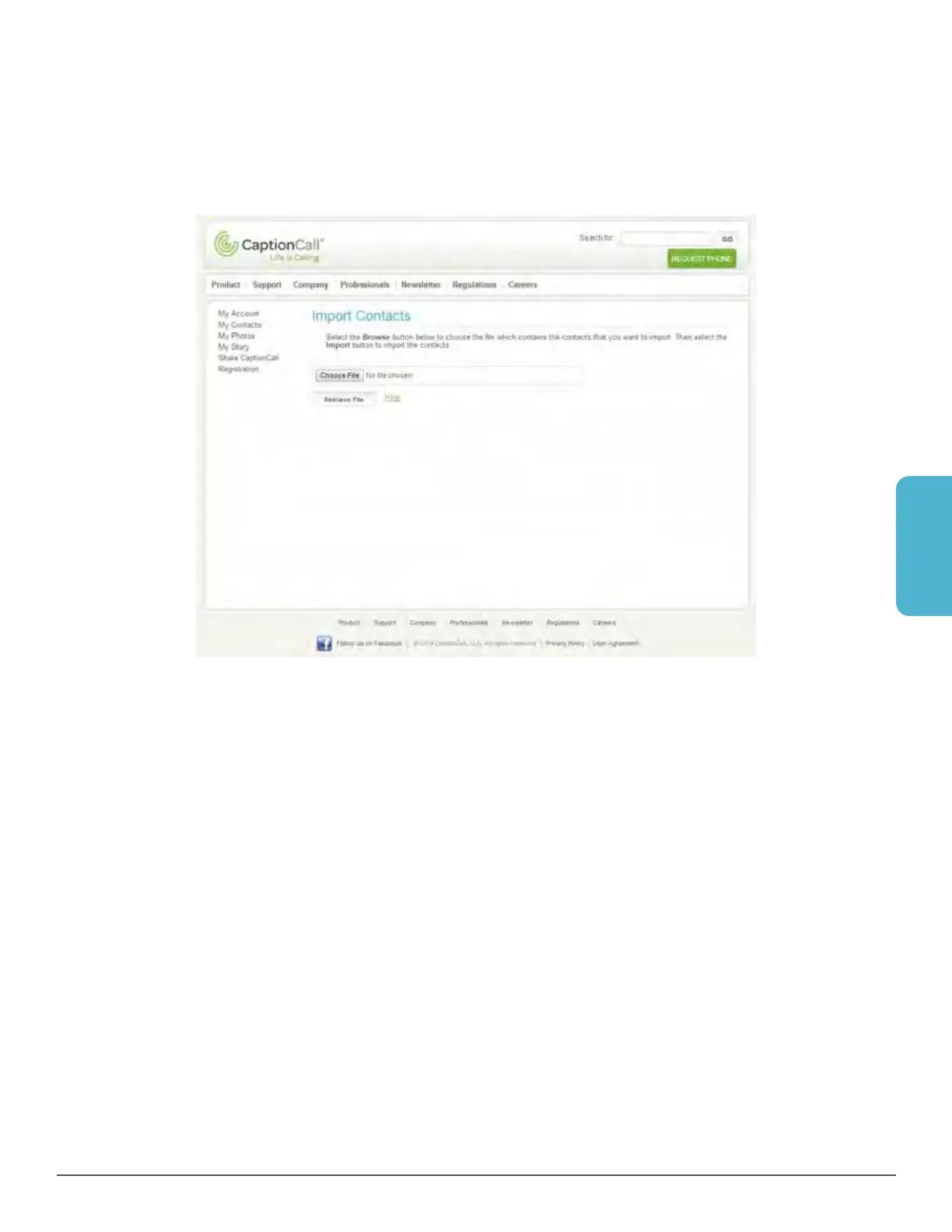
Import contacts
Contacts can be imported from a directory you already have on your computer.
These must be VCF files in order for the system to import the list. To import
contacts:
1. Click Import Contacts. The Import Contacts screen will display.
2. Click Choose File. A window will open that will let you explore your computer files.
Browse for the VCF file you wish to import. Select it and click Open.
3. Click Retrieve File. Your contacts will be imported.
Helpful Hints
You can edit/delete your contacts using the online system.
• Scroll to the contact or use the letters to find it alphabetically
• Click the Edit button to edit the contact. The same window you used to create the
contact will display with the contact’s information already loaded
• Update the contact’s information and click Submit
• To delete a contact, click the X button. A window will display to verify that you want
to delete this contact. Click Yes to complete deletion


 To Next Page