13 610 02 1018
26
Operation
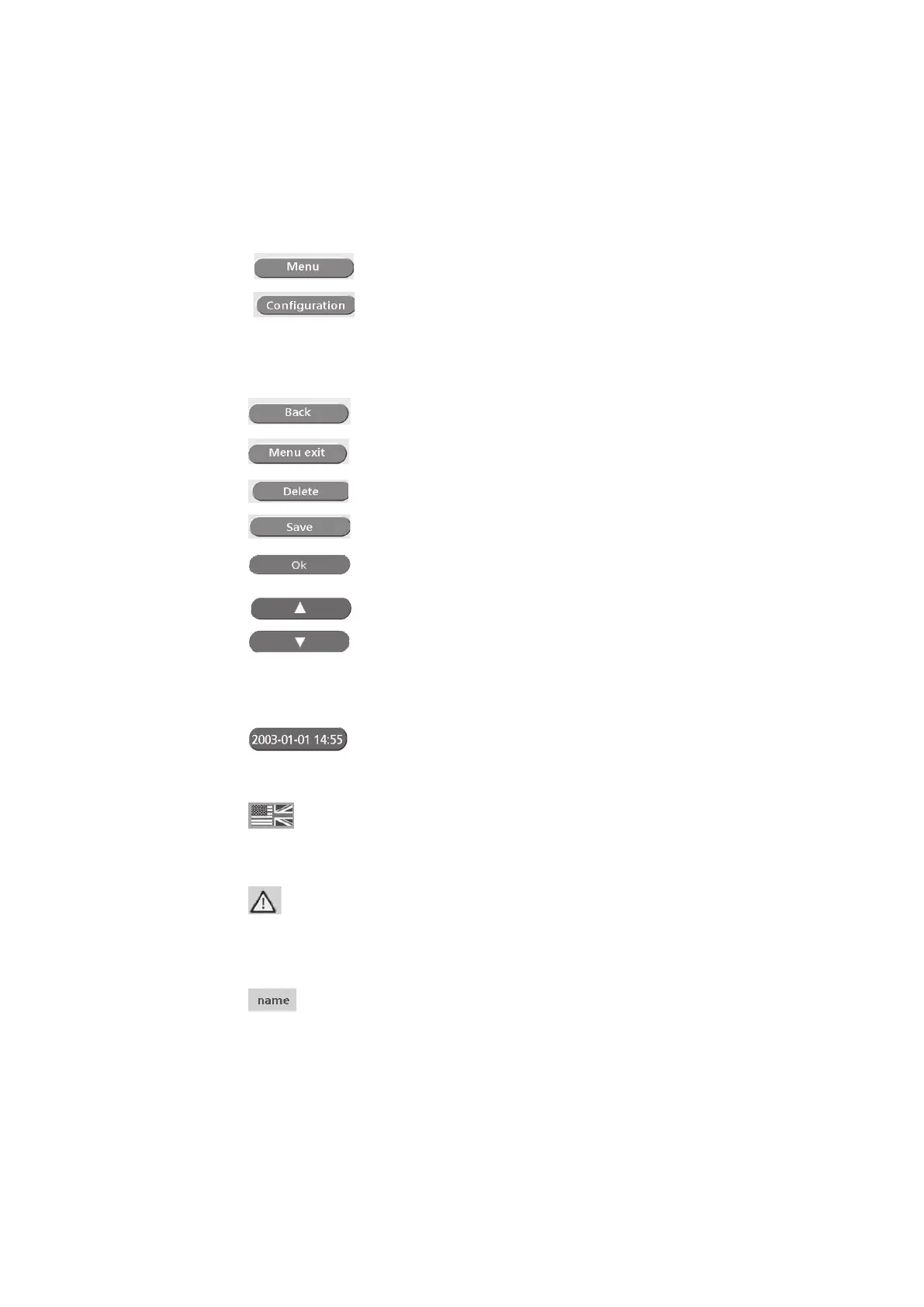
Navigation bars:
The top and bottom navigation bars (Fig. 5-12/1 to Fig. 5-12/3 and 3, Fig. 5-12/6
to Fig. 5-12/8) contain control buttons that you can use for navigating through
the menus:
Parameter entry screen:
Open the sub-menu
Jump to the “Load conguration” sub-menu (call
up saved parameter congurations or patient
records)
Main and sub-menu:
Step back
Return to parameter entry screen
Delete congurations
Save congurations
Conrm entries, acknowledge messages
The arrow keys can be used for changing (increasing
or decreasing) the parameter values.
If you are in a sub-menu that contains more menu
items than can be displayed in the top part of the
display, you can use the arrow keys to scroll to the
bottom of the list (page up/down).
Status bar:
Press the date key on the parameter input page to
open the “Info” window.
The ag on the right of the status bar displays the
menu language. Touching the ag icon takes you
directly to the “Languages” sub-menu where you
can select a different menu language.
A warning symbol appears at the far left of the
status bar if there is an error. Touching this symbol
takes you directly to the “Warnings” sub-menu
that displays all warning messages that are currently
active.
The name of the loaded conguration/patient
record (* indication/patient name) is displayed.




 To Next Page