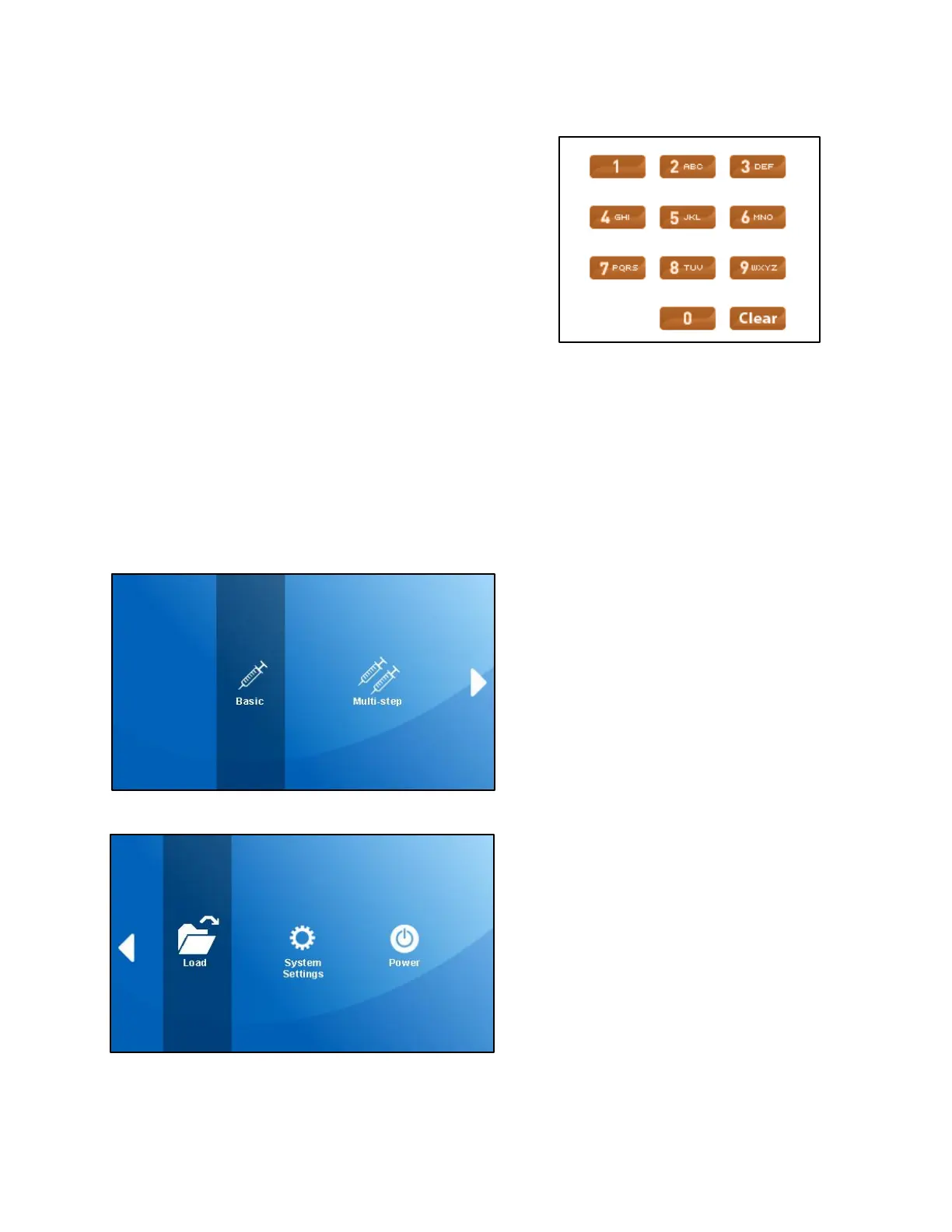
Entering Letters
There are some editable fields that are used to create
names, such as the Save Run Settings screen. While
there are no letters indicated on the physical numeric
keypad, letters can be entered on the GUI numeric
keypad or the physical numeric keypad using the
lettering scheme typically seen on phone keypads. The
first press of a number key will enter the number in the
field. Each subsequent quick press of the number key
will cycle through the letters associated with that
number. Once all the letters for that number have been
cycled through, the next key press will start back over
with the number again. Note that these key presses must be in rapid succession to cycle
through the number and letters; any pause in key presses will cause the next key press to add a
new character to the field. The clear key (C) or button acts as a delete or backspace key, which
will remove the previous character.
Mode Selection Screen
The Mode Selection screen is the top level
menu for the Fusion series pumps. This
screen allows users to select the Basic or
Multi-Step modes, load a previously saved
method, and adjust system settings or
power settings.
The Mode Selection screen consists of
two screens. Items on each screen can be
tapped by touch to enter the selected
option. To maneuver between the screens,
the white triangular arrow on the edge of
the screen can be tapped to go between
the two screens. Users can also swipe a
finger on the screen to switch between
screens. Additionally, the navigation
keypad can also be used to select an item,
and the ENTER key is used to access the
selected option.
For a description of the items listed in the
Mode Selection screen, please refer to the
associated section in this manual.



 To Next Page