Section 3: Operation
Christie ACT User Manual 3-23
020-100129-05 Rev. 1 (02-2010)
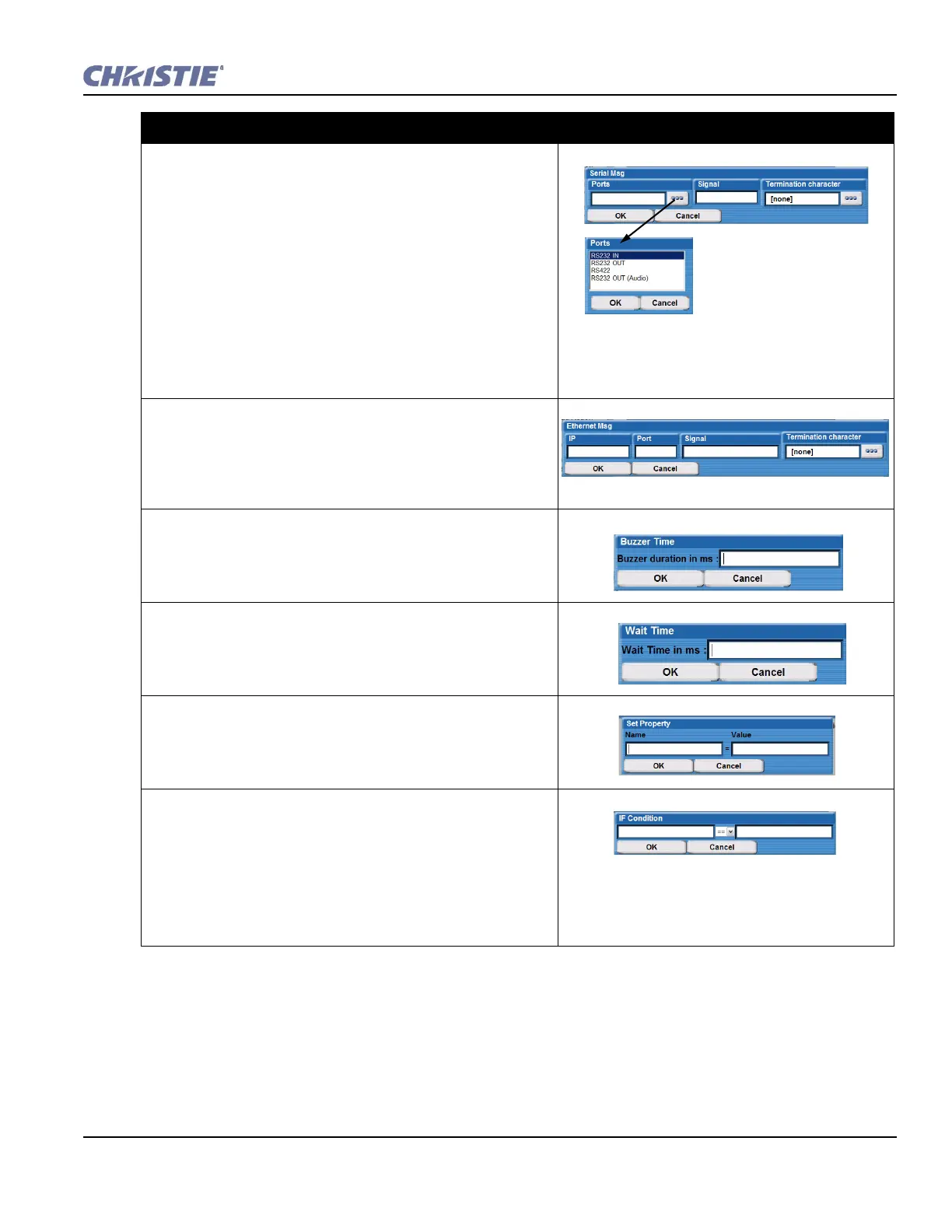
Serial
1. Select Serial to open the Serial Msg window.
2. Click the Ports button to open the Ports window.
3. Highlight the Port number (RS232 IN, RS232 OUT, RS422,
RS422 Out (Audio)) from the drop-down list and click OK.
4. In the Serial Msg Configuration window, type the signal.
5. Click the Termination character button to open the
Termination character window.
6. Highlight the Termination character ([none], <CR>, <LF>,
<CR><LF>) from the drop-down list and click OK.
7. In the Serial Msg window, click OK to add action to Christie
ACT.
Ethernet
1. Select Ethernet to open the Ethernet Msg window.
2. From the Ethernet Msg window, type the IP, Port, Signal, and
Termination character information.
3. Click OK to add action to Christie ACT.
Buzzer
1. Select Buzzer to open the Buzzer Time window.
2. Type the buzzer time duration in ms.
3. Click OK to add action to Christie ACT.
Wait
1. Select Wait to open the Wait Time window.
2. Type the wait time duration in ms.
3. Click OK to add action to Christie ACT.
SET
1. Select Set to open the Set Property window.
2. Type the Name and Value of action. These can be any variable.
3. Click OK to add action to Christie ACT.
IF
1. Select the IF option to open the IF Condition
window. This
can be any variable.
2. Type the first action for the IF condition.
3. Select the appropriate symbol (== or !=)
4. Type the second action. This can be any variable.
5. Click OK to add action to Christie ACT.
Adding Actions


 To Next Page