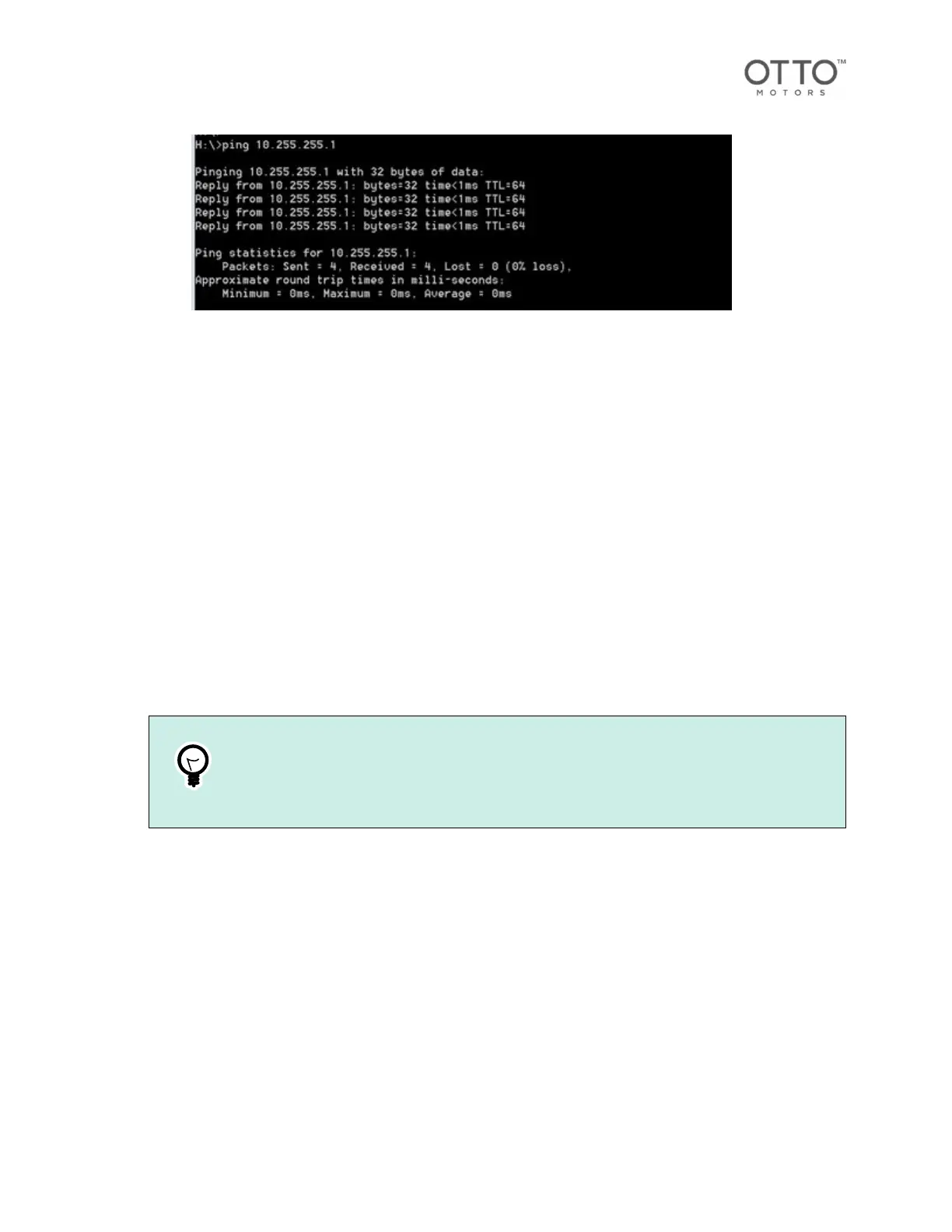
The response should be similar to the following:
11.7.Connecting a robot to a network
Robots must be connected to a network to truly take advantage of the robot's autonomous capabilities.
1. Connect a computer to the AMR using an Ethernet cable [40].
2.Accessing Robot Configuration
• Open OTTO Fleet Manager Robot Configuration by entering https://<AMR hostname/IP
address>:port number in the address bar of a supported browser, using the following port:
Port 8090
For example:
http://<AMR IP address>:8090
3. Select Use Robot Settingsto view the current settings of the robot being configured.
Select Use Browser Settingsto save the current settings for easier and faster configuration of
multiple robots.
The robotHostname, WiFi SettingsPasskey, andVPN Passwordare not saved when using the Use
Browser Settings option.
4. Enter aHostname for the robot.
Hostnames must begin with a letter as hostnames beginning with a number aren't supported.
TIP
If the configuration screen becomes slow to respond after changing the hostname,
restart the robot.
5. Select Apply.
6. Enter the network's Access Point Name(ssid) andPasskey, then select Apply.
7. Select anIP Type.
To assign a Static IP address, selectStatic IPfrom theIP Typemenu. Configure the fields as
required, and select Apply.
To use a Dynamic IP address assigned by the network,selectDynamic IPfrom theIP Typemenu,
and select Apply.
8. Select Save and Restart Network.
9. Restart the robot.
OTTO 600 - OMM-000117-A
© Clearpath Robotics Inc. 2024. All rights reserved. CLEARPATH and OTTO are trademarks of Clearpath Robotics Inc.
All other product and company names listed are trademarks or trade names of their respective companies. 41



 To Next Page