Chapter 4: Using the web interface
98-129217-D Event logging and self test 120
Event logging and self test
Viewing the Event list or the Event log
Overview
When an event is registered, the web interface shows an event icon in the icon bar as long
as the event is active.
The Event list only shows events that are currently active, whereas the Event log shows the
history of events that have occurred.
Event list
To view the event list, click the event icon from the icon bar at the top of the web interface, or
select HELPDESK > Event list from the left navigation pane.
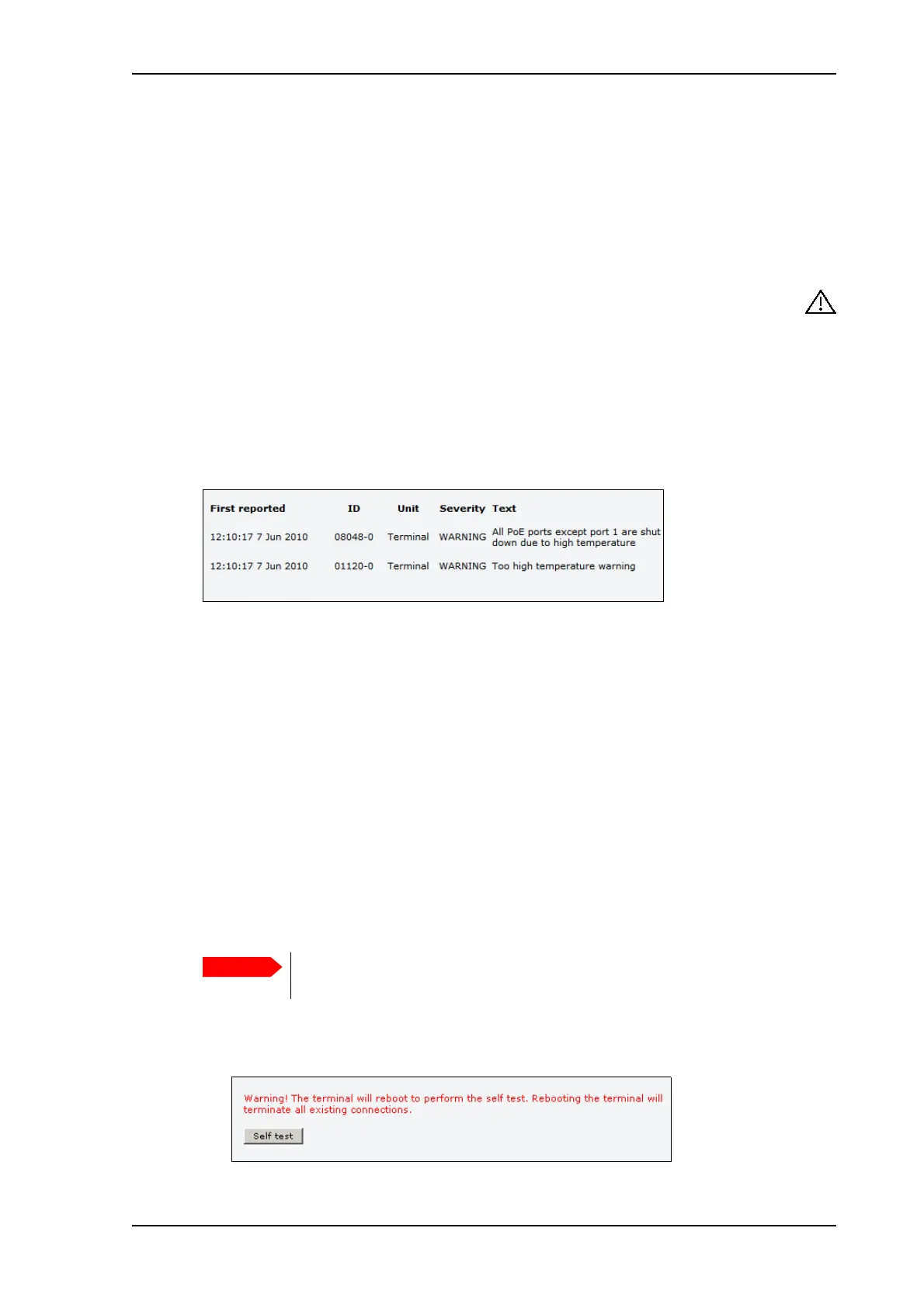
The Event list page shows a detailed list of active events including the time of the first
occurrence, ID and severity of the event message, and a short text describing the error. For
more information on the event messages, refer to Event messages on page 130.
Event log
The Event log shows the same information as the Event list, but also includes events that
occurred in the past and are no longer active. Additionally, it lists events of informational
character, describing normal phases of operation for the terminal.
To view the Event log, select HELPDESK > Event log from the left navigation pane.
Self test
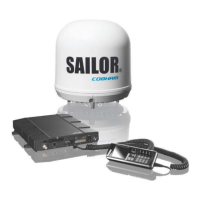
The Self test performs system test on the SAILOR 150 FleetBroadband System, similar to the
tests that are performed during the Power On Self Test (POST).
To activate a Self test, do as follows:
1. Select HELPDESK > Self test.
The terminal must reboot to perform the self test. All ongoing calls or data
sessions will be terminated.



 To Next Page