EasyManua.ls Logo

COBHAM SAILOR 150 - User Manual

COBHAM SAILOR 150
159 pages
Print Icon
To Next Page IconTo Next Page
Loading...
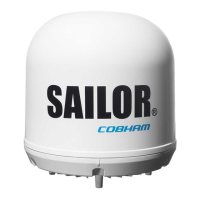
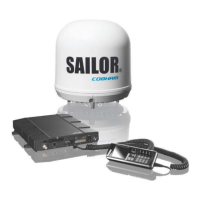
SAILOR 150 FleetBroadband
User manual

Table of Contents

Other manuals for COBHAM SAILOR 150

Questions and Answers

  • A
    Albert HarperAug 16, 2025
    How to fix no signal on my COBHAM Modem?
    • J
      James HolmesAug 16, 2025
      If you are experiencing a weak or absent signal from the BGAN satellite on your COBHAM Modem, there are several potential causes: * A blocked view to the satellite. Ensure the antenna has a clear view in all directions. * Improperly connected antenna cable. Verify that both ends of the cable are correctly connected and that no connectors are damaged. * Incorrect satellite selection. Access the web interface, navigate to SETTINGS > Satellite selection, choose Auto, and click Apply. This will allow the system to automatically search for and connect to the satellite with the strongest signal.
  • H
    Heather JosephAug 19, 2025
    What to do if I cannot access the web interface of my COBHAM SAILOR 150?
    • M
      Martha WestAug 19, 2025
      If you're having trouble accessing the web interface of your COBHAM Modem, consider these possible causes and solutions: * Proxy server configuration: If you're using Microsoft Internet Explorer, go to Tools > Internet Options > Connections > LAN Settings and uncheck 'Use a proxy server for your LAN'. * Incorrect IP address: Double-check the IP address you're entering. If you're unsure, you can temporarily reset the IP address to the default (192.168.0.1) by pressing the Reset button. * VPN connection: Close your VPN connection and try again.
  • A
    Alan GardnerAug 22, 2025
    Why can't I establish a phone connection with my COBHAM SAILOR 150?
    • L
      Laura HowardAug 22, 2025
      If you are unable to establish a phone connection with your COBHAM Modem, consider the following: * Check the cable connection. Ensure the cable is properly connected. * Verify the cable and connector type. Make sure you are using the correct type of connector and cable. * If another call is active on the terminal, and you are not using Multi-voice with an IP handset, you must wait until the active call is terminated. Alternatively, use an IP handset if your system supports Multi-voice.
  • J
    Joseph CraigAug 25, 2025
    How to troubleshoot LAN connection issues on a COBHAM Modem?
    • T
      Tracey WebbAug 26, 2025
      If you're experiencing issues establishing a LAN connection with your COBHAM Modem, here are some potential causes and solutions: * Check the cable connection. Ensure the cable is properly connected. * Verify the cable and connector type. Make sure you are using the correct type of connector and cable. * If the connected equipment uses a static IP address, ensure it's not reserved for internal use by the terminal. Either change the equipment's IP address or set it up to use a dynamic IP address. Alternatively, disable DHCP in the terminal.
  • J
    jamesmorrisAug 27, 2025
    What to do if multi-voice calls are not going through on my COBHAM SAILOR 150?
    • M
      Marissa BellAug 28, 2025
      If you're experiencing issues with Multi-voice calls on your COBHAM Modem, consider the following: * Verify the mobile numbers. Check that all mobile numbers from your airtime subscription are correctly entered in the web interface. * Ensure no other calls are active. If another call is active and you're not using a handset connected to the LAN interface, either use a LAN-connected handset or wait until the other call ends. * Insufficient bandwidth. If possible, close other voice and data connections and try again. * Call forwarding settings. Verify that the Forward when busy option for Standard voice is enabled and the correct number (+870772002999) is specified. Note that you must disable Multi-voice before accessing the Forward when busy setting.
  • N
    Nicole PhillipsAug 31, 2025
    Why is my IP handset not connecting to my COBHAM Modem?
    • E
      Emma RodriguezAug 31, 2025
      If you're having trouble establishing an IP handset connection with your COBHAM Modem, here are a few things to check: * Cable connection: Ensure the cable is properly connected. * Power (PoE): Verify that there is power (PoE) in the LAN interface and that the input voltage is within the specified range (10.5 - 32 V DC; 11.5 A - 4 A). Also, make sure you haven't connected too many power-consuming devices. The maximum available output power on the LAN (PoE) interface is 32 W. Try disconnecting other devices if possible.
  • I
    Ian MorrisSep 3, 2025
    What should I check if phones aren't ringing on incoming calls to my COBHAM SAILOR 150?
    • B
      Becky SmithSep 3, 2025
      If phones are not ringing on incoming calls to your COBHAM Modem, consider these potential causes: * Mute function: Check if the Mute function is activated from an external device connected to the I/O interface of the terminal. If it is, deactivate it. * Call type settings: Verify the call types for your handset interfaces are set up correctly. * Multi-voice issues: If you're using Multi-voice, refer to the troubleshooting steps for Multi-voice call issues.
  • C
    Charles HardinSep 6, 2025
    What to do if the administrator password for my COBHAM Modem doesn't work?
    • D
      David PeckSep 6, 2025
      If the administrator password for your COBHAM Modem is not working, it's possible that someone has changed it. If you cannot find the correct password, you will need to reset it. Contact your supplier for a reset code, providing the serial number and IMEI number of the terminal.
  • C
    Christopher WagnerSep 9, 2025
    What to do if my COBHAM SAILOR 150 Modem says no antenna found?
    • V
      Vickie GonzalezSep 9, 2025
      If your COBHAM Modem displays a 'No antenna found' message, it indicates that the terminal cannot communicate with the antenna. Check the cable connection between the terminal and the antenna. Also, try rebooting the terminal.
  • M
    martinezjenniferSep 12, 2025
    Why is my COBHAM SAILOR 150 Modem failing to subscribe to Voice Distress Supplementary Service (Call Waiting)?
    • A
      Annette Elliott MDSep 12, 2025
      If your FleetBroadband terminal is failing to subscribe to the Call Waiting service, check with your service provider to ensure that the Call Waiting service is commissioned.

Summary

Safety Summary

Chapter 1 Introduction

Features and Interfaces

Details the system's capabilities, data rates, and connection interfaces.

Chapter 2 Getting Started

Starting up the Terminal

Guides through powering on the terminal using power switch, ignition, or remote.

Connecting the Thrane IP Handset

Details the process of connecting and starting up the IP handset via PoE.

Connecting a Computer

Explains how to configure and establish a LAN connection with a computer.

Entering the SIM PIN for the Terminal

Describes how to input the SIM card PIN via phone, handset, or web interface.

Standard Connection to the Internet (Default)

Details how to activate a basic internet connection via web or handset.

Chapter 3 Operating the System

Using a Phone or Fax Machine

Explains how to connect and use analog phones and fax machines.

Chapter 4 Using the Web Interface

Entering the SIM PIN in the Web Interface

Explains how to enter the SIM PIN via the web interface.

Using the Dashboard

Covers controlling and inspecting ongoing communication and status.

Setting up the Interfaces

Covers configuring LAN, PPPoE, static routing, and port forwarding.

Administration

Accesses administrative settings for user management and configuration.

Chapter 5 Maintenance and Troubleshooting

Troubleshooting Guide

Provides solutions for common problems, including possible causes and remedies.

Status Signalling

Explains system indicators, event messages, and logs for diagnostics.

COBHAM SAILOR 150 Specifications

General IconGeneral
BrandCOBHAM
ModelSAILOR 150
CategoryModem
LanguageEnglish

Related product manuals