Chapter 7:Protecting & monitoring your Wi-Fi network
10. Select the days of the week in the Set Blocked Days section.
11. Click SAVE.
12. To manage network devices' access to specific services and applications, click Manage
Services from the submenu and then click Enable.
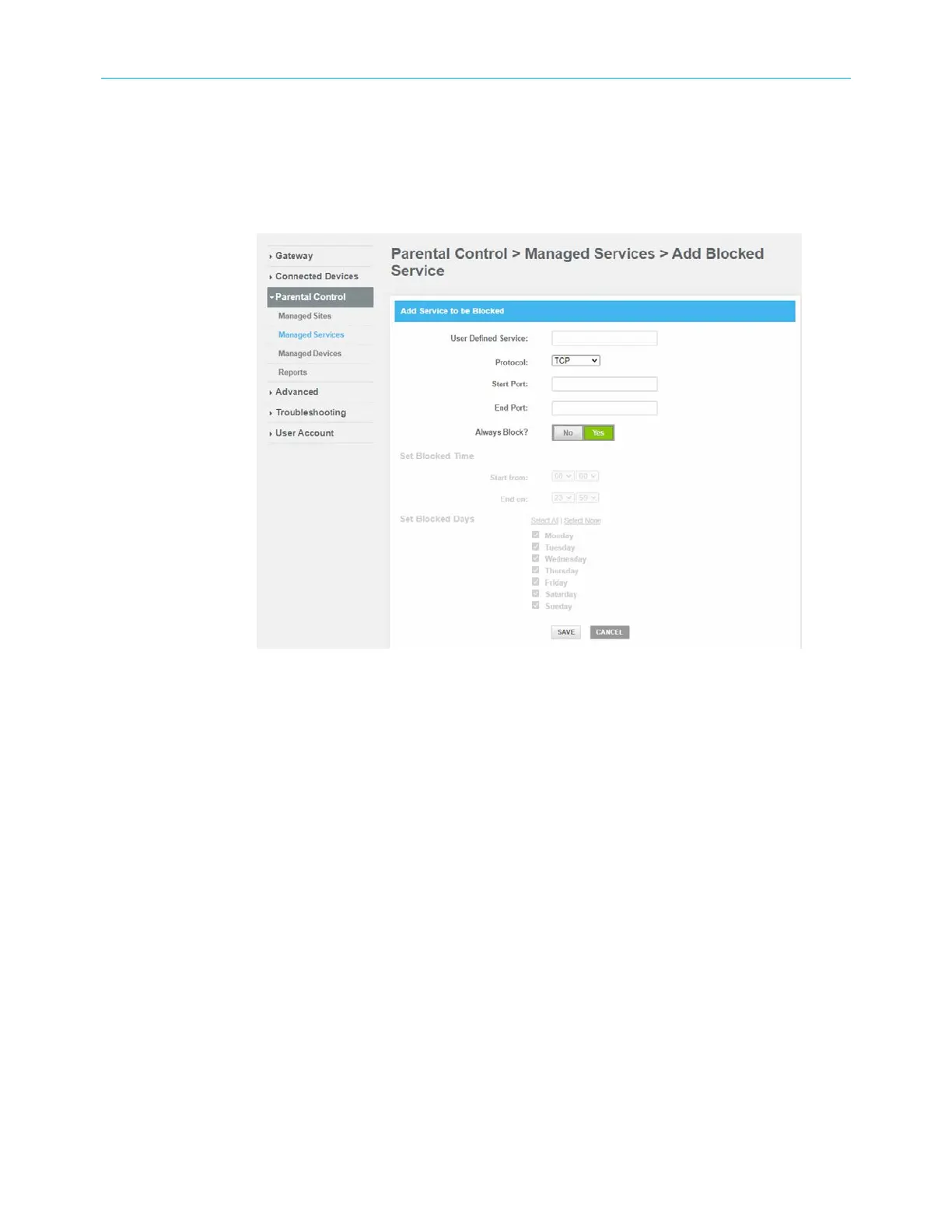
13. Click +ADD button in the Blocked Services section to add a service to be blocked.
Figure 42: Managed Services screen - Add Blocked Service screen
14. Type the service that you want to block in the User Defined Service field.
15. Select UDP, TCP, or TCP/UDP for the port filter type from the Protocol drop-down list.
16. Enter the range of port numbers for the port filter range in the Start Port and End Port
fields.
17. To fully block a service, click Yes, in the Always Block? field.
18. To block a service for specific days and times, click No, in the Always Block? field and
then specify the time and days in the Set Block Time and Set Block Days fields.
19. Click SAVE to save the changes.
20. To manage access to specific devices on your network, click Manage Devices from the
submenu.
SURFboard
®
G34/G36 DOCSIS
®
3.1 Wi-Fi
®
Cable Modem User Guide STANDARD Revision x.3 52



 To Next Page