15Condair UDC
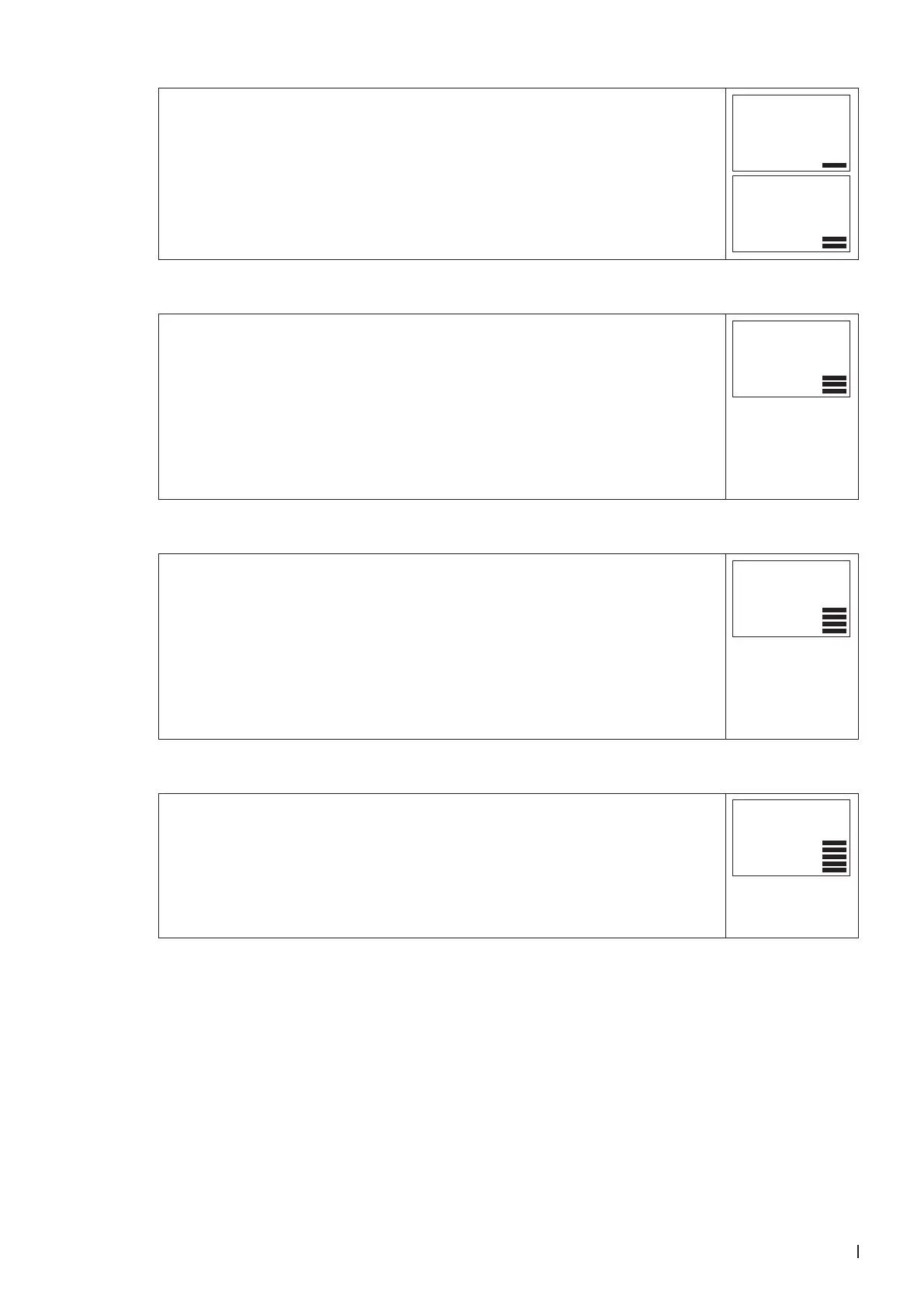
4.4 Press <Enter> button and select the desired program (e.g. Pr01), press the
<Up> or <Down> button to scroll through the possible selections to see which
function (no/OP/LP... etc.) is to be assigned to e.g. Pr01.
In this case, the control loop (LP) on program 1 (Pr01) is selected (1 bar indi-
cates that step 1 is complete).
Press <Enter> button to set the desired time. This is done using the <Up> and
<Down> button from 00:00 - 23:45. The 2 bars indicate that step 2 is complete.
Continue with <Enter> button.
Pr01
LP
Pr01
08:30
5. Select day
DAY1 and Pr01 are now displayed on the screen:
• To execute the time program on Monday (Day1), press the <Up> button.
• A triangle symbol appears on the 1.
• In order not to execute the time program on Monday, press the <Down> button.
The triangle symbol disappears.
• Press the <Enter> button to go to the next day.
• Repeat this procedure to set DAY2 - DAY7 (Tuesday to Sunday). The 3 bars
indicate that step 3 is complete.
• Continue with <Enter> button.
Pr01
day1
1 2 3 4 5 6 7
▼
6. Selection of the connections (using the example of LP01)
For all mode changes, it is necessary to select the output or the control loop in
this step.
For example, for setpoint LP01, LP02, etc. or for an output the number of the output
to be changed.
In this concrete example, LP01 (control loop 01) is set to Pr01 (program 01). The
connection has already been dened in point 4.4. There it is also possible to choose
between the different connections or outputs.
The 4 bars indicate that step 4 is complete.
Continue with <Enter> button.
Pr01
LP01
7. Select set point values
Press the <Up> or <Down> button to select the desired setpoint, operating mode
or position of an output (see point 3.3 for more information on entering and select-
ing data).
The 5 bars indicate that step 5 is complete.
After pressing the <Enter> button, you have returned to point 3.2. Now you can start
creating the weekly schedules for programs 2 - 12. Appropriate times, weekdays
as well as control loops or outputs can then be specied.
Pr01
25.0%


 To Next Page