⚫ access and manage the device in the WAN. For details, refer to the INSTAON CLOUD operation manual.
⚫ You can also enter the QR code of Cell Phone Client and Device SN by clicking on the top right of the
interfaces after you have entered the Main Menu.
⚫ To use this function, take adding device into Cell Phone Client as an example.
Mobile APP Operation
⚫ The following contents are introduced in the example of mobile App.
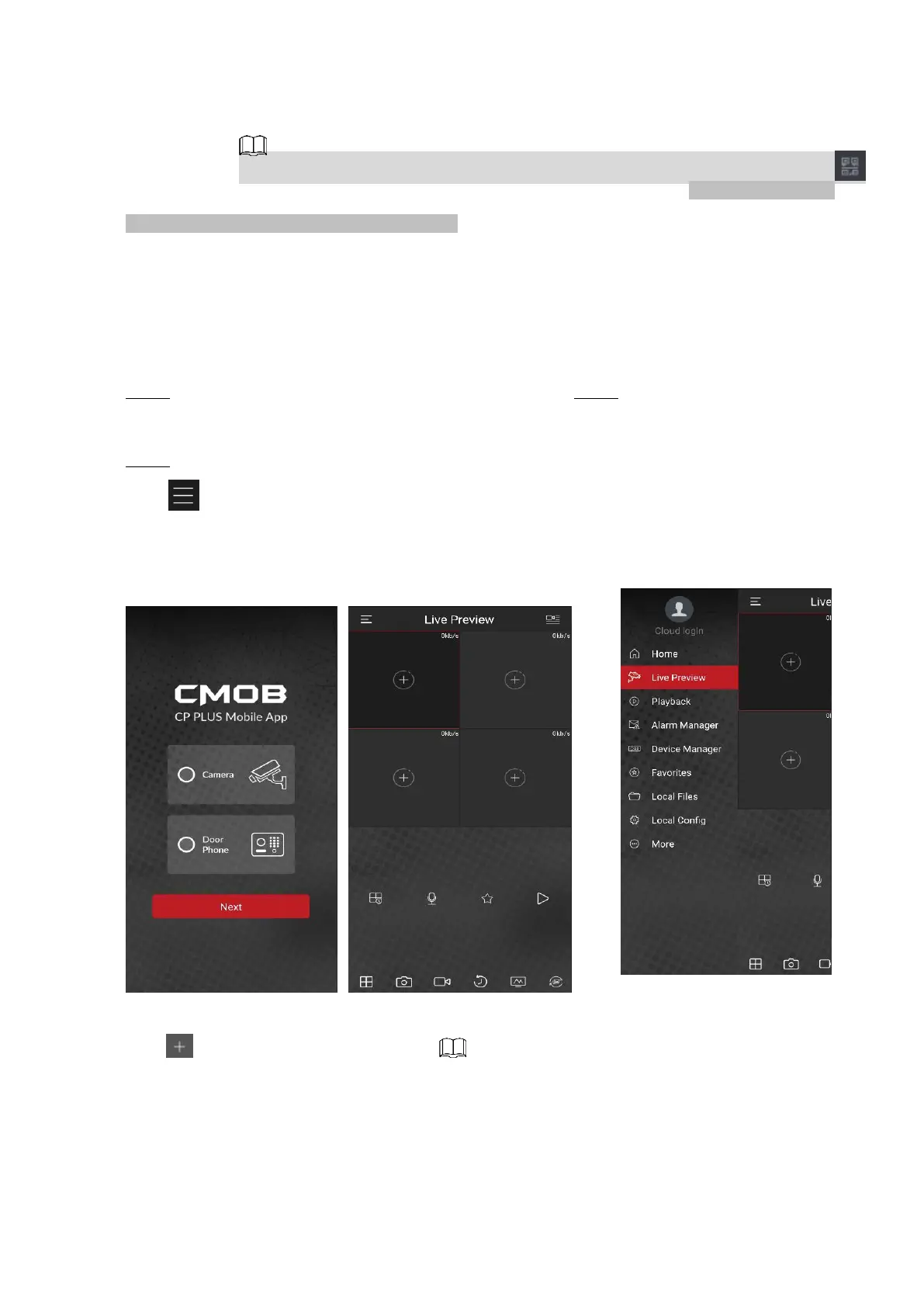
⚫ Step 1 Scan the QR code to download and install the mobile App. Step 2 Select Camera and enter the main
interface.
⚫ Step 3 Register device in the mobile App:
1) Click and select Device Manager. See Figure 1-214.
⚫ Figure 1-214
⚫
⚫
⚫
2) Click and enter the Add Device interface.
⚫ Mobile App supports device initialization.
3) Select Wired Device > INSTAON CLOUD to enter the INSTAON CLOUD interface.
4) Click the QR code icon behind the SN to enter the QR code scan interface.
5) Scan the device label or scan the SN QR code got by selecting Main Menu > Network > INSTAON CLOUD.
When the scan is successful, the device SN will be displayed in the SN item.



 To Next Page