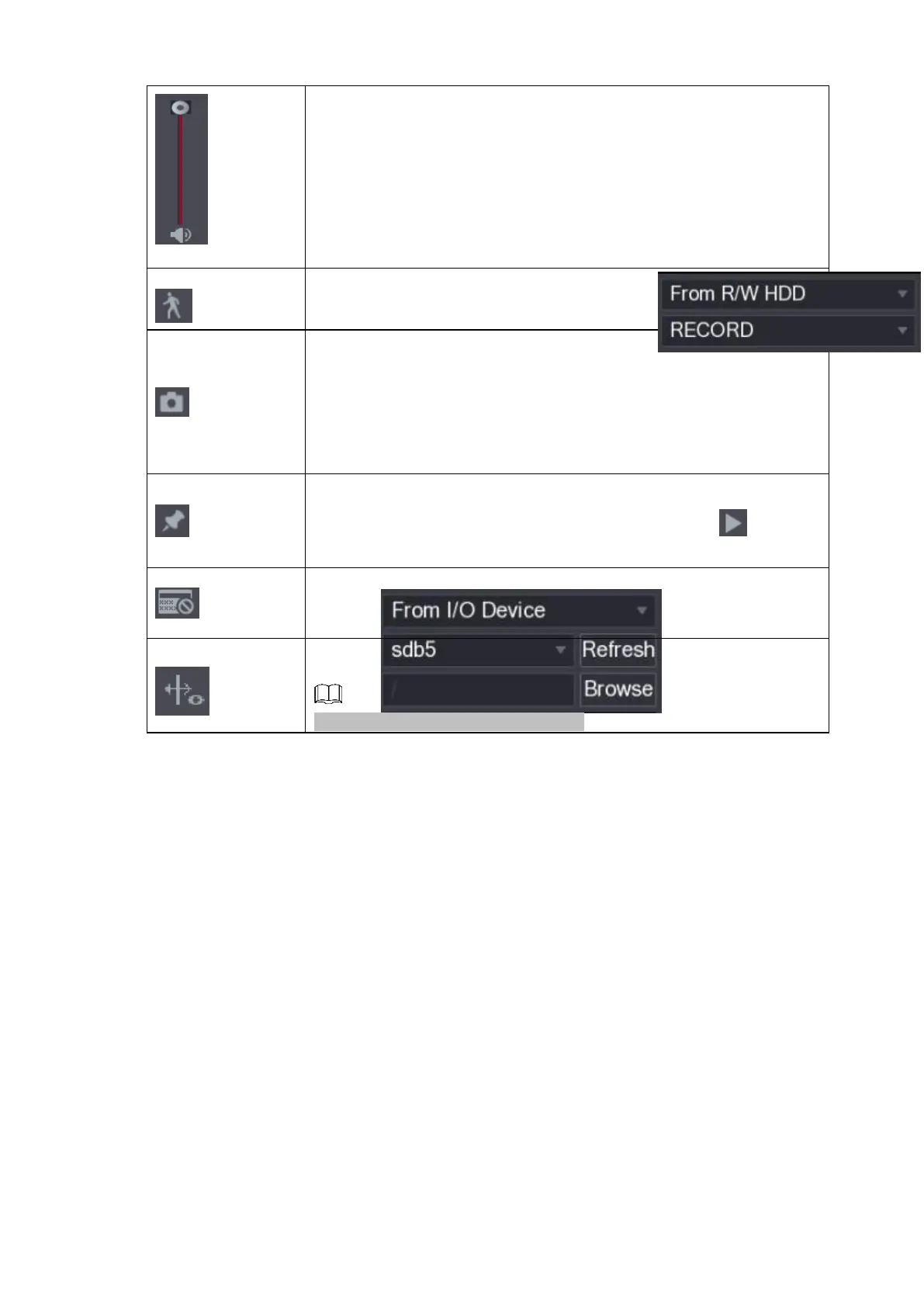
Adjust the volume of the playback.
Smart search.
Refer to "1.6.3 Smart Search Playback" for detailed information.
Click the snapshot button in the full-screen mode, the system can
snapshot 1 picture.
System supports custom snap picture saved path. Connect the
peripheral device first, click snap button on the full-screen mode, you
can select or create path. Click Start button, the snapshot picture can
be saved to the specified path.
Mark button.
This function is for some series product only. Make sure there is a
mark button in the playback control pane.
Refer to "1.6.4 Mark Playback" for detailed information.
Display/hide POS information.
In 1-channel playback mode, you can click it to display/hide POS
information on the video.
In 1-channel playback mode, click it to enable/disable display IVS rule
information on the video.
This function is for some series only.
1.6.2.2 Search
Type
⚫ You can
search
the
recorde
d
videos,
splice,
or
snapsh
ots from
HDD or
external
storage device.
⚫ From R/W HDD: Recorded videos or snapshots playback from HDD
of the Device. See Figure 1-94.
⚫ Figure 1-94
⚫ From I/O Device: Recorded videos playback from external storage
device. See Figure 1-95.
⚫ Click Browse, select the save path of recorded video file that you
want to play. Double-click the video file or click to start playing.
1.6.2.3 Clip



 To Next Page