26
How to Operate the Access Control Output
If the alarm system has been set up to allow control of an electric door lock, you can activate the
door release function as follows;
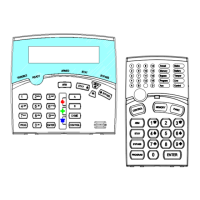
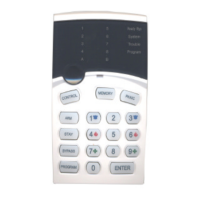
Press <CONTROL>/
or Press <CONTROL>/ enter CODE then <ENTER>/ . The
LCD Screen will change and say ‘Control’ and the assigned Electric Lock will Operate for the
Timed Period set by your Installer. The LCD Screen will show the Digit that represents the
Runner Output Number that is assigned to operate the Lock. When the Timer for the Electric
Lock Times-Out, the LCD Screen will change back to the Idle (Standard) Screen Status ready to
announce any zones that become Open.
The Access Control function can either be a single button operation or restricted to requiring a
valid User code entry. Both options are shown above. Please consult your installer as to what
option may be programmed.
How to start Walk Test Mode
While in CLIENT mode, a User with the proper authority can start walk-test mode. This special
mode latches the alarm signals from detectors at the keypad initiating the test so that one
person can trigger every detector connected to the alarm then return to the keypad to verify
operation. On terminating Walk-test mode, the test results are put into the memory buffer so
they can be viewed at a later time.
To start Walk-test mode while in CLIENT mode, press <PROGRAM>/
<200> <ENTER>/
<6> <ENTER>/ and the
keypad buzzer beeps at a rate of 2 beeps per second.
Next trigger every detector connected to the panel then return to the keypad and all of the zones
that were triggered are displayed on the keypad.
To terminate Walk-test mode press <ENTER>/
, the keypad will stops beeping but the
system will still be in Ready mode for another Walk Test Cycle. If you wish to perform another
Walk Test, simply press the <Enter>button, otherwise Exit Client Mode by pressing
<PROGRAM>/
<ENTER>/ .
How to Answer an In-Coming Call
From time to time your installer may need to access the alarm from a remote PC to make
changes to your programming and for security reasons they may have configured the alarm so
that an authorized person on-site is required to make the alarm system answer the in-coming
call. This option is only available in CLIENT mode.
If the panel is not configured to answer in-coming calls, the user can force it to answer the call
by pressing and holding <CONTROL>/
followed Immediately by <9>and Hold Both
buttons for 10 seconds or until you hear three quick beeps. This forces the panel to answer the
call immediately. For this function to work, the phone line must be ringing at the time
and there must have been at least two rings before pressing the buttons.
Provided the line connected to the alarm was ringing at the time, the panel now
answers the call and allows a remote PC connection.
How to Generate a Manual Test Call (Monitored CID Only)
From time to time it may be necessary to force the Dialer to report a Manually Generated ‘Test
Call’. This is a handy feature for when Test Calls are programmed for Weekly Reporting and the
system user (or service technician) would like to confirm that the Dialer is functioning.
If the panel is configured for Contact ID (Back-To-Base Monitored) reporting and test calls are
programmed to report, you can force a manual test call by pressing and holding <CONTROL>/
button followed Immediately by <0> and Holding Both buttons down until the LCD
Display shows ‘Dialler Active’.
This operation will cause a Manual Test Call to be Reported to the monitoring company. You can
also dial into the panel from a remote site and enter the DTMF Code Number (using the remote


 To Next Page