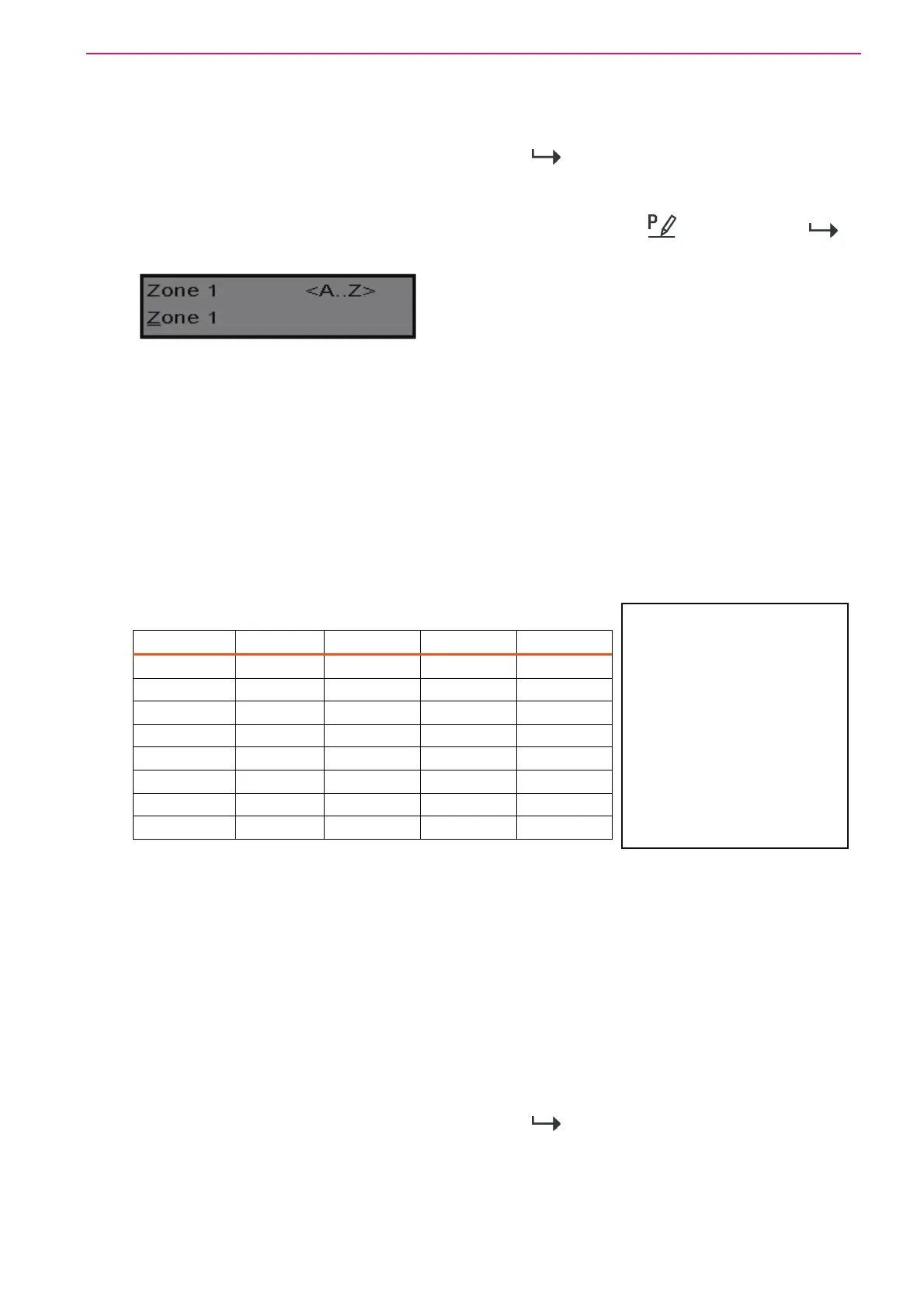
33
If you preferred to have the first area shown as Area “1” and not “A” then you can change it here
using the same method as used previously. With the cursor underneath the letter “A”, Press the
“1” button four times until the character in the first slot shows “1”.
When completing the changes, press the <ENTER>/
button to save.
Changing the Zone Names
When in “Local Edit Program Mode” and you have entered [PROG] / -[1]-[ENTER] / ,
the display looks like this;
The Cursor is underneath the first letter to be edited (in this case the “Z”).
The letters <A...Z> indicate that the letters selected by the numeric buttons (0-9) are in
capitals.
Pressing the “ MEM ” button once displays <a..z>, indicating that lower case letters are selected
by the numeric buttons (0-9).
Pressing the “ MEM ” button again, displays <
ד..ג>, indicating that Hebrew characters are now
selected by the numeric buttons (0-9).
Press the “MEM” button to cycle back to another selection.
Once you have selected the desired font proceed to change the text for Zone 1.
The following table shows the English Characters that can be selected by each numeric button.
The lower case options are shown in ( )
▼Button #
1st Press 2nd Press 3rd Press 4th Press
1 * (‘) # (<) 1
2 A (a) B (b) C (c) 2
3 D (d) E (e) F (f) 3
4 G (g) H (h) I (i) 4
5 J (j) K (k) L (l) 5
6 M (m) N (n) O (o) 6
7 P (p) Q (q) R (r) 7
8 S (s) T (t) U (u) 8
There are four different selections per button. By pressing the button once, a character is
displayed in the display (see “1st press” column). Pressing the same button again causes the
display to change to the next character in the sequence (see “2nd press” column). After you
have pressed the same button four times the next press (5th) causes the display to wrap back to
the beginning.
Once you have selected the first character, Press the “BYPASS" (CROW)” button to move the
cursor one position to the right.
Now select the second character and move the cursor to the right repeating the process until all
of the text is completed (Remember that there are a maximum of 16 characters per program
address).
If you make a mistake use the “STAY (CROW)” button to move the cursor towards the left and
make any corrections necessary.
When you are happy with the text, press <ENTER>/
to save the changes. You can program
the text for all zones in the same way.
NOTE: It’s worth mentioning
here that the Process of
changing the Various
Descriptions is very much the
same as constructing an SMS
‘Text’ message on a Cell
Phone. The Only difference
being that we Must advance the
Cursor Manually to the next
position by Pressing Once on
the “Bypass” (Right Arrow)
Button to move the Cursor One
Position to the Right.


 To Next Page