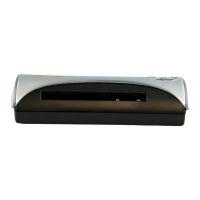
MagshellThe main screen controls
IdScan User Manual version 9.0
©
Card Scanning Solutions, all rights reserved 46
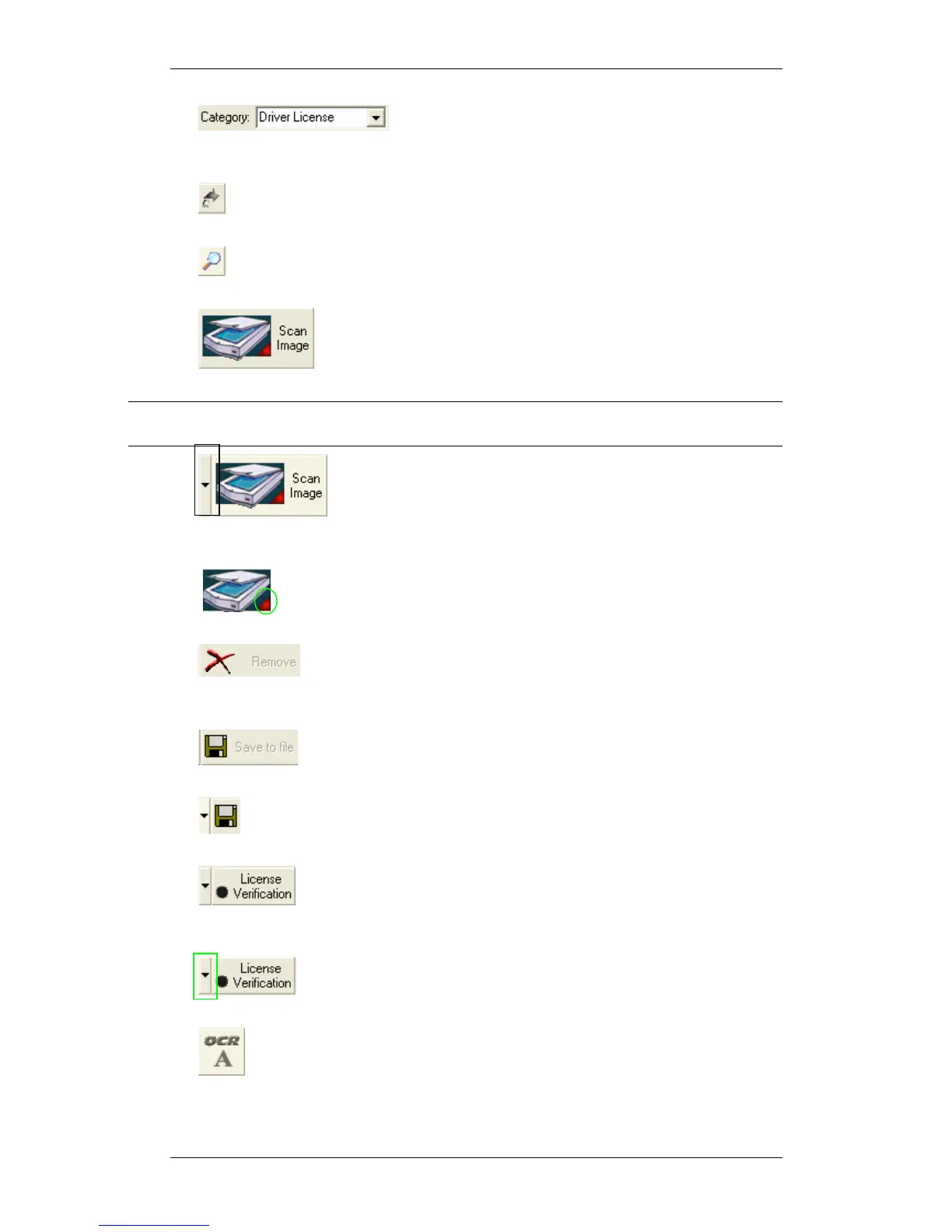
• Category: selection of the scanned document
types, sets the source for data detection accordingly.
• Rotate Image: Rotates the image 90 degrees clockwise (not applicable in
magnetic scan mode).
• Zoom Image: Click to enlarge the image for better reading (not
applicable in magnetic scan mode).
• Scan Image: Starts the image scan if using manual scan and
the image source is set to scanner. Otherwise, activates the File Open dialog.
Note: ‘Toggle to file’ is possible only if a scanner is physically connected to the PC, or if
the license key used is a temporary key.
• Toggle Image Source: Sets the input image source to
Scanner (Magshell magnetic reader, ScanShell scanner, or an image file on the
hard disk).
• Scanner Connection: A green light indicates that the scanner is
connected to the PC. A red light indicates that no scanner was found.
• Delete Image: Deletes the scanned image. This gives you a
way to control the image prior to saving (not applicable in magnetic scan
mode).
• Save to File: Active only in manual save mode: Opens the
SAVE AS dialog if file saving is enabled, or saves the file to the clipboard.
•
Toggle Image Output: Active only in manual save mode: Sets the
output destination to file or clipboard.
•
Card Verification: Activates the verification function (require
a Scanshell scanner connected to the computer to allow scanning and
retrieving data from barcode or OCR).
• Toggle reference: Sets the reference source for card
verification purposes.
• Open OCR View: Opens extracted text view.


 To Next Page