96D-Link DSL-245GE User Manual
Section 6 - Connecting to a Wireless Network
When connecting to the DSL-245GE wirelessly for the rst time, you will need to input the wireless network name (SSID) and
Wi-Fi password (security key) of the device you are connecting to. If your product has a Wi-Fi conguration card, you can
nd the default network name and Wi-Fi password here. Otherwise, refer to the product label on the bottom of the device
for the default Wi-Fi network SSID and password or enter the Wi-Fi credentials set during the product conguration.
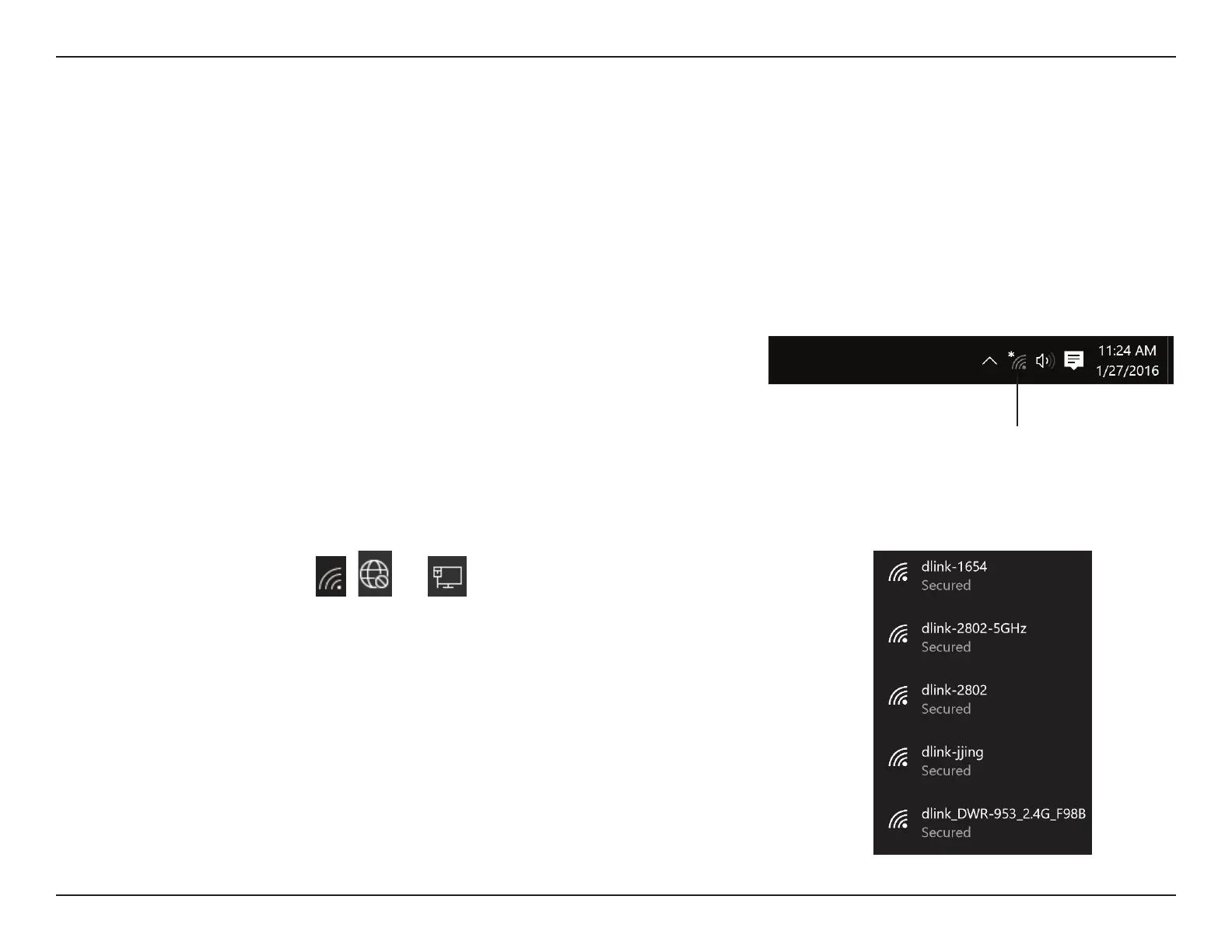
To join an existing network, locate the wireless network icon in the taskbar,
next to the time display and click on it.
Windows® 11/10
Wireless Icon
Clicking on the Network icon , , or to enable Wi-Fi to display a list
of wireless networks which are within the range of your computer. Select the
desired network by clicking on the SSID.
WPA/WPA2


 To Next Page