33D-Link DSL-245GE User Manual
Section 4 - Conguration
Internet - Ethernet
Your DSL-245GE is equipped with a multi-purpose Gigabit Ethernet LAN/WAN port which can
be used to connect to the Internet. This port can also be used to connect to other Ethernet
based networks. In order for your DSL-245GE to use Ethernet, you must congure the WAN
Connection Type and related WAN settings.
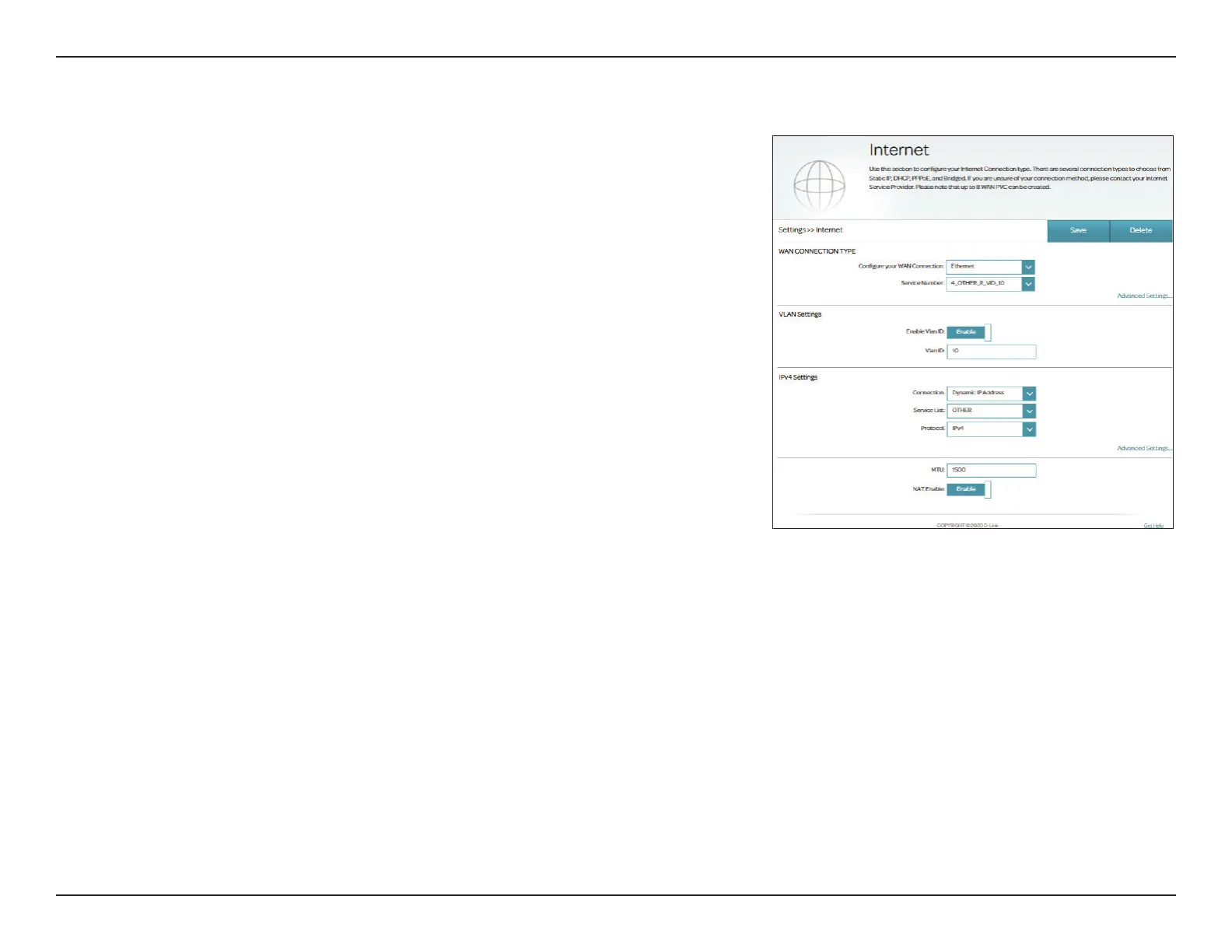
Congure your
WAN connection:
Select Ethernet to congure Ethernet connection settings. To use the
LAN/WAN port for WAN connection, please enable the LAN to WAN
Setting control to designate the LAN/WAN port on the back of the
device as a physical WAN port (go to Settings > Network > Advanced
Settings).
Service Number: Select a service number from the drop-down menu for conguration,
or to create a new service number for your Ethernet connection, click
Add. The service number corresponds to the congured interface
prole from your Ethernet WAN Connection Type.
VLAN Settings
Enable Vlan ID: Enable or disable VLAN settings.
Vlan ID: Enter the VLAN ID. Enter a value from 1 - 4094.
IPv4 Settings
Connection: Select the connection method for your Internet and refer to the
respective conguration page for setup information.
For Dynamic IP (DHCP) Address, refer to Connection Type:
Dynamic IP (DHCP) on page 34.
For Static IP Address, refer to Connection Type: Static IP on
page 36.
For PPPoE, refer to Connection Type: PPPoE on page 38.
For Bridge Mode, refer to Connection Type: Bridge Mode
on page 40.


 To Next Page