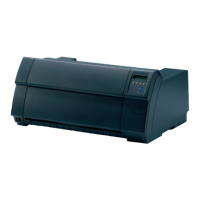
Tally Dascom 1330
25
2. Load Paper. The printer prints the few lines below:
Paper Slip Mode
[LF]=Next, [TOP]=Back, [LOAD/EJECT]=OK, [ONLINE]=Exit, [ONLINE]+[LOAD/EJECT]=
Save and restart the printer.
Single Top Margin
Press the Next or Back keys to scroll to the parameter you want to change. The
changeable parameters in the Slip-profiles are: Single Top Margin, Single Left Margin,
Fanfold Top Margin, and Fanfold Left Margin in this order if Next is pressed. Pressing
Back lists the parameter names in the reverse order.
1) Setting Single Top Margin:
When Single Top Margin is prompted, press OK to go into this designated setting
and the printer prompts:
[Single Top Margin]
[TOP]=-1,[LF]=+1,[LOAD/EJECT]=OK,[ONLINE]=Back,[ONLINE]+[LOAD/EJECT]=Save
and restart the printer. (Unit:mm)
4
“4” in the last line shows the current top margin = 4mm. Enter the new value by
pressing -1 or +1. The allowed range for top margin is -25 ~ 128 mm.
Press OK to let the printer prompt the revised value. Press Save and restart if you
do not intend to change other slip-profile parameters. Otherwise, press OK again
to confirm the change and the printer prints an “*” following the revised value. Then
the printer prompts a message to ask to save the revised value:
Save the parameter settings ([LOAD/EJECT] or [ONLINE] = OK, [LF] = Next)?
Yes
Press OK to confirm saving and the printer prompts an “*” following the “Yes” to
respond to your confirmation. Otherwise, press Next to give up the change; the
printer prompts a “No” and expects you to press OK to confirm not to save.
2) Setting Single Left Margin:
In the Step 2 prompt, press Next to skip to the Single Left Margin setting indicated
by this prompt:
Single Left Margin
Follow the same procedures in 2-1) to revise the left margin. The allowed range of
left margin is -77 ~ 77 mm.
3) Apply similar procedures to configure the top and left margins parameters for
fanfold.


 To Next Page