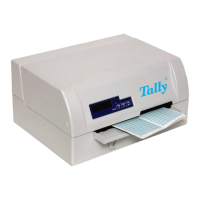
Tally Dascom 5130P
28
3) Go to DOS prompt window, type in “copy/b <file name> lpt1”, and press enter to start.
During download, LED”DATA” and LED “USER1” blink, while other LEDs light up.
2. In Linux operation system
1) Connect the printer to PC with parallel cable or USB cable.
2) With the cover open, hold 【USER1】+【OFFLINE】 while powering on the printer to enter Firmware
Update mode. LED”DATA” and LED”ON/PAPER” blinks alternatively.
3) Go to Linux terminal window. (Select from Taskbar: Application
-> Accessory-> Termina l)
4) Type in the command to enter the file directory.
5) When using parallel interface, type in “sudo cp <file name> dev/lp0” and press enter to start.
When using USB interface, type in “sudo cp <file name> dev/usb/lp0” and press enter to start.
During download, LED”DATA” and LED “USER1” blink, while other LEDs light up.
3. Using the Configuration Tool (comes on the CD-ROM enclosed with the printer)
1) Run Configuration Tool to connect with the printer.
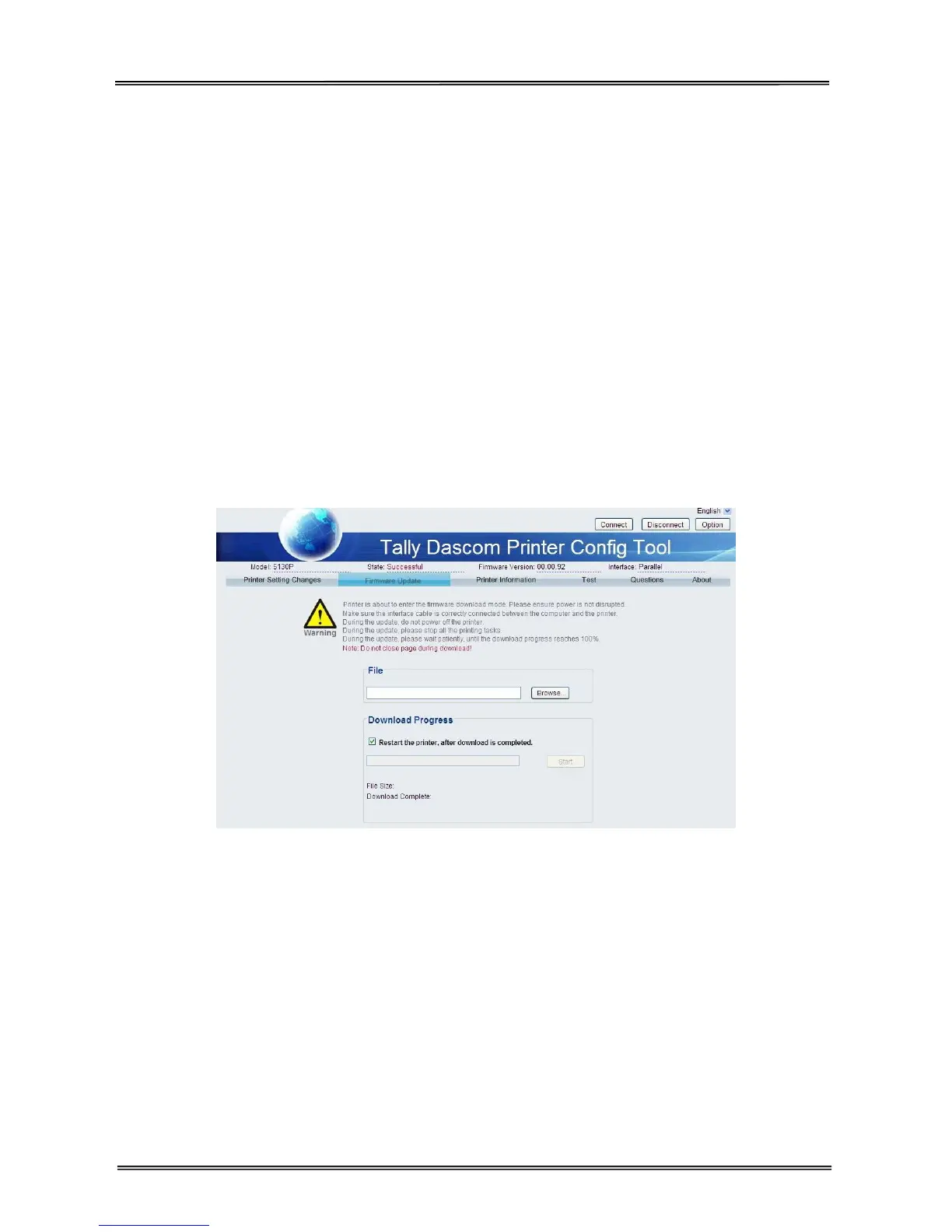
2) Click “Firmware Update” button to enter the download page, shown as below.
3)
Click “Browse” button to select the firmware file.
4)
Click “Start” button and confirm the firmware file again. LED”DATA” and LED “ON/PAPER” blinks
alternatively.
During download, LED”DATA” and LED “USER1” blink, while other LEDs light up.
It takes 1~3 minutes for completion. Then the printer resets. If some abnormity occurs during the process,
please update again.
Note:
1) Do not switch off the printer or disconnect the cable during the update process.
2) The update process should be performed by authorized service person to prevent damage to the
printer.


 To Next Page