Tally Dascom 5130P
27
Hex Dump
The function is useful for programmers to determine whether the computer is sending the correct codes
to the printer and whether the printer is executing the codes correctly, for some computer will revise the
codes sent to the printer. In this mode, all the received data will be print out in hexadecimal format, and
the control codes will not execute according to command codes. Enter the Hex Dump mode following
the steps as below:
1) With the cover closed, hold 【USER1】+【OFFLINE】 while powering on the printer. LED “ON/PAPER”
lights up while LED”USER1” and LED”USER2” blink. Press 【USER2】 and the printers resets.
LED”USER1” and LED”USER2” turn off to indicate the activation of Hex Dump. Load an A4 paper.
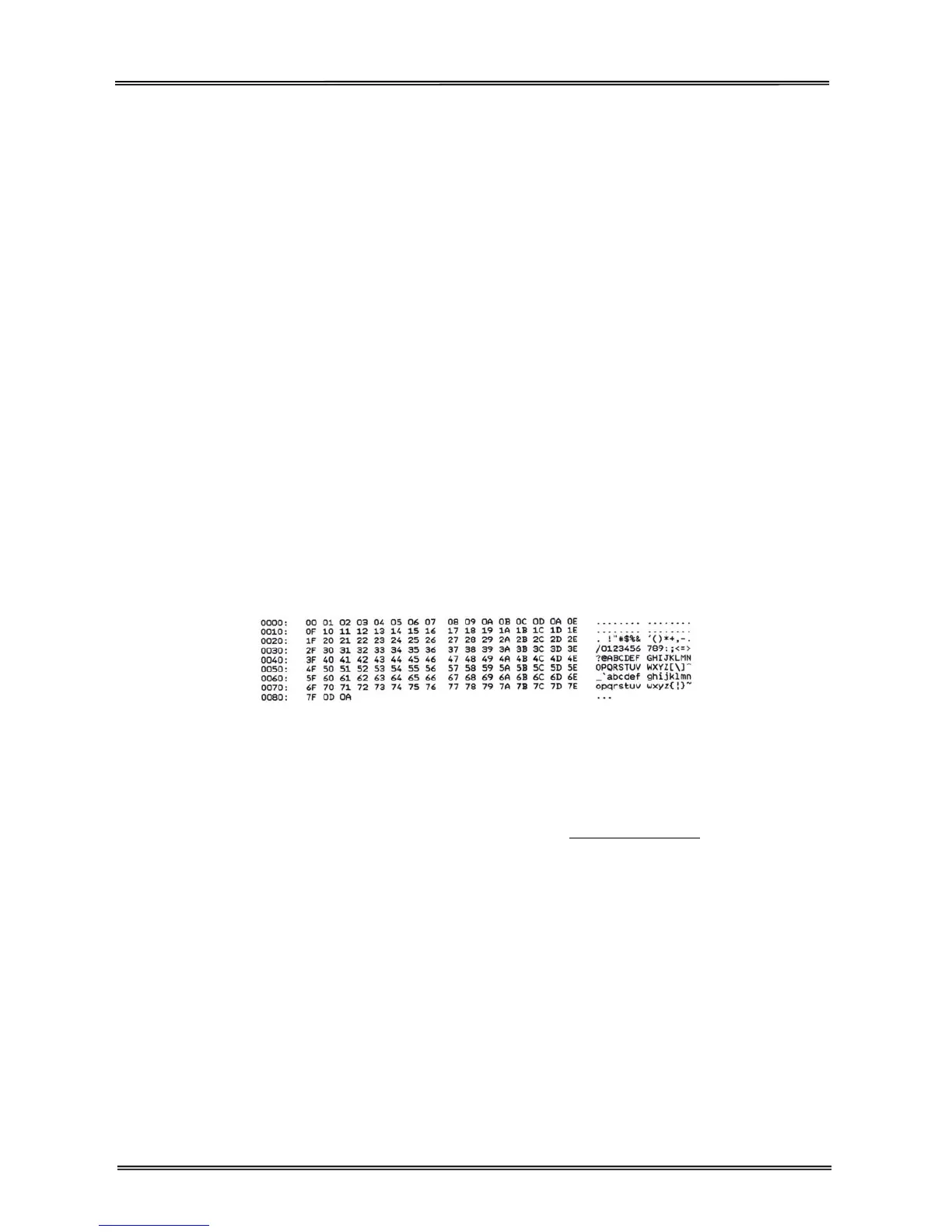
2) Besides the line no., the data from the computer is printed out in two columns. The text in the left
column is printed in hexadecimal format and in the right column is ASCII format.
3) To finish the printing, press 【OFFLINE】 to print out the remaining data in the last line.
Following QBASIC program is an example of this mode.
10 FOR I=0 TO 127
20 LPRINT CHR$(I);
30 NEXT
40 LPRINT
50 END
If the received codes have not been revised by your computer, below is a printout for your reference:
4) Exit Hex Dump mode by switching off the printer.
Firmware Update
Sometimes it is necessary update the firmware to solve a problem. The latest firmware file may be
obtained from your dealer or downloaded from our website www.dascom.com
. Before upgrading
firmware, it is strongly recommended to print the menu page to keep a record of the old settings.
Note:
Firmware update should only be performed by an authorized service person. We disclaim any
responsibility for any damage caused if it is performed by any other person.
To load new firmware, proceed as following:
1. In DOS operation system
1) Connect the printer to PC with parallel cable.
2) With the cover open, hold 【USER1】+【OFFLINE】 while powering on the printer to enter Firmware
Update mode. LED”DATA” and LED”ON/PAPER” blinks alternatively.


 To Next Page