Tally Dascom 5130P
46
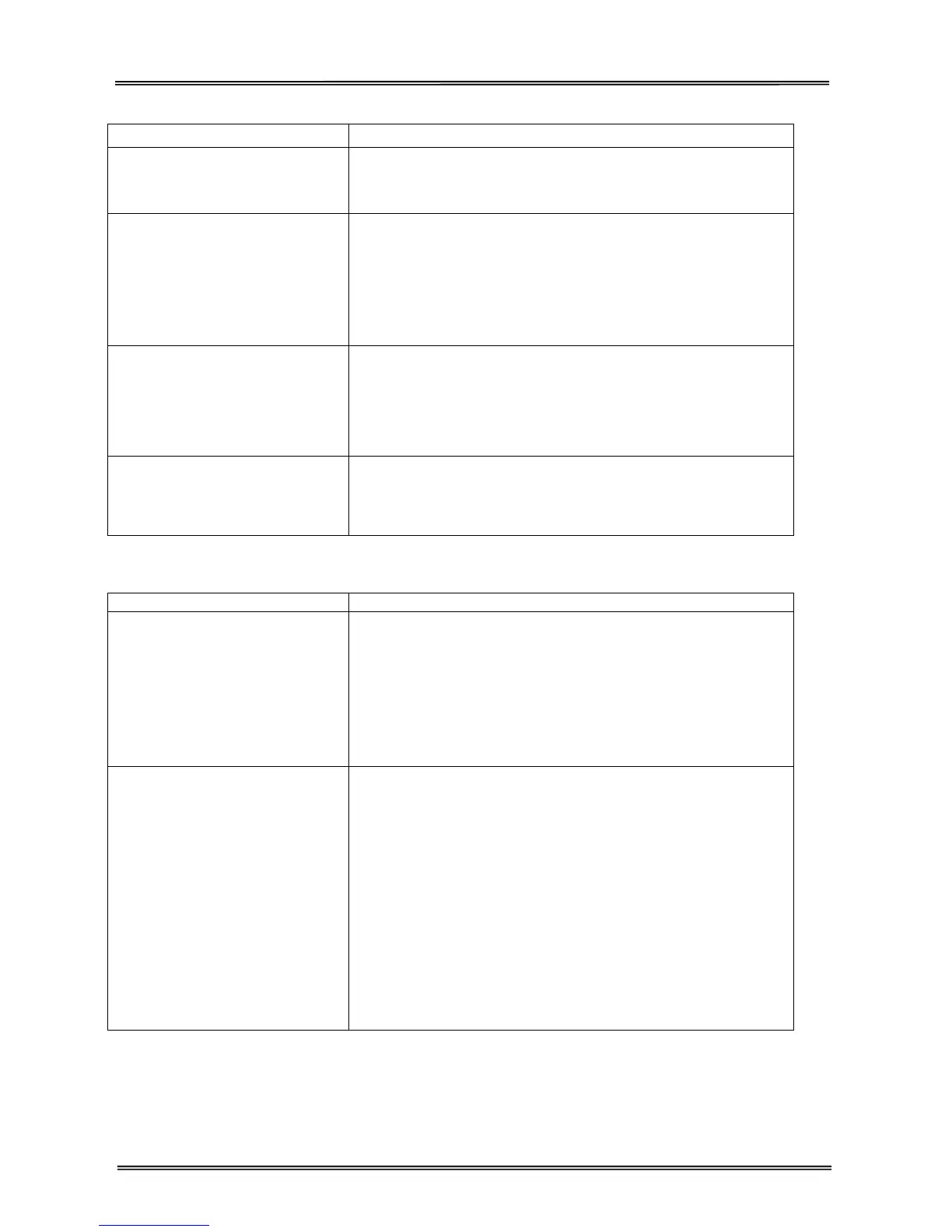
Paper Handling Problems and Solutions
Problem Solution
Paper cannot be loaded or fed.
• Make sure that the paper covers the paper-out sensor.
• For continuous forms (with optional tractors), make sure that the
paper feed lever is located correctly.
Paper jams while loading.
• Turn off the printer and remove the jammed paper. Remove any
obstruction from the paper path.
• Make sure that the paper is not folded, creased, or torn.
• For continuous forms (with optional tractors), make sure that the
left and right tractors are set so that the continuous forms are
stretched taut.
Paper jams while printing.
• Turn off the printer and remove the jammed paper. Remove any
obstructions from the paper path.
• For continuous forms (with optional tractors), make sure that the
incoming and outgoing paper stacks are correctly placed. Paper
should feed straight.
Paper slips off the forms tractors
or the perforated holes of the
paper tear during printing. (For
optional tractors.)
• Make sure that the forms tractors are positioned correctly for
the width of your paper and that the perforated holes of the paper
fit directly over the tractor pins.
Operating Problems and Solutions
Problem Solution
The power does not turn on.
• Check whether the mains voltage is correct.
• Make sure that the power cord is securely connected to both
the printer and the mains power outlet.
• Make sure that the power outlet is functional. If not so, use
other outlet.
• Turn the power off. Wait a minute and then turn the printer on
again. If the printer still has no power, contact your dealer.
The printer is on but it will not
print.
• Make sure that the LED“OFFLINE” is off.
• If you use the interface cable, make sure it is securely
connected to both the printer and the computer.
• If you use serial interface, make sure the settings are the same
as PC communication port settings.
• Make sure paper is loaded and the paper feed lever is set
according to the used paper path (only valid with optional tractors).
• Run the printer Status Page. If printing executes normally, the
problem is caused by: the interface, the computer, incorrect
printer settings, or incorrect software settings.
• Make sure that the printer driver selected in your software is the
same as the emulation selected on the printer.


 To Next Page