EasyManua.ls Logo

Datalogic Gryphon 2D Series - User Manual

Datalogic Gryphon 2D Series
356 pages
Print Icon
To Next Page IconTo Next Page
Loading...
L
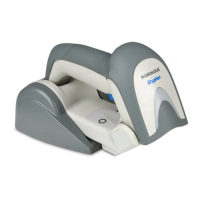
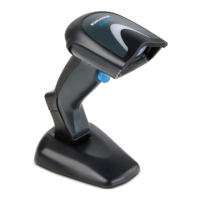
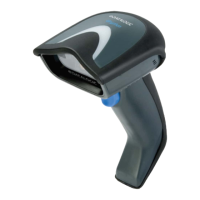
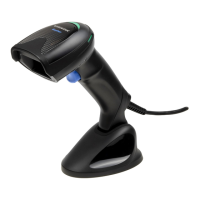
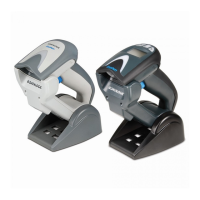
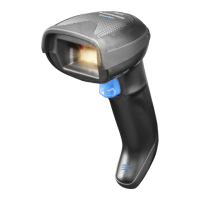
Gryphon™ 2D Family
Gryphon I GD/GBT/GM4500
PRODUCT REFERENCE GUIDE
General Purpose Handheld
Area Imager Bar Code Reader

Table of Contents

Other manuals for Datalogic Gryphon 2D Series

Questions and Answers

  • J
    Jacqueline SmithJul 27, 2025
    What to do if Datalogic Barcode Reader LED is on but barcode doesn't decode?
    • T
      Tammie FloresJul 28, 2025
      If the LED is on, but the bar code doesn't decode, it could be due to several reasons: * The reader might not be programmed for the correct bar code type. In this case, ensure the reader is programmed to read the type of bar code scanned. * The bar code label may be unreadable. Check the label to ensure it is not defaced. You can also try scanning another bar code type. * The distance between the reader and the bar code might be incorrect. Try moving the reader closer to or further from the bar code.
  • A
    austinsteeleAug 2, 2025
    Why Datalogic Barcode Reader does nothing when I pull the scan button?
    • D
      David OlsenAug 2, 2025
      If nothing happens when you pull the scan button on your Datalogic Barcode Reader, the issue might be due to: * No power to the reader. Check the system power and ensure the power supply is connected. * Loose interface or power cables. Make sure all cable connections are secure.
  • D
    Derek GarnerAug 6, 2025
    What to do if Datalogic Gryphon 2D LED is on, but the barcode does not decode?
    • A
      Allen VelazquezAug 6, 2025
      If the LED is on but your Datalogic Barcode Reader isn't decoding, there could be a few reasons. First, the reader might not be programmed to read that specific type of barcode, so ensure it is properly configured. Second, the barcode label itself might be damaged or unreadable; check for any damage and try a different barcode. Finally, the distance between the reader and the barcode could be off; try moving the reader closer or further away from the barcode.
  • P
    Phillip HerreraAug 11, 2025
    Why nothing happens when I pull the scan button on my Datalogic Gryphon 2D?
    • M
      Michael RoblesAug 11, 2025
      If nothing happens when you pull the scan button on your Datalogic Barcode Reader, the issue is likely related to power or connectivity. First, check the system power to ensure the imager is receiving power and that the power supply is properly connected. Second, make sure all interface and power cable connections are secure, as loose cables can prevent the device from functioning.
  • B
    Bonnie WilliamsAug 16, 2025
    How to fix Datalogic Barcode Reader that decodes but doesn't transmit to host?
    • B
      Brandon MillerAug 16, 2025
      If the bar code is decoded but not transmitted to the host, the Datalogic Barcode Reader may not be programmed for the correct host type. To resolve this, scan the appropriate host type bar code.
  • B
    bethanylunaAug 22, 2025
    How to fix Datalogic Gryphon 2D Barcode Reader that decodes but does not transmit to the host?
    • I
      Isabel ManningAug 22, 2025
      If your Datalogic Barcode Reader decodes the barcode but doesn't transmit it to the host, the imager might not be programmed for the correct host type. Scan the appropriate host type barcode to resolve this.

Summary

CHAPTER 1 INTRODUCTION

ABOUT THE READER

Overview of the Gryphon product series and the GD4500 reader's capabilities.

USING THE GRYPHON I GD4500 READER

Instructions for reading symbols, using the Green Spot, and stand detection features.

CHAPTER 2 SETUP

UNPACKING

Guidance on checking the reader and accessories for damage or missing parts after shipment.

SETTING UP THE GRYPHON GD4500 READER

Steps for connecting the reader, host interface, and customizing configuration settings.

CONNECTING THE BASE STATION

Details on how to connect the base station to a terminal, PC, or other host device.

REPLACING THE BATTERY PACK

Step-by-step procedure for changing the reader's battery pack.

CHAPTER 3 CONFIGURATION WITH BAR CODES

CONFIGURATION PARAMETERS

Details on changing default parameters using logical groups for easy access.

GLOBAL INTERFACE FEATURES

Configurable features applicable to all interface types, such as host commands and USB suspend mode.

RS-232 INTERFACE

Settings for the RS-232 interface, including standard settings like baud rate and data bits.

KEYBOARD INTERFACE

Configuration options for USB Keyboard and Wedge interfaces, including country mode.

CHAPTER 4 REFERENCES

RS-232 PARAMETERS

Explanations and settings for RS-232 communication parameters like baud rate and data bits.

SCANNING FEATURES

Details on various scanning modes like Trigger Single, Flashing, and Stand Mode.

SYMBOLOGIES

Controls for enabling/disabling and setting lengths for various barcode symbologies.

APPENDIX A. TECHNICAL SPECIFICATIONS

GD4500 TECHNICAL SPECIFICATIONS

Physical, optical, and electrical characteristics for the GD4500 model.

GBT;GM4500 TECHNICAL SPECIFICATIONS

Electrical, optical, environmental, and radio characteristics for GBT/GM4500 models.

DECODING CAPABILITIES

Lists all supported 1D and 2D barcode symbologies that the reader can decode.

Datalogic Gryphon 2D Series Specifications

General IconGeneral
ConnectivityUSB, RS-232, Keyboard Wedge
Light SourceLED
Operating Temperature0°C to 45°C (32°F to 113°F)
Storage Temperature-20 to 70 °C / -4 to 158 °F
Supported Symbologies2D
Decode Capability1D, 2D, Postal and Stacked Codes
Reading Angle360°
Ambient LightUp to 100, 000 lux
Humidity5 - 95% (Non-condensing)
Depth of FieldVaries by model (e.g., 10 cm to 60 cm for standard models)
DimensionsVaries by model; e.g., Gryphon I GD4500: 18.1 x 7.1 x 10.0 cm / 7.1 x 2.8 x 3.9 in

Related product manuals