Maintenance M7/M7L/M7LT Modular Satellite Modem
3-4 M7/M7L/M7LT - Rev. 0.05
3.3.1. Front Panel Matrix Navigation
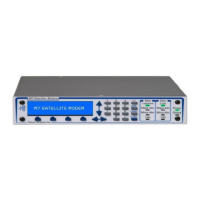
A functional matrix is selected by pressing one of the four buttons below the LCD display. In response
the modem will highlight the particular button text selected.
Each individual item that may be controlled or monitored is referred to as a “parameter”. Parameters
are arranged within each matrix as rows and columns. The LCD display shows a single parameter at
one time. The four arrow keys (), (), (), (), allow scrolling through the rows and columns of the
parameter matrix or sheet. The left and right arrow keys scroll through the columns and the up and
down arrow keys scroll through the available parameters in each column. Both the columns and rows
“wrap around” such that scrolling past the last item in a row starts with the first item in the same row
again, and the same for columns.
3.3.2. Monitoring Modem Parameters
Any available modem parameter is monitored by simply using the function and arrow keys to display
the desired parameter in the LCD display. The item displayed will remain until changed or power is
removed from the modem unit. The display operates in real time, therefore when a currently
displayed parameter changes the display will change without operator intervention.
When multiple parameters could be displayed (such as when multiple test modes are currently
running or multiple alarms are present) only the highest priority item is displayed. When that item is
no longer valid the next highest priority is displayed. The priority of items is fixed within the modem
software.
3.3.3. Changing Modem Parameters
The process to change any parameter is a follows:
1. Select the functional matrix by choosing one of the four function keys; Unit, Mod, Dem and
Intf
2. Select the parameter to be changed using the four arrow keys to the right of the LCD
display. The Left and right arrow keys control the column of the matrix and is shown in the
upper left position of the LCD display. The up and down arrow keys control the row of the
matrix and is shown in the upper right of the LCD display
3. Press the “Edit” key to indicate that a new entry is desired (If the “Quick” keyboard entry is
enabled this step may be skipped)
4. Set the parameter via the numeric keypad or arrow keys
5. Finalize the data entry using the “Enter” key
Parameters take one of two forms:
1. Numeric entry such as frequency or bit rate;
2. Selection from a list such as selecting FEC rates 1/2, 3/4 or 7/8.
3.3.3.1. Numeric entries may be entered by performing one of the following:
When a numeric parameter is displayed, it can be changed by pressing the “Edit” key, then using
the left and right arrow keys to select the first digit to be changed and entering a new digit.
Successive digit entries go to successive characters on the display, skipping over the decimal
point which is in a fixed location. Leading zeros must be used to enter smaller numbers than are
currently displayed, and trailing zeroes are used to eliminate trailing digits not required. The entry
is finalized by pressing the “Enter” key.
An alternate edit mode is accomplished by first pressing the “Edit” key, then using the left and
right arrow keys to select the first digit to be changed. The digit is “scrolled” using the up and
down arrow key. Additional digits are pointed to using the left and right arrows and also scrolled.
Finish the edit by pressing the enter key. Overflow when scrolling up through 9 will increment the
next higher digit while underflow will decrement the next higher digit.
Direct entry can be accomplished if the <Unit: Keyboard – Entry Mode> is set to “Quick”. In this
mode the current parameter can be changed by simply entering new information, which


 To Next Page