DriveRack™ User Manual
From Program mode, press the UTILITY button and use the PREV PG and NEXT PG but-
tons to move to the page that appears something like this:
• Note that the underscore indicates the currently selected parameter for editing. To
select parameters to edit from the current page, simply press the DATA wheel until
the underscore is under the parameter that you wish to edit.
• The unit is set to default to program change normal mode, so simply rotate the
DATA wheel to select; ProgList, and then press the DATA wheel to select List size.
• Once this has been selected, rotate the DATA wheel to set the desired list size.
Once the desired mode and size have been selected, press the NEXT PG button
and the display will appear as follows:
• The index number is the position of the selected program in the list. To change
the index number (when it is selected), simply rotate the DATA wheel.
• To set the program number that will correspond with the index number, press the
DATA wheel. once this is selected, rotate the DATA wheel to select the desired
program number.
• Once your program list has been built, press the PROGRAM/CONFIG button to
exit.
Note: Factory programs cannot be written over or lost. The “Replace Old” function
will only allow you to replace a user program.
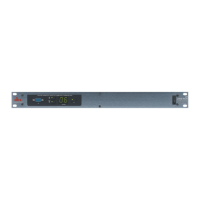
Since venues and applications vary, the 240 and 241 DriveRack™ units provide you with the
option of changing the contrast of the custom display. To make any adjustments to the display
contrast, press the UTILITY button and use the NEXTPG or PREVPG button to move to the
page that appears as follows:
5.5 Contrast Adjustment


 To Next Page