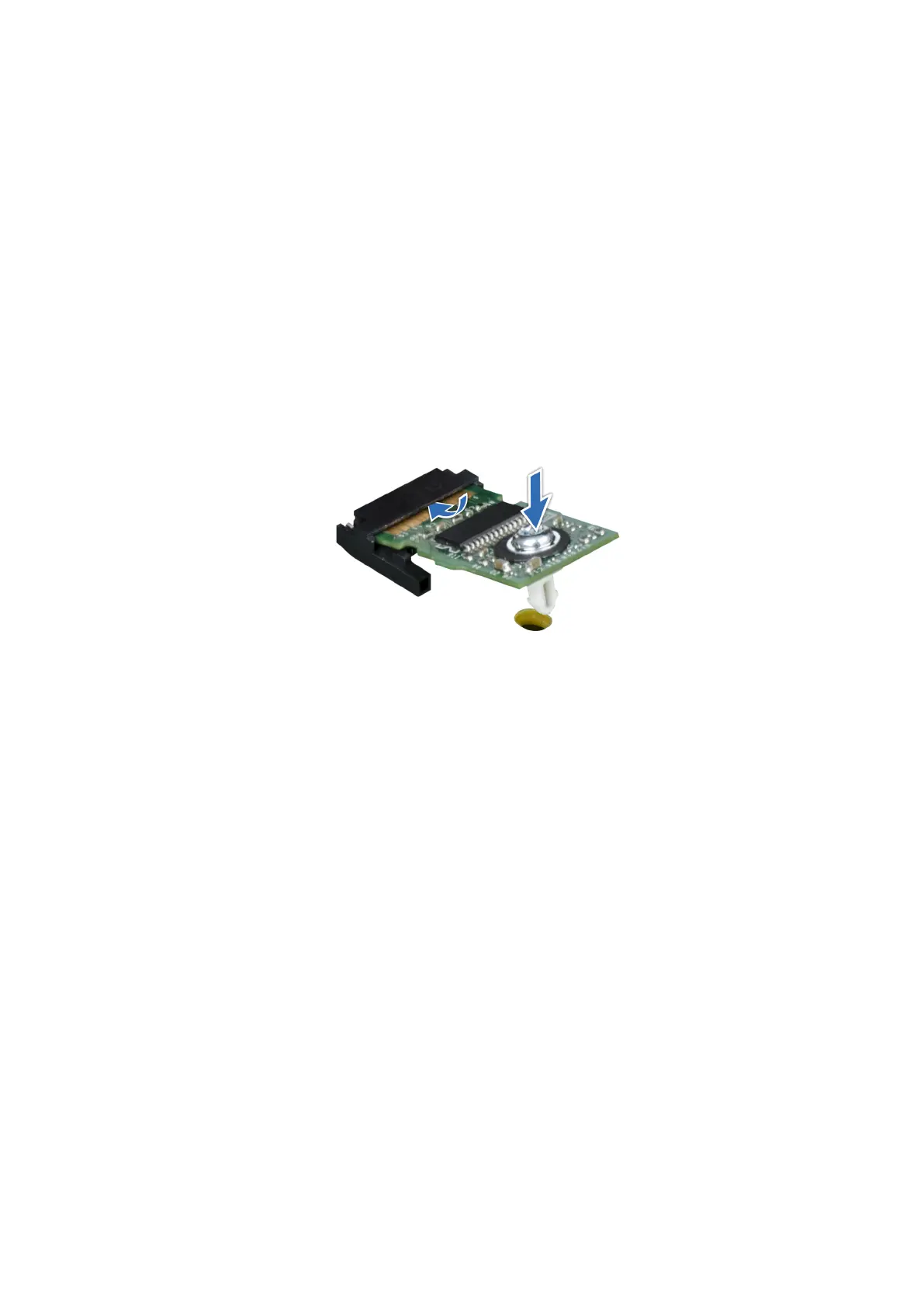
3. Slide the TPM module out from its connector.
4. Push the plastic rivet away from the TPM connector and rotate it 90° counterclockwise to release it from the system board.
5. Pull the plastic rivet out of its slot on the system board.
Installing the TPM
Prerequisites
1. Follow the safety guidelines listed in the Safety instructions.
2. Follow the procedure listed in Before working inside your system.
Steps
1. To install the TPM, align the edge connectors on the TPM with the slot on the TPM connector.
2. Insert the TPM into the TPM connector such that the plastic rivet aligns with the slot on the system board.
3. Press the plastic rivet until the rivet snaps into place.
4. Replace the screw that secures the TPM to the system board.
Figure 100. Installing the TPM
Initializing TPM for users
Steps
1. Initialize the TPM.
For more information, see Initializing the TPM for users.
2. The TPM Status changes to Enabled, Activated.
Initializing the TPM 2.0 for users
Steps
1. While booting your system, press F2 to enter System Setup.
2. On the System Setup Main Menu screen, click System BIOS > System Security Settings.
3. From the TPM Security option, select On.
4. Save the settings.
5. Restart your system.
124
Installing and removing system components




 To Next Page