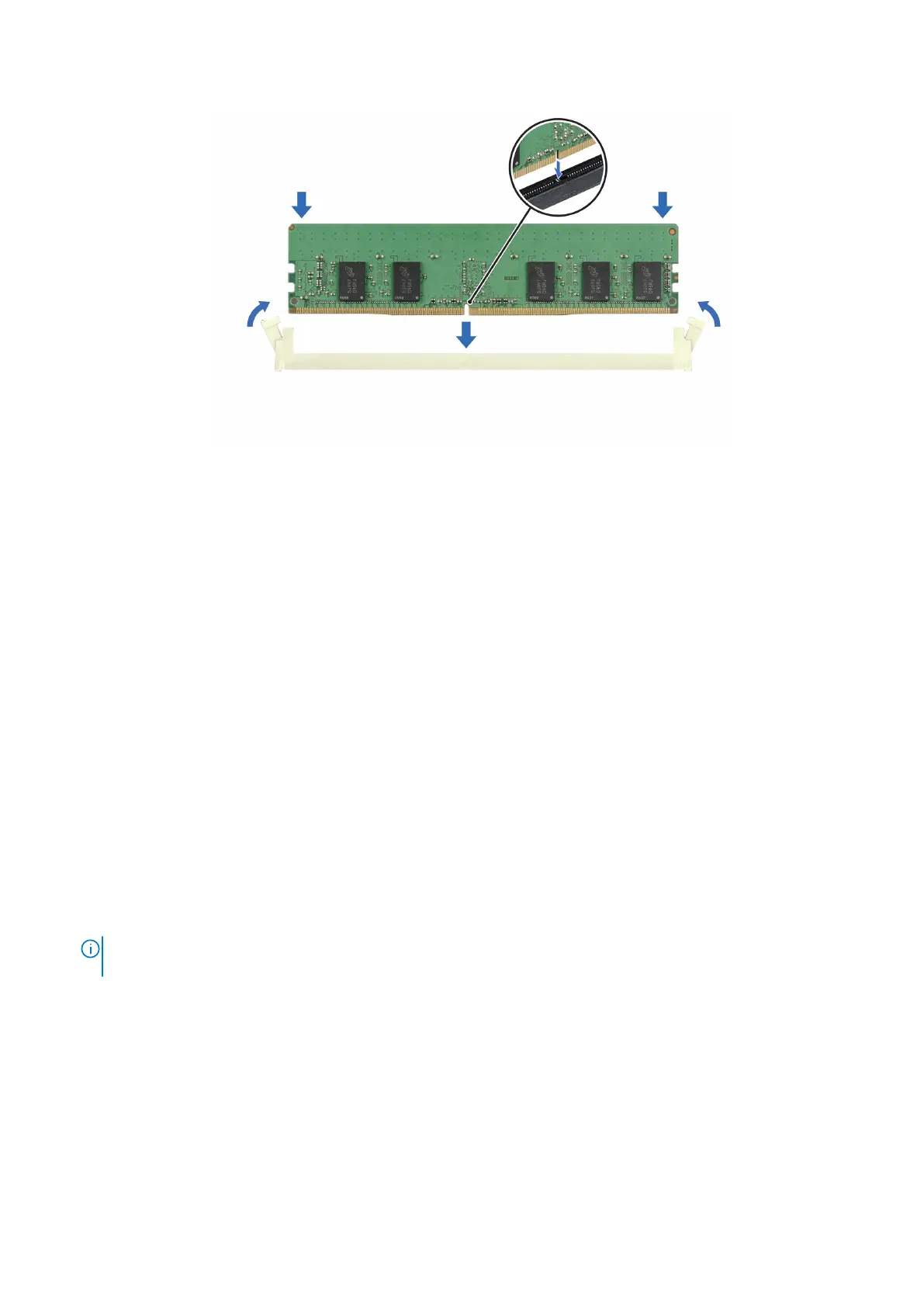
Figure 60. Installing a memory module
Next steps
1. Follow the procedure listed in After working inside your system.
2. To verify that the memory module has been installed properly, press F2 during reboot and navigate to System Setup Main
Menu > System BIOS > Memory Settings. In the Memory Settings screen, the System Memory Size must reflect the
updated capacity of the installed memory.
3. If the System Memory Size is incorrect, one or more of the memory modules may not be installed properly. Shut down the
system and ensure that the memory modules are firmly seated in the correct sockets.
4. Run the system memory test in system diagnostics.
Processor and heat sink module
This is a service technician replaceable part only.
Removing a processor and heat sink module
Prerequisites
1. Follow the safety guidelines listed in the Safety instructions.
2. Follow the procedure listed in the Before working inside your system .
3. Remove the air shroud.
NOTE:
The heat sink and processor are hot to touch for some time after the sled has been powered down. Allow the
heat sink and processor to cool down before handling them.
Steps
1. Ensure all four Anti-Tilt wires are in the locked position (outward position), and then using a Torx T30 screwdriver, loosen
the captive nuts on the heat sink in the order that is mentioned below:
a. Loosen the first nut three turns.
b. Loosen the screw diagonally opposite to the nut you loosened first.
c. Repeat the procedure for the remaining two nuts.
d. Return to the first nut to loosen it completely.
2. Set the Anti-Tilt wires to the unlocked position (inward position).
Installing and removing system components
91








 To Next Page