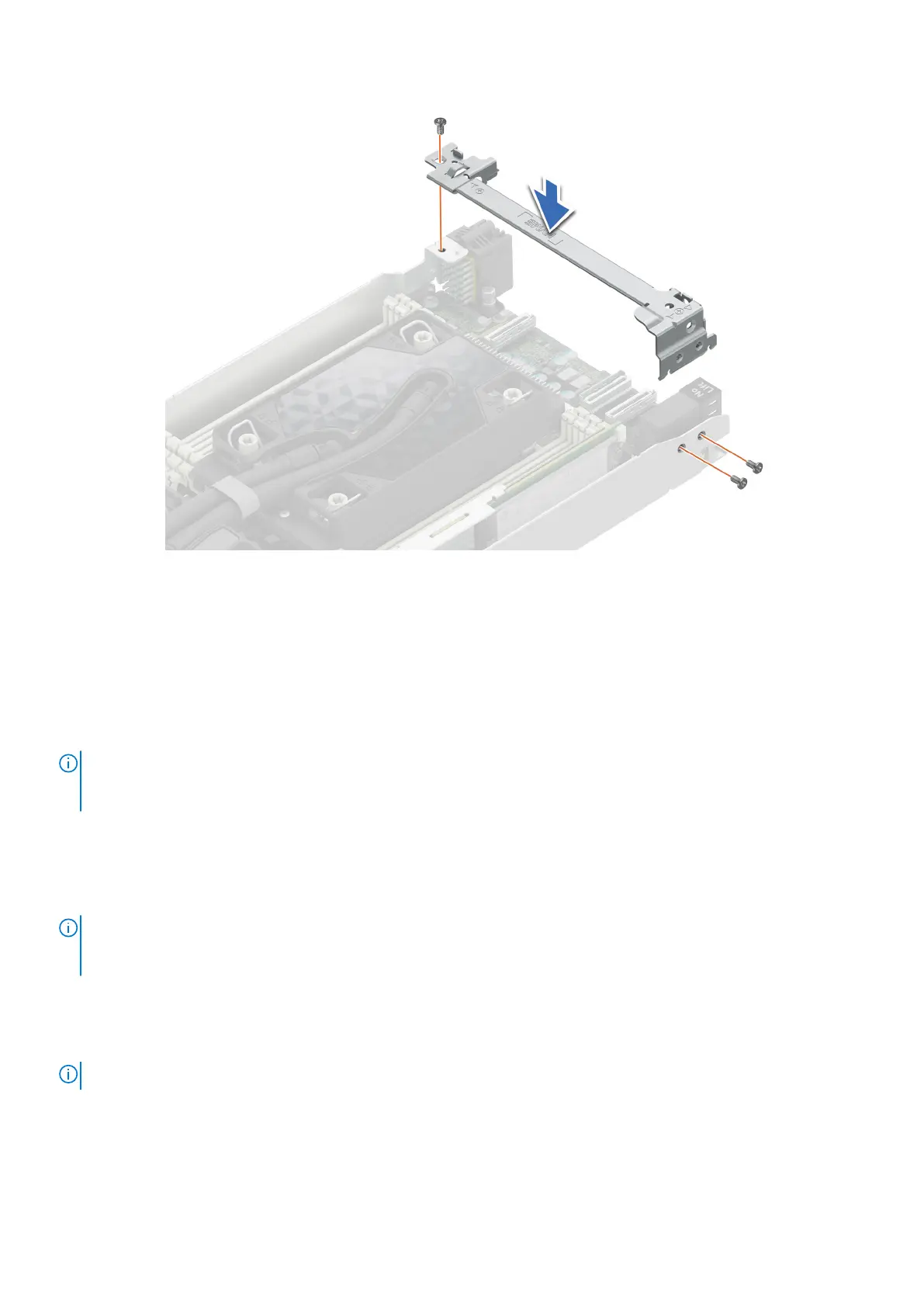
Figure 30. Installing the support bracket
Next steps
Follow the procedure listed in After working inside your system.
Expansion cards and expansion card risers
NOTE:
When an expansion card is not supported or missing, the iDRAC and Lifecycle Controller logs an event. This does
not prevent your system from booting. However, if a F1/F2 pause occurs with an error message, see Troubleshooting
expansion cards section in the PowerEdge Servers Troubleshooting Guide at www.dell.com/poweredgemanuals.
Removing the expansion card riser 1
Prerequisites
NOTE:
Install an expansion card filler bracket over an empty expansion slot to maintain Federal Communications
Commission (FCC) certification of the system. The brackets also keep dust and dirt out of the system and aid in proper
cooling and airflow inside the system.
1. Follow the safety guidelines listed in Safety instructions.
2. Follow the procedure listed in the Before working inside your system.
3. Remove the air shroud if applicable.
4. If applicable disconnect the cables.
NOTE: The procedure to remove a riser 1a or 1b is similar.
Steps
1. Using a Phillips 1 screwdriver, remove the screws that secure the expansion card riser 1.
2. Holding the handle, lift the expansion card riser from the riser connector on the system board.
Installing and removing system components
61




 To Next Page