3 • Display Device Screens | Dexcom G7 User Guide 37
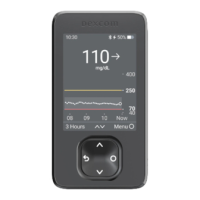
Receiver
On the home screen, use the up and down arrows to switch between the 1, 3, 6, 12,
and 24-hour views.
Tips from banners, tooltips, and icons
Banners, tooltips, and icons appear on your screen to help you use G7. They'll give you
helpful information, reminders, and even suggestions for next steps. See the following
examples.
App
Urgent Low 55 mg/dL
Urgent Low Soon On
GLUCOSE ALERTS
QUIET MODES
EDITVibrate on
Profile
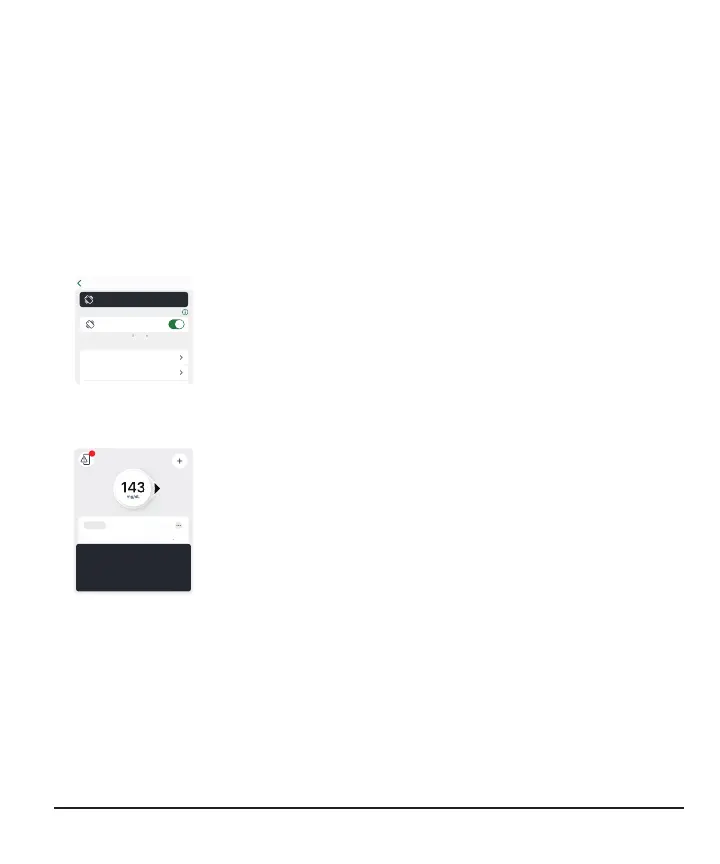
Black banner: Reminds you of your status without blocking
your screen. For example, it lets you know you're using Vibrate.
400
1
Phone Setting Conflict
I UNDERSTAND
Your phone settings are preventing your app
from working as designed. Tap the icon at
the top left corner to fix.
Phone Settings Conflict icon: The phone icon at the top left of
the screen appears after you get an alert about needing to
change your phone settings. Tap the icon for more information.
Black tooltip: Gives you instructions for how to take the next
step. For example, the first time you get the Phone Settings
Conflict icon, you also get an explanation of how to resolve it in
a black rectangle.



 To Next Page