3 • Display Device Screens | Dexcom G7 User Guide 25
3 • Display Device Screens
App
The app information is divided into tabs at the bottom of the screen: Glucose, History,
Connections, and Profile.
The tabs are divided into cards. The first card in the Glucose tab shows your current
glucose information. Scroll down to see additional cards.
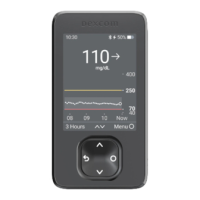
Receiver
You spend most of your time on the home screen. It shows you your sensor readings
and trend information and gets you to other functions, like summary reports.
Glucose information
App
The Glucose tab shows your current sensor reading and trend information. Tabs at the
bottom of the screen move you to other sections. Each section has multiple features.
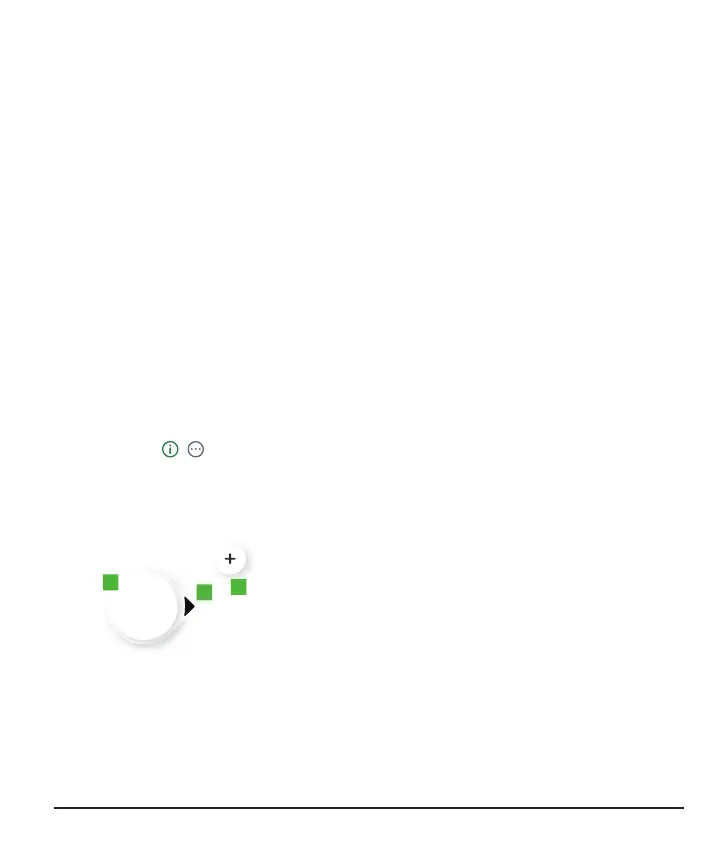
In the app, tap , , or More Information to find out more.
1.
Number: The most recent sensor reading.
2.
Trend arrow: Where glucose is heading based
on the last few readings.
3.
+: Shortcut to add event so you can quickly
track insulin doses, meals, exercise, and BG
meter values. If you choose to calibrate, you do
that here.



 To Next Page