For a list of system and technical alerts, go to the Glossary in the Safety Information
chapter. For more information on customizing all these alerts, go to the changing
alerts sections of the Alerts chapter. For more information on Vibrate in the app, go to
the Changing All Alerts section of the Alerts chapter. For more information on Vibrate
Only in the receiver, go to the Customizing Sounds section of the Alerts chapter.
Responding to app alerts
When you get an alert, your first priority is to resolve it: make a treatment decision or
fix a system issue.
Afterward, acknowledge the alert on your display device by tapping OK on the alert.
Until you acknowledge the alert, it re-alerts every 5minutes.
You can also acknowledge an alert from your Lock screen by following these
instructions:
iPhone
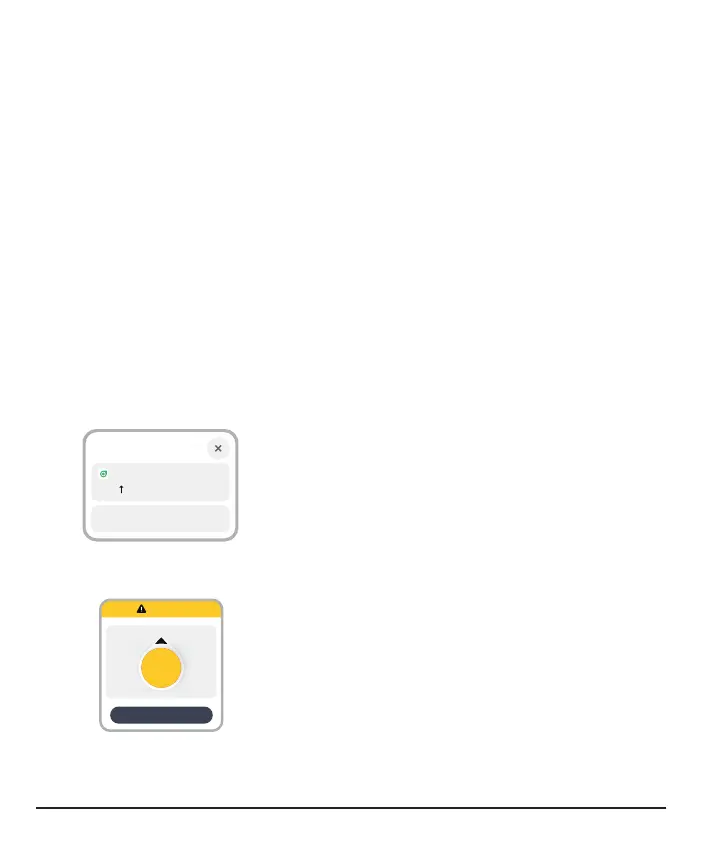
There are two ways to acknowledge alerts from your Lock screen:
223 High Glucose
OK
Dexcom G7
. . .
From the Lock screen, touch and hold the
notification until OK appears. Tap OK to
acknowledge the alert.
Or
Tap the Lock screen notification to open the app.
From the app, tap OK on the alert to acknowledge
it.
54



 To Next Page