Interfaces Local Area Networks (LANs)
IX10 User Guide
167
Local Web UI:
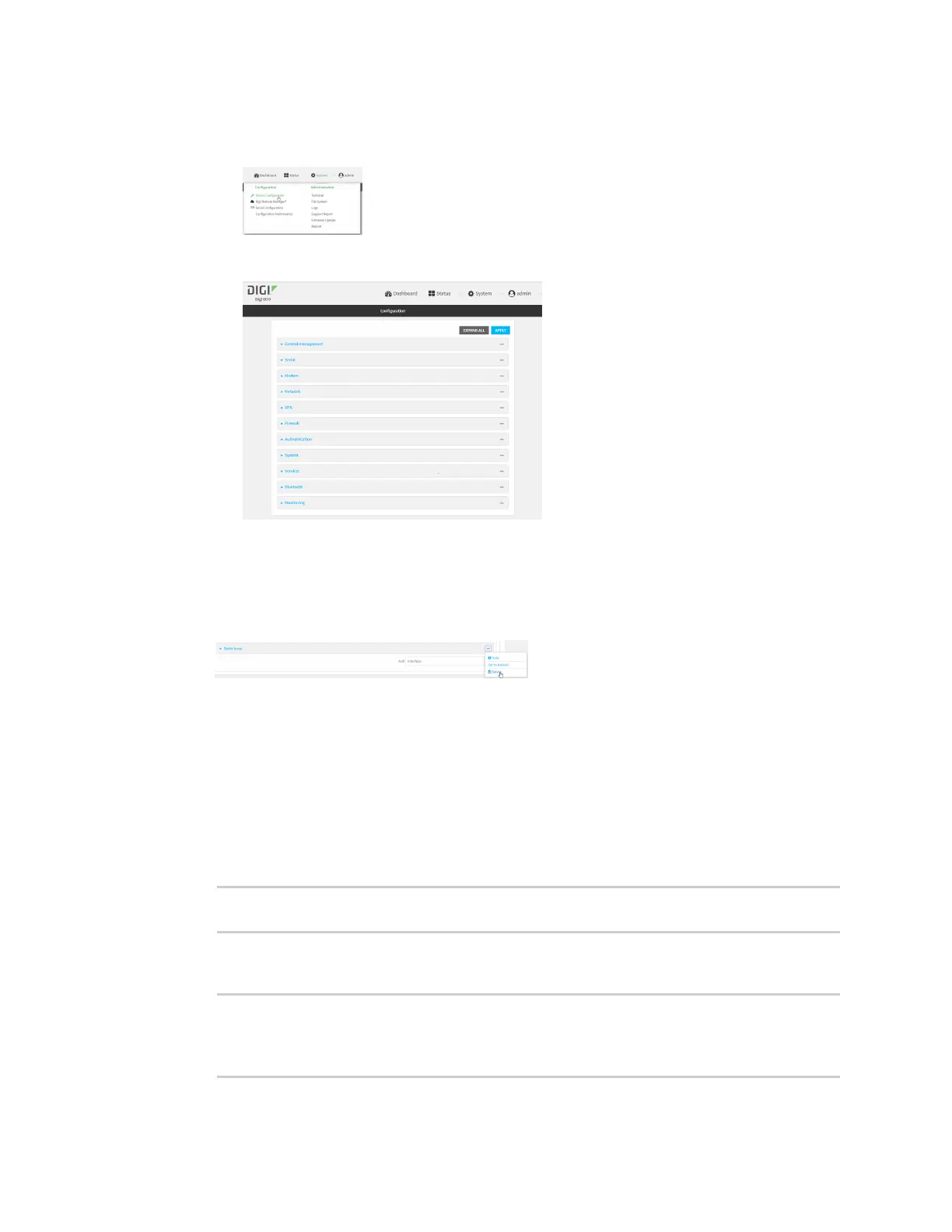
a. On the menu, click System. Under Configuration, click Device Configuration.
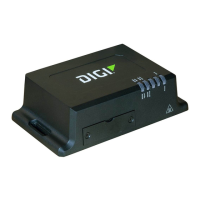
The Configuration window is displayed.
3. Click Network > Interfaces.
4. Click to expand an existing LAN.
5. Click to expand IPv4 > DHCP server > Advanced settings > Static leases.
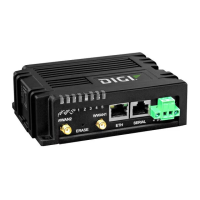
6. Click the menu icon (...) next to the name of the static lease to be deleted and select Delete.
7. Click Apply to save the configuration and apply the change.
Command line
1. Select the device in Remote Manager and click Actions > Open Console, or log into the IX10
local command line as a user with full Admin access rights.
Depending on your device configuration, you may be presented with an Access selection
menu. Type admin to access the Admin CLI.
2. At the command line, type config to enter configuration mode:
> config
(config)>
3. Show the static lease configuration. For example, to show the static leases for a lan named
my_lan:
(config)> show network interface my_lan ipv4 dhcp_server advanced static_
lease
0
ip 192.168.2.10


 To Next Page