40 REFERENCE & INSTALLATION MANUAL
13 SYSTEM SETTINGS & COMMANDS
13.1 HARDWARE RESET
Performing a hardware reset will set all programmable sections
from [001] to [718] to default values, including the Installer Code,
System Master Code and Event Buffer. Only the Panel ID and PC
Password will not be reset.
1) Make sure the Installer Code Lock is disabled (see section
13.4)
2) Remove the battery and AC power from the control panel.
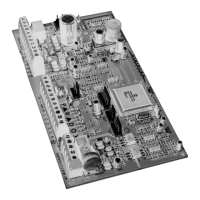
3) Set the RESET jumper to on by placing a jumper on the reset
pins of the control panel.
4) Re-connect the AC power and the battery to the control panel.
5) Wait 10 seconds and remove the jumper.
13.2 SOFTWARE RESET
Performing a software reset will set certain parameters to default
values or program certain sections with a set of pre-defined values.
To do so:
1) Make sure the RESET jumper on the control panel is on.
2) Enter Panel Programming Mode (see section 4.1).
3) Enter the 3-digit [SECTION] corresponding to the software reset
you wish to perform:
Section [970]
Entering this section will reset all programmable sections from
[001] to [896] to default values. Only the Event Buffer, Installer
Code, System Master Code, Panel ID and PC Password will not be
reset. All Access Control sections from [301] to [392] and [537]
can be reset to default only in this section.
Section [975]
Entering this section will reset all Zone and Keyswitch
programming sections from [001] to [156] to default values.
Section [976]
Entering this section will reset all programmable timers in sections
[200] to [274] to default values.
Section [977]
Entering this section will reset all PGM and option sections from
[400] to [522] to default values.
Section [978]
Entering this section will reset all communication sections from
[523] to [718] (except [537]) to default values.
Section [979]
Entering this section will reset all user code sections from [801] to
[896] to default values.
13.3 BATTERY CHARGE CURRENT
SECTION [503]: OPTION [6]
Option [6] ON = Battery Charge Current: 700mA (minimum 40VA
transformer)
Option [6] OFF = Battery Charge Current: 350mA
13.4 INSTALLER CODE LOCK
SECTION [990]
Enter 147 into section [990] to lock all programming. When 147 is
programmed in section [990], performing a hardware reset as
described in section 13.1 will not affect the current panel settings.
To remove the Installer Lock, enter 000 into section [990]. (Default:
Unlocked)
13.5 PARTITIONING
SECTION [500]: OPTIONS [1] TO [4]
The Digiplex Control Panel can provide your system with up to four
completely independent partitions. Most features and options in the
Digiplex System can be independently set for each partition such
as Event Reporting, Entry/Exit Delay, Bell Squawk, One-touch
Arming, Panic Alarms and many more. All zones, keyswitch zones,
user codes and system modules are assigned to specific partitions,
making this a true partitioned system. In section [500], enable the
option(s) that correspond to the desired partition(s). Where options
[1] to [4] represent partitions 1 through 4.
13.5.1 Panel Partition Assignment
SECTION [450]
The control panel will report system events as originating from the
partitions enabled in this section. The System Troubles (i.e. AC
Failure, TLM Failure, etc.) can only be viewed through the
partitions enabled in this section.
00 = All enabled partitions (see section [500])
01 = Control Panel installed in Partition 1
02 = Control Panel installed in Partition 2
03 = Control Panel installed in Partition 3
04 = Control Panel installed in Partition 4
13.6 INSTALLER FUNCTION KEYS
Press and hold the [0] key and key in the [INSTALLER CODE] to
access the following function keys.
[STAY]: TEST REPORT
Sends the Test Report report code programmed in section [717] to
the central station.
[FORCE]: CALL WINLOAD:
Will dial the PC telephone number programmed in section [560] to
communicate with a computer using WinLoad.
[ARM]: ANSWER WINLOAD:
Will force the control panel to answer a call made by the Central
Monitoring Station that is using WinLoad.
[DISARM]: CANCEL COMMUNICATION
Pressing this function key cancels all communication with the
Central Station or WinLoad until the next reportable event.
[MEM]: INSTALLER TEST MODE
The Installer Test Mode will allow you to perform walk tests where
the bell or siren will squawk to indicate opened zones. Press [MEM]


 To Next Page