16
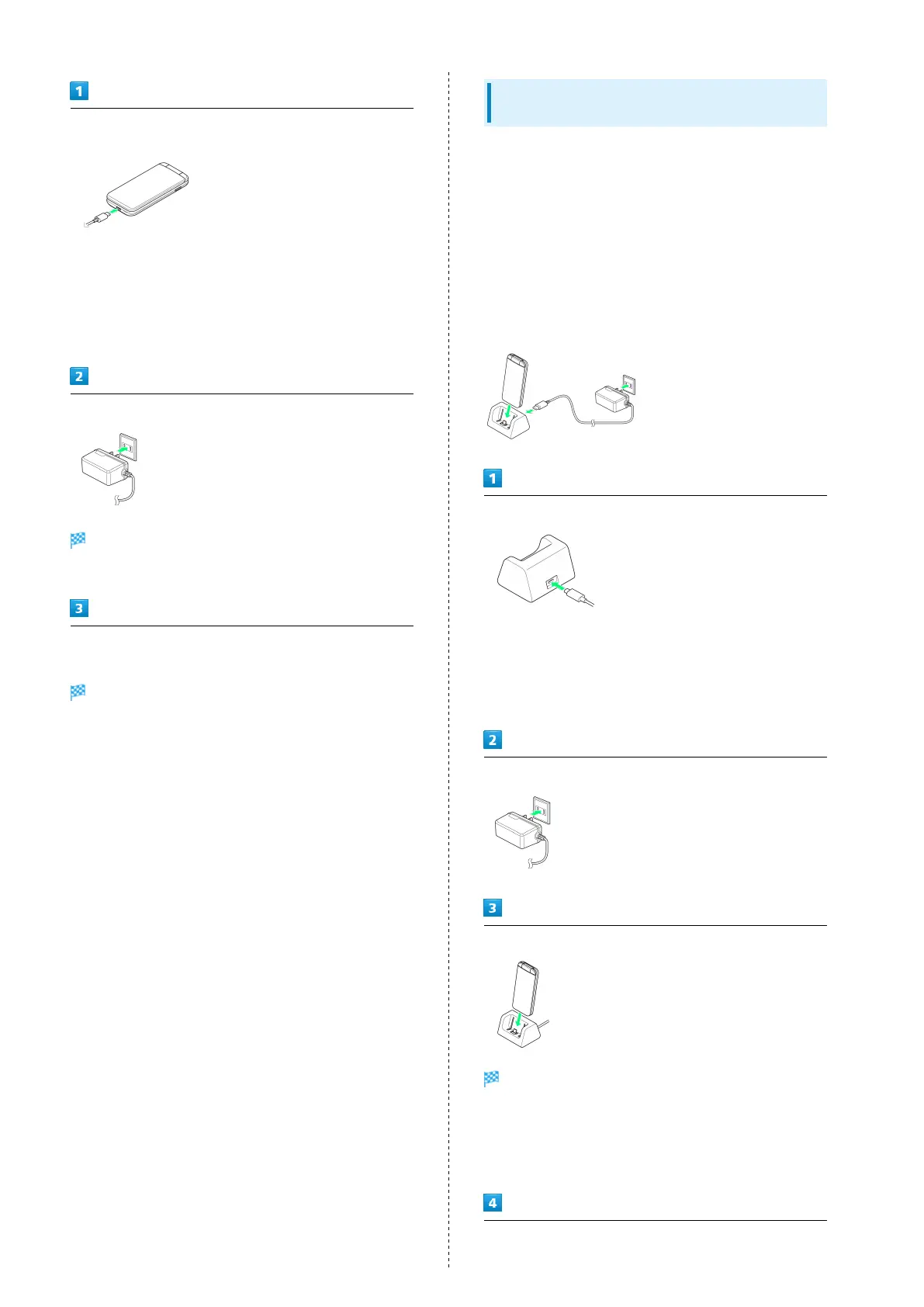
Insert USB Type-C plug of AC Charger into External Device
Port
・External Device Port is only for USB Type-C. Connecting
a micro USB (Type-B) cable forcibly may cause damage or
malfunction.
・When Inserting USB Type-C plug, check for deformation or
damage and insert the plug into External Device Port.
・USB Type-C plug supports insert on both orientation.
Insert plug on AC Charger into AC outlet
Charging starts, and Incoming/Charging LED lights.
・Incoming/Charging LED goes out once charging completes.
After charging, remove USB Type-C plug from External Device
Port, then unplug AC Charger
Charging completes.
Charging with Desktop Holder (Sold
Separately)
Desktop Holder is an optional accessory. Use SoftBank-
specified Desktop Holder.
For details on Desktop Holder, AC Chargers and other
peripheral equipment, see SoftBank Website.
This section describes charging method using AC Charger
[KYCAV1] and Desktop Holder [KYEAY1] (sold separately).
・Refer to User Guide for Desktop Holder.
・Never connect USB Type-C plug while Desktop Holder or AC
Charger is wet.
・Do not place handset in Desktop Holder if wet.
Insert USB Type-C plug of AC Charger in Desktop Holder
・Device Port is only for USB Type-C. Connecting a micro USB
(Type-B) cable forcibly may cause damage or malfunction.
・When Inserting USB Type-C plug, check for deformation or
damage and insert the plug into Device Port.
・USB Type-C plug supports insert on both orientation.
Insert plug on AC Charger into AC outlet
Place handset in Desktop Holder with handset closed
Charging starts, and Incoming/Charging LED lights.
・Place handset in direction shown. Check for orientation of
handset and Desktop Holder and insert handset straight into
External Device Port securely.
・Incoming/Charging LED goes out once charging completes.
After charging, remove handset from Desktop Holder, then
unplug AC Charger


 To Next Page