31
Basic Operations
DIGNOケータイ3
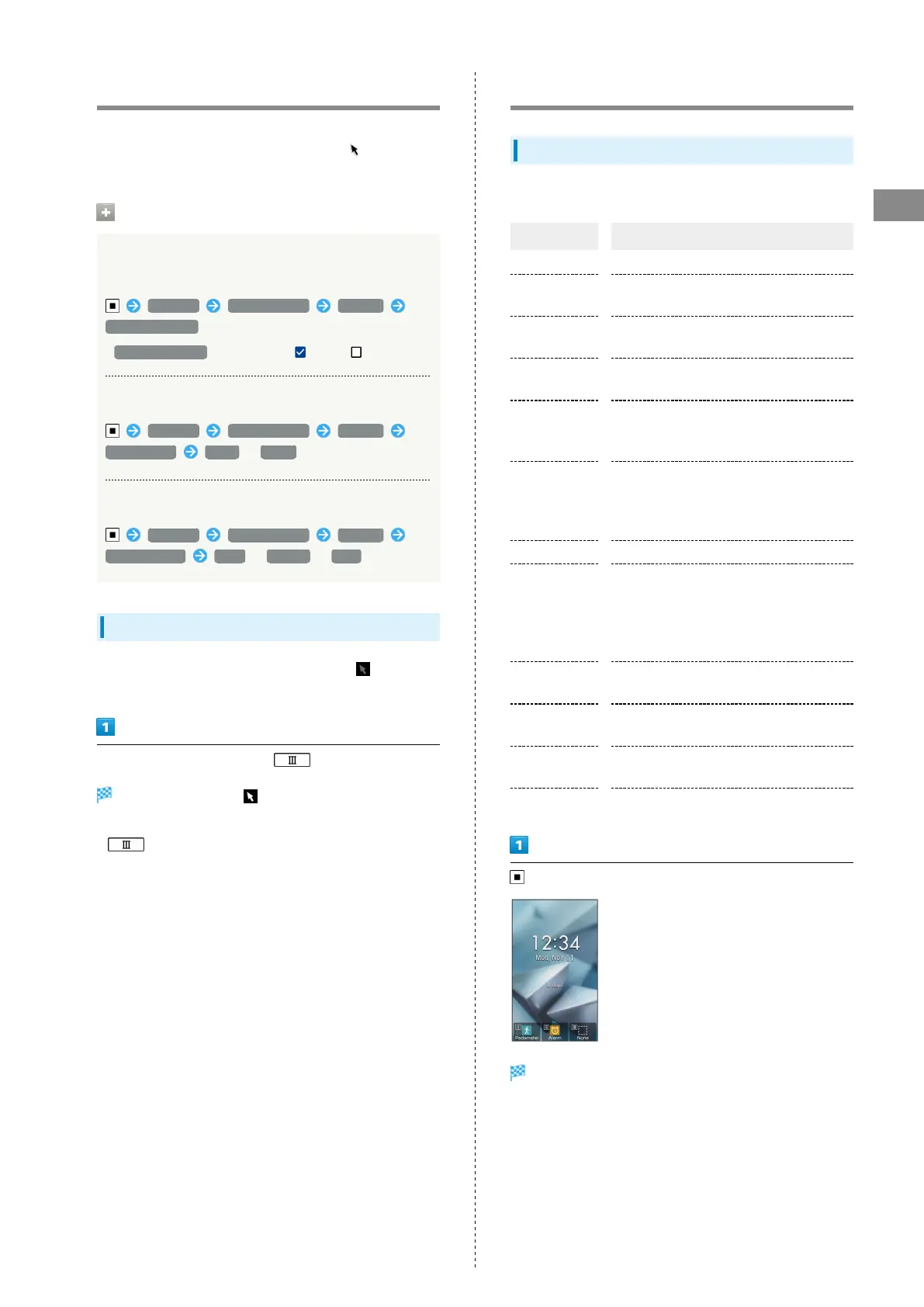
How to Use Pointer
Turn Pointer on in a Pointer-capable application such as
Browser and OfficeSuite to use the onscreen (pointer)
with Multi Selector.
Pointer Operations
Setting a description to appear when Pointer
turned on
Settings More settings Pointer
Startup confirm
・
Startup confirm to toggle on ( )/off ( ).
Changing Pointer size
Settings More settings Pointer
Pointer size Small / Large
Changing Pointer speed
Settings More settings Pointer
Pointer speed Slow / Normal / Fast
Enabling Pointer
When Pointer-capable application is activated, appears in
Status Bar.
In Pointer-capable application, (Long Press)
Pointer turns on, and appears.
・Pointer does not turn on in non-capable applications.
・
(Long Press) again to turn Pointer off.
Main Menu
Using Main Menu
Use the following applications and services.
Item Description
Mail Exchange S! Mail, SMS, and PC Mail.
Browser
Access the Internet. Browser is a Pointer-
capable application.
Calendar
Check the calendar or manage your
schedule.
Alarm
Use Alarm, Countdown Timer, or
Stopwatch.
Camera
Capture or edit photos and videos.
For details, see "Capturing Photos &
Recording Videos."
Calculator
Four basic operations of arithmetic
(addition, subtraction, multiplication, and
division) and percentage calculation are
available.
Tool Notepad, Pedometer, etc.
Data
Check photos, videos, music, and other
files saved to handset/SD Card from Data
Folder.
For details, see "Handling Data (Data
Folder)."
Service
Access あんしんバックアップ (Anshin
Backup), Urgent News, and other services.
TV
View terrestrial digital TV for mobiles.
For details, see "One Seg Service."
Phone
Use Phone Book, Auto answering, Speed
dial, and other phone functions.
Settings Customize or check handset settings.
Main Menu opens.


 To Next Page