EasyManua.ls Logo

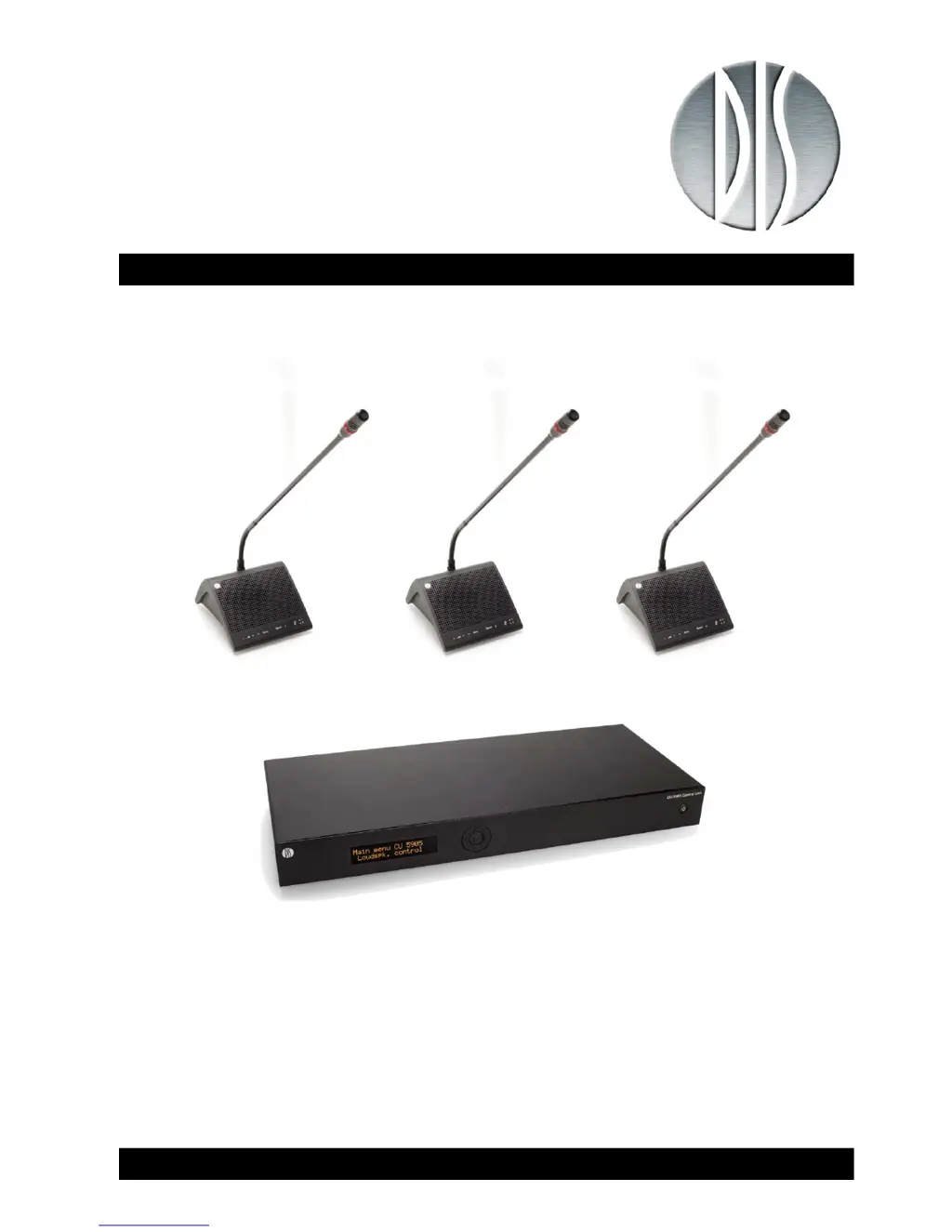
DIS DDS 5900 - User Manual

DIS DDS 5900
54 pages
Print Icon
To Next Page IconTo Next Page
Loading...
DDS 5900
User Manual
Danish Interpretation Systems DIS
Digital Discussion System
DDS5900 DigitalDiscussionSystem

Table of Contents

Questions and Answers

  • A
    Anne AlexanderAug 12, 2025
    Why is there no sound in the built-in loudspeakers of the DIS DDS 5900 Conference System?
    • A
      Andrea BrooksAug 12, 2025
      If there is no sound in the built-in loudspeakers, verify the ‘Loudspeaker Volume’ setting using the interactive menu on the CU or the browser control. Also, using the browser control, check that the setting ‘CU 5905 Setup * Audio * Loudspeaker Control * Microphone ?> Loudspeaker’ is set to ‘On’. Finally, check in ‘CU 5905 * Audio * Audio Output * Group Setup‘ that the seats are selected in ‘Group A’, as this group is used as the source for the built-in loudspeakers. If a unit is not selected in ‘Group A’ the sound from this unit will not be heard in the built-in loudspeakers.
  • J
    janethernandezAug 15, 2025
    How to fix CU 5905 browser application not opening in a PC or iPad?
    • M
      Mrs. Kimberly GomezAug 15, 2025
      If the CU 5905 browser application does not open, verify the IP address using the interactive menu on the CU: ‘LAN setup/IP address setup/IP address’ and use this IP address in the browser. Ensure that the CU 5905 is connected to the same network as the PC and check the LAN cables.
  • J
    Joseph UnderwoodAug 20, 2025
    How to fix CU 5905 browser application not opening in iPad?
    • O
      Olivia HarrisonAug 20, 2025
      If the CU 5905 browser application does not open on your iPad, check the IP address using the interactive menu on the CU: ‘LAN setup * IP address setup * IP address’ and use this IP address in the browser. Verify that the iPad is connected to the correct wireless access point and that the CU 5905 is connected to the same network as the wireless access point.
  • S
    samantha06Aug 23, 2025
    What to do if the light rings in the microphone of the DIS Conference System units are constantly flashing?
    • J
      Jessica MataAug 23, 2025
      If the light rings in the microphone are constantly flashing, check the cables to ensure the digital communication from the central unit to the conference units is established. Also, check that all the connectors on all cables are firmly inserted in the socket on the units and that the feeding cables from the conference units are inserted in the ‘DCS?LAN’ socket on the CU 5905.
  • L
    Laura TannerAug 27, 2025
    Why is there no sound in the built-in loudspeakers from delegate or chairman units in DIS DDS 5900 Conference System?
    • J
      James DayAug 27, 2025
      If there is no sound in the built-in loudspeakers from one or more delegate or chairman units, check using the browser control in ‘CU 5905 * Audio * Audio Output * Group Setup‘ that this seat is selected in ‘Group A’. ‘Group A’ is always used as the source for the built-in loudspeakers. If a unit is not selected in ‘Group A’ the sound from this unit will not be heard in the built-in loudspeakers.
  • D
    David BarnesAug 30, 2025
    What to do if the 'Dell Off' button in the chairman unit does not switch off delegate units in the DIS DDS 5900 Conference System?
    • M
      Mary EdwardsAug 31, 2025
      If the ‘Dell Off’ button in the chairman unit does not switch off delegate units, check if the unit is configured as a chairman unit and verify if the other units are configured as chairman or interpreter unit.
  • E
    ehansenSep 3, 2025
    Why can't I turn on a microphone on the DIS Conference System?
    • K
      kraySep 3, 2025
      If a microphone cannot be turned ‘On’, check the settings ‘Max Delegate Speaker’ and ‘Max Total Speakers’.
  • D
    Dawn SanchezSep 7, 2025
    How to troubleshoot if the sound from an interpreter unit cannot be heard in the headphone in delegate or chairman units of the DIS Conference System?
    • J
      Jonathon GraySep 7, 2025
      If the sound from an interpreter unit cannot be heard in the headphone, check if the unit is configured as an interpreter unit. Also, check the headphone volume control on the units, the channel selection on the conference units, and ensure the plug from the headphone is firmly inserted in the headphone socket. Finally, verify that the light ring on the microphone on the interpreter unit is lighting and that the gooseneck microphone is firmly inserted in the microphone socket.

Summary

Important Safeguards and Compliance

Important Safeguards

All safety and operating instructions should be read before the apparatus or system is operated.

Compliance and Power Connections

Details on safety labels, power connection, power disconnect, and regulatory compliance.

DDS 5900 System Components and Features

System Overview and Components

Overview of the DDS 5900 system, its central unit, conference units, and microphones.

System Technology and Cabling

Details on digital sound transmission, features, and cabling specifications for the DDS 5900 system.

Getting Started with DDS 5900

Initial System Setup

Step-by-step guide for setting up the DDS 5900 system for the first time, including connections.

Connecting PCs and Cabling Guidelines

Instructions for connecting a PC and guidelines for using Cat5e cables for system connectivity.

CU 5905 Central Unit: Overview, Installation, and Connections

CU 5905 Central Unit Overview and Installation

Details on the CU 5905's functionality, features, physical interface, and installation.

System Connections

Various system connection examples for DC 5980P units, PCs, iPads, audio recorders, mixers, and interpretation units.

CU 5905 Configuration and Operation

Interactive Menu and Web Browser Setup

Using the CU 5905's interactive menu and web browser for setup, configuration, and operation.

Operation Modes and Microphone Control

Managing microphones, operation modes, and delegate interrupt settings via the web browser.

DC 5980 P Conference Unit Preparation and Configuration

DC 5980 P Conference Unit Overview and Preparation

Overview of the DC 5980P unit features and steps for preparing it for use.

Unit Configuration and Types

Guide to attaching overlays, configuring unit types (Delegate, Chairman, Interpreter), and unit-specific functions.

Gooseneck Microphones

GM 59 xx Gooseneck Microphones

Description of the GM 59xx gooseneck microphones, including lengths, features, and connection.

Microphone Features and Connection

Details on the microphone's red light ring, insertion, and locking mechanism.

Troubleshooting Common Issues

Troubleshooting Guide

A fault-finding guide for common installation and operational problems with the DDS 5900 system.

Specific Troubleshooting Scenarios

Addresses issues like flashing light rings, delegate unit control, audio in headphones, and microphone activation.

Technical Specifications

System and CU 5905 Specifications

Technical details on overall system characteristics and specifications for the CU 5905 Central Unit.

DC 5980 P and Microphone Specifications

Specifications for the DC 5980P Conference Unit and GM 59xx Gooseneck Microphones.

Connection Details and Accessories

Connection Details

Wiring specifications for mains, DCS-LAN, XLR, and emergency switch connections.

Accessories and Cable Clamps

List of available accessories, including gooseneck microphones, headphones, expansion units, and overlays.

External Control Protocol

External Control Protocol Overview

Introduction to the TCP/IP raw socket protocol for controlling and monitoring the DDS 5900 system.

TCP;IP Socket Connection Setup

Establishing a TCP/IP socket connection to the CU 5905, including IP address and port number.

Command Structures and Microphone Control

Command Structure for External Control

Defines the command line structure for controlling the CU 5905 and receiving responses from the CU.

Microphone Control Commands

Commands for turning microphones on/off, managing request lists, and setting speaker limits.

System Status and Audio Control

Microphone Status and Seat Information

Commands for setting operation modes, interrupt modes, and retrieving microphone status and seat information.

Audio Control Commands

Commands for setting loudspeaker volume, line input levels, and defining audio paths.

DIS DDS 5900 Specifications

General IconGeneral
BrandDIS
ModelDDS 5900
CategoryConference System
LanguageEnglish

Related product manuals