Danish Interpretation Systems User Manual
# Screen Description
16.
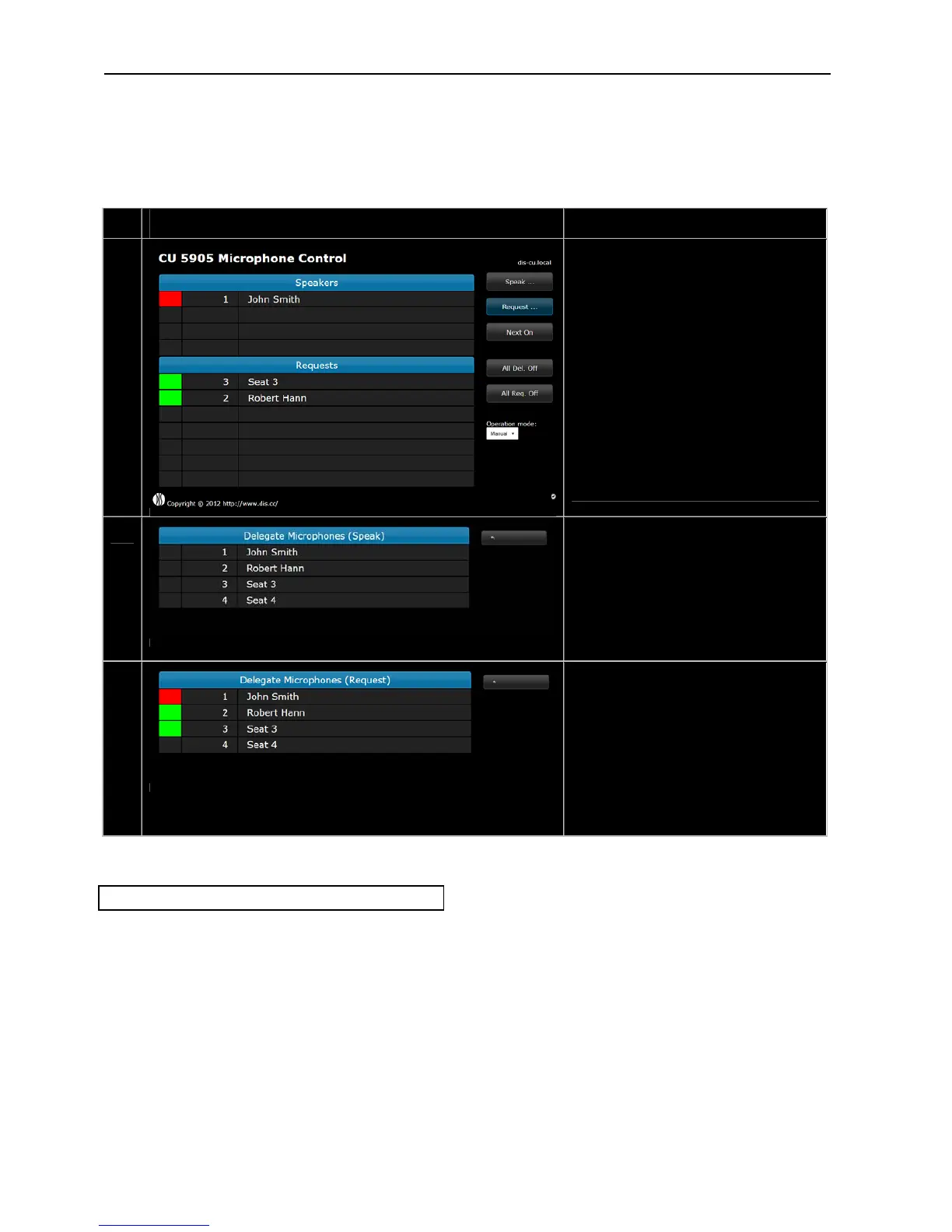
Speakers–
Shows the list of active speakers. The
numberoflistlinesaredefinedbythe
settingin‘Max.TotalSpeakers’.
Anspeakersisturnedoffbyclickingthe
speakername.
Requests–
Shows the list of delegates requesting to
speak.Thenumberoflistlinesaredefined
bythesettingin‘MaximumRequests’.
Andelegateisturnedonbyclickingthe
speakername.
17.
DelegateMicrophones(Speak)–
Showsthelistofseatswithdelegatesand
chairmen.Clickinganamewillturnonthe
m crophone.i
If a unit is disconnected the seat will be
greyedoutandcannotbeactivated.
18.
DelegateMicrophones(Requests)–
Showsthelistofseatswithdelegatesand
chairmen. Clicking a delegate name will
place the delegate in the request queue. A
Chairmanwillnotbeplacedintherequest
queue.
If a unit is disconnected the seat will be
greyedoutandcannotbeactivated.
Figure 5.6-D CU 5905 Microphone Control
5.6.3 Using Web browser in PC
Openingthe‘CU5905Setup’inonewindowandthe
‘CU5905MicrophoneControl’inanotherwindowor
tabmakesiteasytoswitchbetweenthetwoscreens.
User Manual DDS 5900
32


 To Next Page