Danish Interpretation Systems User Manual
10 External Control Application Protocol
TheDDS5900DigitalConferenceSystemfeaturesan
Ethernetconnectionwiththepurposeofprovidingan
interface for controlling and monitoring of the
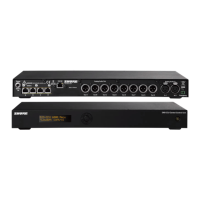
system.Bysettingupasimple(raw)TCP/IPsocket
connection to the CU 5905 Central Unit control
optionsareavailable.
This document describes the TCP/IP raw socket
protocol for communicating with the DDS 5900
Microphone System. This protocol provides a short
set of commands, enabling a third part control
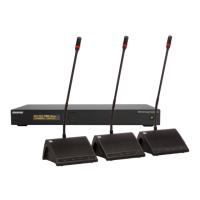
applicationto monitor and/or control system status
ofaDDS5900MicrophoneSystem.
Someexamplesoffunctionallyavailableusingthe
protocol:
• Settingamicrophoneinspeakorinrequest
• Retrieving a list of seats available in the
system.
Thisinterfacesupportsapplications developed by
customers,sotheprotocolisdeliberatelykeptsimple
toavoidcomplexity.Theexternalcontrolapplication
protocoloffersameanforsupplementingthecontrol
functionality available through the DDS 5900 Web
interface and the CU 5905 display, however some
commandsandsettingsavailableinthewebinterface
and on the CU 5905 interactive display are not
available using the ‘External Control Application
Protocol’
Customerapplicationscanincludebutarenotlimited
toAMX®orCrestron®roomcontrolsystems,PCor
micro controller based applications e.g. for button
mimicsandcameracontrolapplications.
10.1 General Protocol behaviour
10.1.1 TCP/IP socket connection
A TCP/IP socket connection to the CU 5905 must be established for the external control application protocol to
becomeavailable.ConfigurationoftheCU5905connectiontotheEthernetmustbedefinedfromtheCUinteractive
frontplatecontrol/WEBinterface,andanIPaddressfortheCU5905mustbeassignedinthenetwork.
ChooseeitherastaticIPaddressoranIPaddressassignedthroughDHCP.Itisconvenienttoensure,thattheCU
5905endsupwiththesameIPaddressateachstartup.
KnowingtheIPaddress,theonlyadditionalinformationrequiredfor setting upa TCP/IPconnection is thePort
Number:
PortNumber=3142
Example:TestconnectiontoCUviaPutty:
IftheCU5905isassignedIPaddress192.168.1.100,theexternalapplicationmustconnecttheTCP/IPsockettothe
address192.168.1.100:3142.
Kno ng aconnectioncanbesetupusingasimpleterminalprogramlikePutty®.wi theIPaddressoftheCU5905
1. Downloadat www.putty.org
2. StartPutty.
3. InsertIPaddressandPortNumber.
4. Select‘Raw’fortheConnectionType.
5. Press‘Open’toestablishconnectiontotheCU.Controlisnowpossible.
User Manual DDS 5900
45


 To Next Page