Drobo 5D3 User Guide 35
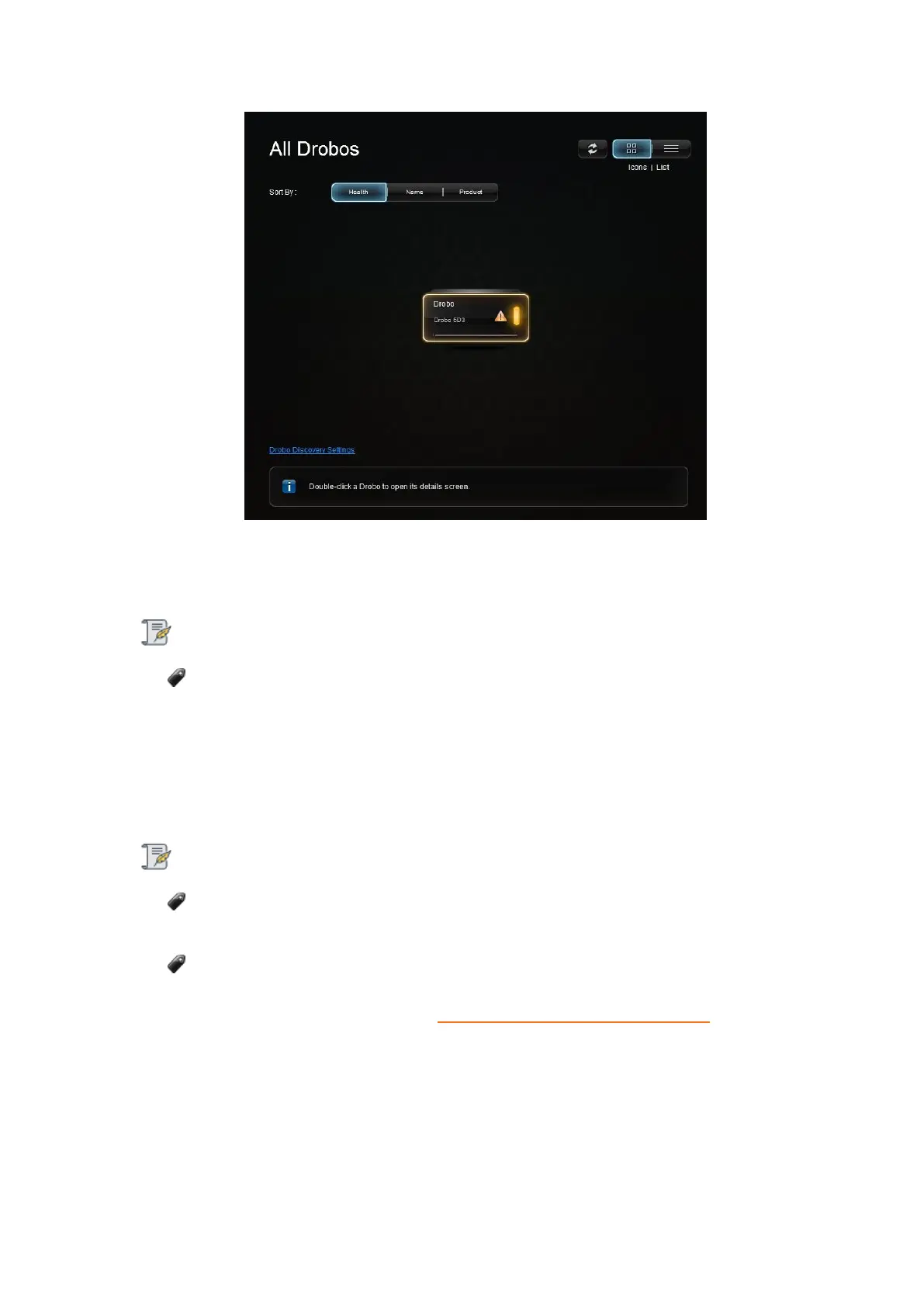
6. Your Drobo should begin updating to the latest firmware. Please allow Drobo up to
20 minutes for the total initialization process.
Note:
Leave the Dashboard idle while the initialization process is going on.
7. Here is what you will see happen:
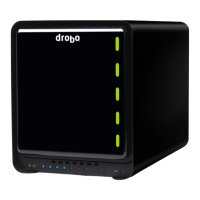
During initialization, all of the drive slot LEDs will be yellow and the capacity LEDs will
blink blue. When initialization is complete, your Drobo 5D3 will restart to finish the
firmware upgrade process.
Important Notes:
If the Drobo Dashboard does not detect your Drobo 5D3 and initialization does
not begin, please disable any firewall and antivirus programs.
If the Drobo Dashboard will still not detect your Drobo 5D3 and the lights remain
solid red, please call our support line for assistance or open a ticket on your support
account. For more info, please see: How do I contact technical support?
8. The device temporarily disappears from the Dashboard while it is rebooting. Once
the initialization process is completed, the Drobo device icon will appear green and the
drive bay lights will also turn green. After the device reboots, click on the green Drobo


 To Next Page