Adding Design Objects
Text Object Properties
Color settings
Text color - Select a color for your text.
Background color - Select a background color for the object.
Function as
variable object
Select this check box to have the object accept variable text.
Clear this check box to use fixed text in the object.
Vertical text Place the text vertically within the object.
Mirror Add a mirror image of the text on your label.
Text scaling
None - Do not resize the text to fit the object.
Shrink To Fit - Shrink the text to fit within the object.
Auto Fit - Shrink or enlarge the text to fit the object.
Horizontal
alignment
Left - Left align the text within the object.
Center - Center the text within the object.
Right - Right align the text within the object.
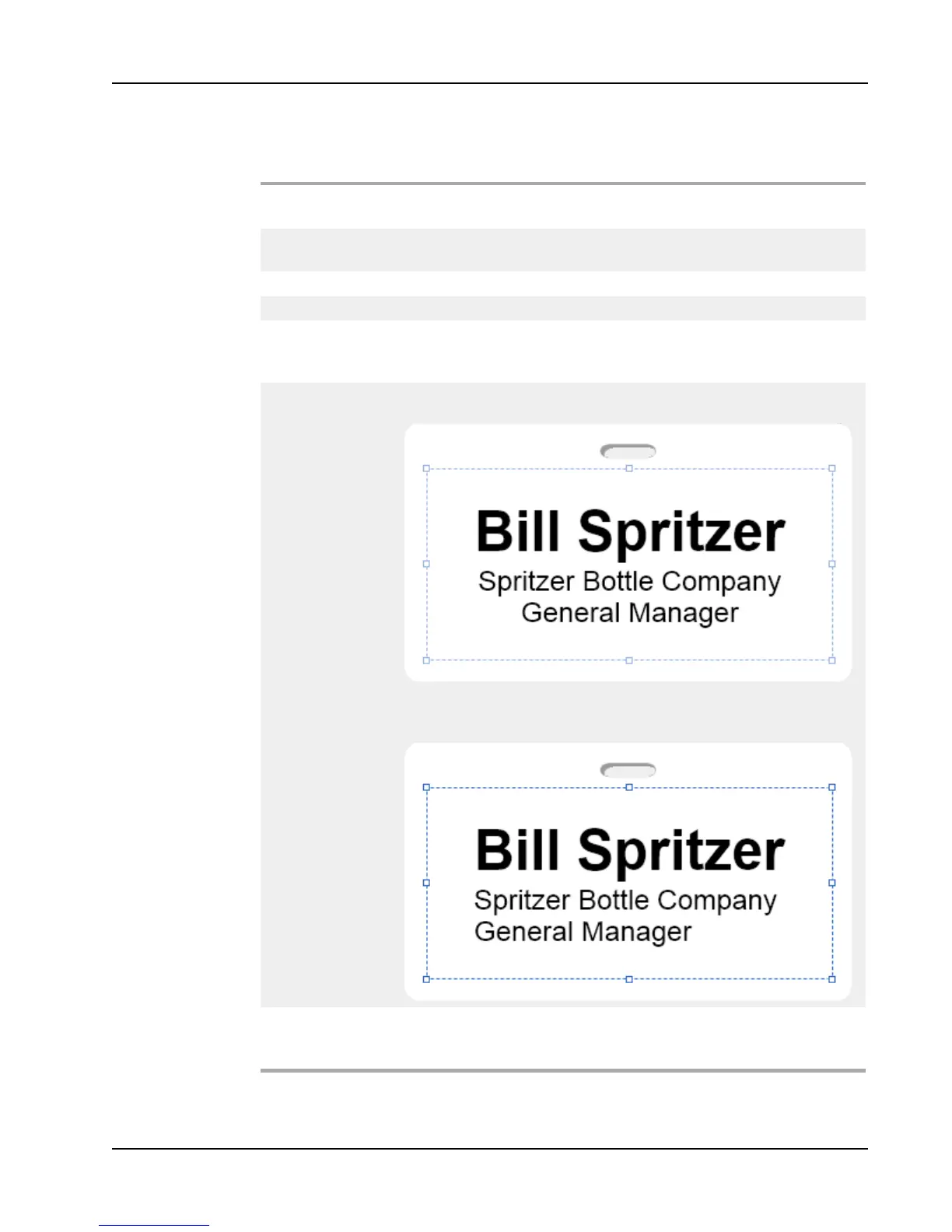
Center block - Center the text block within the object. The left edge
of each line of text is aligned.
Vertical
alignment
Top - Align the text at the top of the object.
Middle - Center the text vertically within the object.
Bottom - Align the text at the bottom of the object.
49



 To Next Page