8.1 CREATING LIMITS FOR INDIVIDUAL READINGS
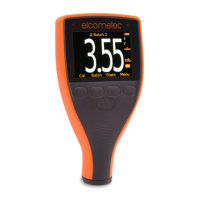
1 Press Menu/Limit Memories/Create Limit Memory/Set Upper
Limit (or ‘Set Lower Limit’).
2 Use the softkeys to set the required value and press ‘Set’.
3 If required, repeat Step 2 for ‘Set Lower Limit’ (or ‘Set Upper
Limit’) and ‘Set NDFT’.
4 When all values have been set, use the softkeys to highlight
‘Save Limit Memory n’ and press ‘Select’ to save.
8.2 CREATING LIMITS FOR A NEW BATCH
1 Press Batch/New Batch/Batch Limits/Create Limit Memory/
Set Upper Limit (or ‘Set Lower Limit’).
2 Use the softkeys to set the required value and press ‘Set’.
3 If required, repeat Step 2 for ‘Set Lower Limit’ (or ‘Set Upper
Limit’) and ‘Set NDFT’.
4 When all values have been set, use the softkeys to
highlight ‘Save Limit Memory n’ and press ‘Select’ to save.
Batch limits can be viewed at any time via Batch/Review Batch/Batch
Information.
8.3 SELECTING SAVED LIMITS
1 Press Menu/Limit Memories/Select Limit Memory or when in
Batching, press Batch/New Batch/Batch Limits/Select Limit
Memory.
2 Use the softkeys to highlight the limit memory required and
press ‘Select’.
When a limit memory is in use, is displayed to the right of the
measurement screen, where n = the limit memory index number.
8.4 RENAMING LIMITS
1 Press Menu/Limit Memories/Edit Limit Memory/Rename Limit
Memory.
2 Use the softkeys to highlight the limit memory to be renamed
and press ‘Select’.
3 Use the softkeys to rename the limit memory.
4 Select ‘Ok’ to save the changes or ‘Escape’ to exit and disregard
any amendments made.
8 SETTING LIMITS - MODEL T (continued)
www.elcometer.com
en-14
R


 To Next Page
 Loading...