43
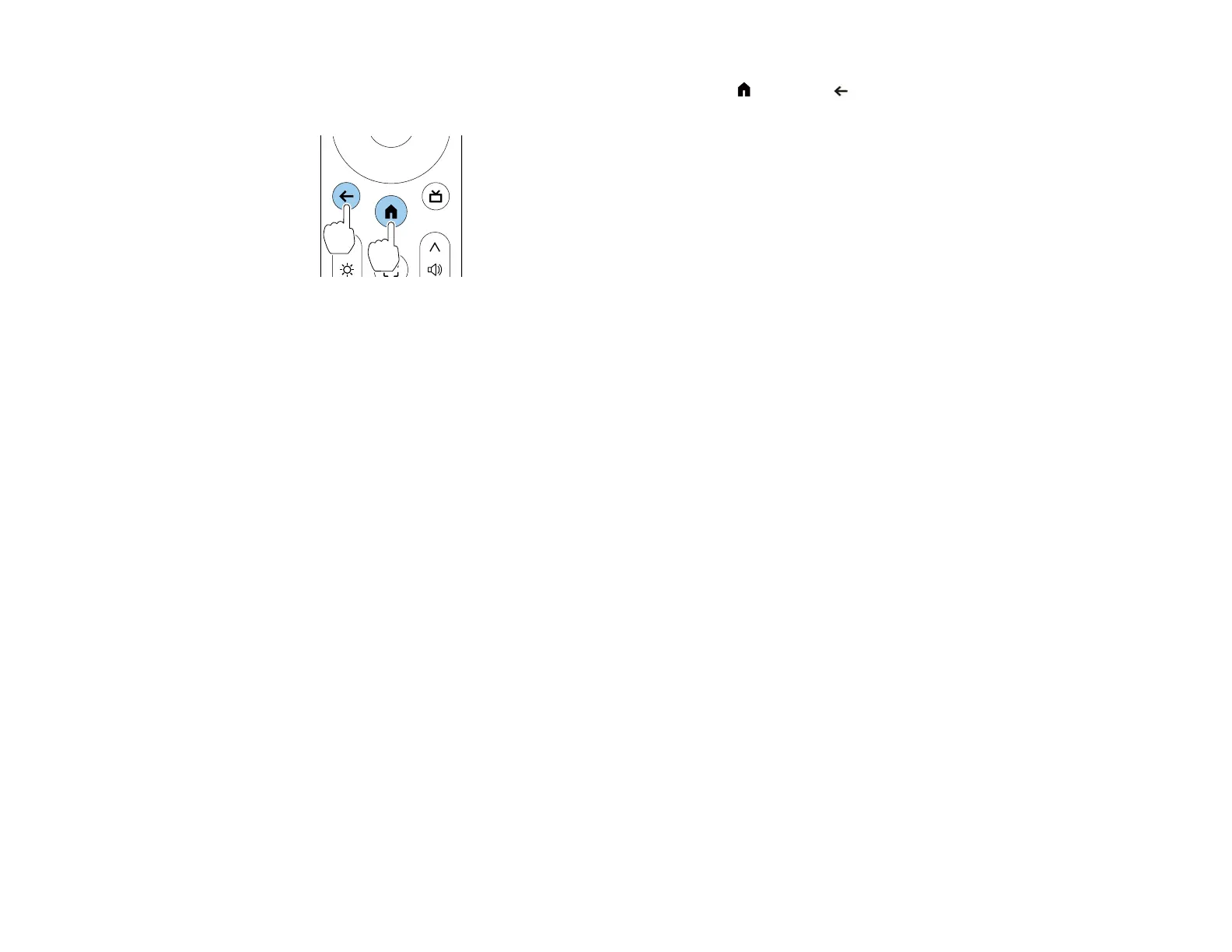
2. When the pairing screen is displayed, press and hold the home and esc remote control buttons
at the same time for approximately three seconds.
The light on the remote control flashes until pairing is complete.
3. When the language selection screen is displayed, select the language you want to use, and then
follow the on-screen instructions to select your country or region.
4. When the Google TV setting screen is displayed, follow the on-screen instructions to make the initial
settings for Google TV.
Note: We recommend logging in with your Google Account to make more detailed settings.
5. When the Wi-Fi setting screen is displayed, select the wireless network you want to use and then
follow the on-screen instructions to make any necessary settings.
• An internet connection is required to view online content. Make sure you can use the Wi-Fi
service.
• The customer is responsible for any communication charges incurred when downloading the app
or watching online content.
6. Follow the on-screen instructions to proceed with initial setup, selecting settings as desired.
7. When you agree to the EPSON license terms, the initial setup wizard closes.
The Home screen is displayed when initial setup is completed.
Note: For Google TV support, visit https://support.google.com/googletv/.
The Google TV Home Screen
Parent topic: Setting Up the Projector



 To Next Page